How to Sync Calendars: A Guide for All Platforms
Learn how to sync calendars across Google, Apple/iCloud, and Outlook. Our guide covers one-way vs. two-way sync, troubleshooting, and best practices.
Your calendars are probably already “connected” in some way. That doesn't mean they're working.
A typical mess looks like this: your work meeting shows up in Outlook but not on your phone, your personal appointment appears twice in Apple Calendar, and the event you edited in Google never updates anywhere else. You start checking three apps before committing to a time, which defeats the whole point of syncing in the first place.
The fix isn't just pressing a connect button. Real calendar sanity comes from knowing what kind of sync you're creating, who can edit what, and how much detail should flow between systems. That's where most guides stop too early.
Table of Contents
- The Core Concepts of Calendar Syncing
- Platform by Platform Syncing Guides
- Connecting Different Calendar Ecosystems
- Troubleshooting Common Sync Problems
- Advanced Syncing with Automation Tools
- Best Practices for a Unified Calendar System
The Core Concepts of Calendar Syncing
Monday morning is where bad calendar setups show themselves. A work meeting moves in Outlook, your phone still shows the old time in Apple Calendar, and a shared family calendar exposes more detail than it should. The problem is rarely the calendar app itself. The problem is assuming every sync connection behaves the same way.
If you want to learn how to sync calendars without creating duplicates, permission headaches, or privacy leaks, start with one question: when an event changes in one place, where should that change appear, and who should be allowed to edit it?
What sync means
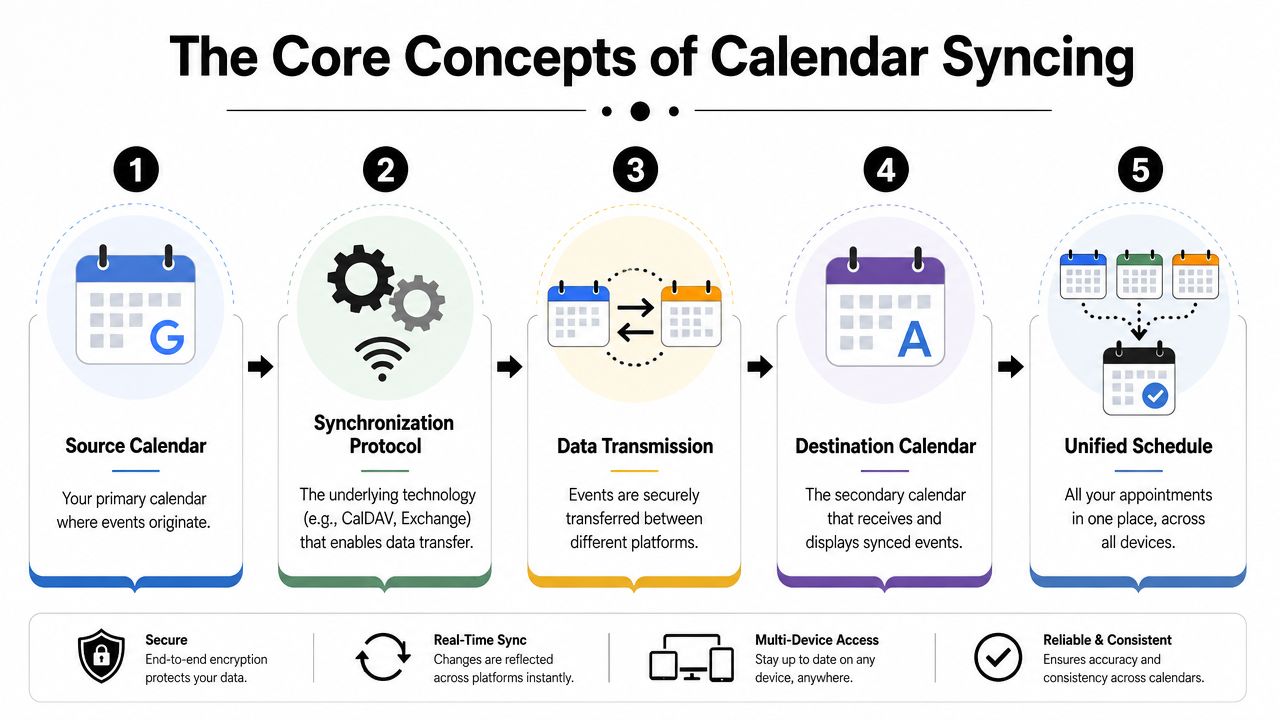
Every calendar setup has a source calendar and one or more destinations. The source is where the event is created and owned. The destination is where that event becomes visible, editable, or both.
That distinction matters more than many people expect. I see the same mistake over and over: someone adds a calendar to a second app, sees the events appear, and assumes they can manage everything from either side. Sometimes that works. Sometimes edits fail without notification. Sometimes the event can be changed, but only parts of it sync back correctly, such as title changes without attendee updates.
Practical rule: Visibility and edit access are separate choices. A calendar can appear everywhere and still be safe to edit in only one place.
If you schedule focus blocks across work and personal calendars, this matters even more. A time-blocked calendar system for protecting focus time only holds up when you know which calendar owns the event and which calendars are there for reference.
The three sync models that matter
One-way sync sends information from one calendar to another without sending edits back. This is common with subscribed calendars and many booking feeds. It works well when you need awareness, such as seeing a company holiday calendar on your phone, but it is a poor choice if you expect to reschedule from the destination app.
Two-way sync allows changes in both systems. This is the setup people expect by default, and it is also the one that causes the most damage when configured carelessly. If both sides can edit, both sides can create conflicts, duplicate events, or overwrite fields in ways that are hard to trace later.
Selective sync sits between those two. Some events or fields are shared broadly, while editing stays limited. This is often the safest model for mixed personal and work setups. For example, you may want your personal calendar to show busy blocks on your work calendar without copying event titles, locations, or notes.
As noted in SimplePractice's calendar sync documentation, support for editing and visibility differs across platforms. That inconsistency is why "connected" does not tell you enough. You need to know what kind of connection you created.
Pick the method before you pick the app
Most calendar setups rely on one of three methods:
- Account-level integration: Add the same account to multiple devices or apps. This is the cleanest option inside a single ecosystem because the original calendar remains the owner.
- Calendar sharing: Invite another person or account to view or edit a specific calendar. This works well for families, assistants, and small teams, but it needs clear permission rules.
- Subscription feed: Subscribe to a calendar URL, often an .ics feed. This is best for read-only visibility and poor for active scheduling.
A subscription is a broadcast, not a shared workspace. You receive event updates from the source, but ownership stays with the original calendar. If someone subscribes to your personal calendar feed, they may see your schedule without gaining the right to manage it. That can be useful. It can also expose more than intended if you publish too much detail.
Use this test before you sync anything:
- Need editing from both sides: Use native account integration or a dedicated sync tool with clear conflict rules.
- Need visibility only: Use a subscription or read-only share.
- Need privacy-preserving availability: Sync busy time without copying titles, notes, guest lists, or locations.
Good calendar systems are built on restraint. The goal is not to connect everything to everything else. The goal is to decide what should flow, what should stay private, and which calendar remains the source of truth.
Platform by Platform Syncing Guides
Individuals don't need a complicated architecture on day one. They need their primary calendars visible on the devices they already use, without breaking permissions or creating duplicates.
Start with the platform where your events are created most often. Then add visibility elsewhere.
Google Calendar
If Google Calendar is your main system, the cleanest setup is usually to add your Google account directly to each device rather than exporting and importing feeds.
On iPhone or iPad, open Settings, go to Calendar, then Accounts, then Add Account. Choose Google, sign in, and make sure Calendars is enabled. After that, open the Apple Calendar app and confirm the Google calendars you want are checked in the calendar list.
On Mac, open Calendar, then Calendar Settings or Accounts depending on your version of macOS. Add your Google account and enable calendar sync. Google events should appear in Apple Calendar once the account is active.
On desktop web, if you want another person or another account to see your Google calendar, use Google Calendar's sharing options rather than duplicating events manually. Share only the specific calendar that matters. Don't share your entire account unless you need full delegate access.
A good rule with Google is to keep one calendar as the planning calendar and use additional calendars for context, not for duplicate copies of the same commitments.
Apple Calendar and iCloud
Apple users often assume iCloud sync and cross-platform sync are the same thing. They're not. iCloud handles syncing across Apple devices well, but sharing outward depends on whether you're inviting collaborators or publishing a subscription.
Apple supports two practical paths in everyday use:
- Shared iCloud calendar: Invite people by email so they can collaborate.
- Public calendar link: Publish a read-only calendar that other apps can subscribe to.
That distinction matters. A family calendar might need collaboration. A public events calendar usually only needs subscription access.
For iPhone, open the Calendar app, tap Calendars, find the iCloud calendar you want to share, and use the sharing controls. Add people if you want collaboration. Use the public link option if you only want others to subscribe.
For Mac, open Calendar, select the iCloud calendar, then use the sharing settings from the sidebar or contextual menu. If you're trying to see iCloud events in another app, use the subscription or shared access route that fits your needs, not a manual export unless there's no better option.
If an Apple calendar appears in another system but won't accept edits there, that usually isn't a bug. It's the sync model you chose.
Here's a quick walkthrough if you prefer to follow along visually before changing settings:
Outlook and Microsoft 365
Outlook setups vary because “Outlook” can mean a personal Microsoft account, a Microsoft 365 work account, or an Exchange environment managed by your employer. The safest habit is to find out which one you're using before you connect anything.
On Windows or Outlook desktop, add your work or personal Microsoft account through account settings rather than importing the same calendar as a separate internet calendar unless you specifically need a subscribed feed. Imports and subscriptions are useful, but they can create confusion if you also have the account connected directly.
On iPhone, go to Settings, then Calendar, then Accounts, and add Outlook or Microsoft Exchange. Turn on Calendars. If your organization manages the device, some settings may be controlled by IT.
In business environments, cross-system syncing often relies on shareable calendar URLs. monday.com documents a common pattern: a board generates a calendar URL, then users paste that URL into Outlook or subscribe to it as an internet calendar so it refreshes across systems, as shown in monday.com's calendar sync documentation.
For Outlook users, that pattern is often the difference between “I can see it” and “I can work from it.” A subscribed internet calendar is good for reference. A directly connected Microsoft 365 calendar is better when you need native editing, reminders, and dependable ownership.
Connecting Different Calendar Ecosystems
You accept a meeting on your work laptop. It never shows up on your phone. Then your family calendar pings your coworkers because you shared the wrong layer of detail. That is the core problem with cross-platform calendar setups. The connection usually works at first. The consequences show up later.
Connecting Google, Apple, and Microsoft calendars is less about pressing "Add Account" and more about deciding how information should flow. One-way visibility, two-way editing, free-busy sharing, and copied events all behave differently. If you pick the wrong method, you get duplicate calendars, missed updates, or more personal detail exposed than you intended.
When native connections are enough
A native account connection is the cleanest option when the same person uses the same calendar across devices. In practice, that means adding your Google, Microsoft, or iCloud account directly to the apps and devices where you work, then editing events only from the source account.
This approach works best in three cases:
- You own both sides of the setup: for example, your personal Google Calendar on your Android phone and Mac
- You need full editing and reminders: direct account connections usually preserve invites, notifications, attachments, and attendee status better than subscriptions
- You want less maintenance: fewer sync layers usually means fewer permission problems and fewer mystery duplicates
Native connections are a poor fit when you need selective sharing across ecosystems. If you want your Apple calendar visible in Google without exposing titles or notes, a direct account connection is often too broad.
If you are also comparing scheduling tools that sit beside your main calendar, this guide to Notion Calendar alternatives and comparisons is useful for evaluating whether a tool is mainly for visibility, planning, or full event management.
When an .ics subscription makes sense
An .ics or internet calendar subscription is better for display than collaboration. It shows another calendar inside your current one, but the destination usually cannot edit the original events.
That limitation is often useful.
Use a subscription when you want a school calendar, travel schedule, booking calendar, sports schedule, or team rota to appear in your calendar without letting anyone accidentally change the source. It is also the safer choice when privacy matters, because you can publish a controlled version of a calendar instead of exposing the whole account connection. The trade-off is refresh timing. Subscription feeds may update slowly, which makes them risky for high-change calendars like interview scheduling or same-day operations.
A good rule is simple: if the destination calendar only needs to inform you, subscribe. If it needs to drive work, use a direct connection or a dedicated sync tool.
Share only what the other side needs
The biggest mistake in mixed calendar systems is oversharing. People solve a visibility problem by granting full calendar access, then discover that private appointments, internal meeting titles, or client names are now visible in another app or to another group.
Use the minimum level that fits the job:
- Free-busy only for scheduling around availability
- Read-only event details for reference calendars
- Editable shared calendars only when two people jointly manage the same schedule
- Copied events through automation when one system needs a mirror, not shared ownership
I have seen executive assistant setups, recruiting workflows, and family calendars break for the same reason. Nobody decided which calendar was authoritative. Without that decision, every connected app starts acting like it owns the event.
Comparison of Calendar Sync Methods
| Method | Best For | Sync Type | Pros | Cons |
|---|---|---|---|---|
| Native account integration | Your own devices inside a major ecosystem | Often editable within that account | Better reminders, fewer conflicts, stronger support for invites and attendee updates | Harder to limit visibility when mixing vendors |
| Calendar sharing | Families, teammates, assistants | Can be collaborative or view-only depending on permissions | Useful for shared ownership and direct collaboration | Easy to expose more detail than intended |
| .ics or internet calendar subscription | Read-only visibility across systems | One-way in practice | Safe for reference calendars, simple to distribute, lower risk of accidental edits | Read-only behavior, slower refresh, limited event metadata |
| Third-party sync tool | Mixed ecosystems and custom rules | Varies by tool and configuration | More control over field mapping, privacy filtering, and directional sync | More setup, more rules to review over time |
Choose the weakest sync method that still solves the problem. If visibility is enough, do not create full two-way editing.
Troubleshooting Common Sync Problems
Most sync failures aren't dramatic. They're subtle. A calendar looks current until one cancellation doesn't arrive, or an event appears twice and you don't notice until you've accepted both copies mentally as real.
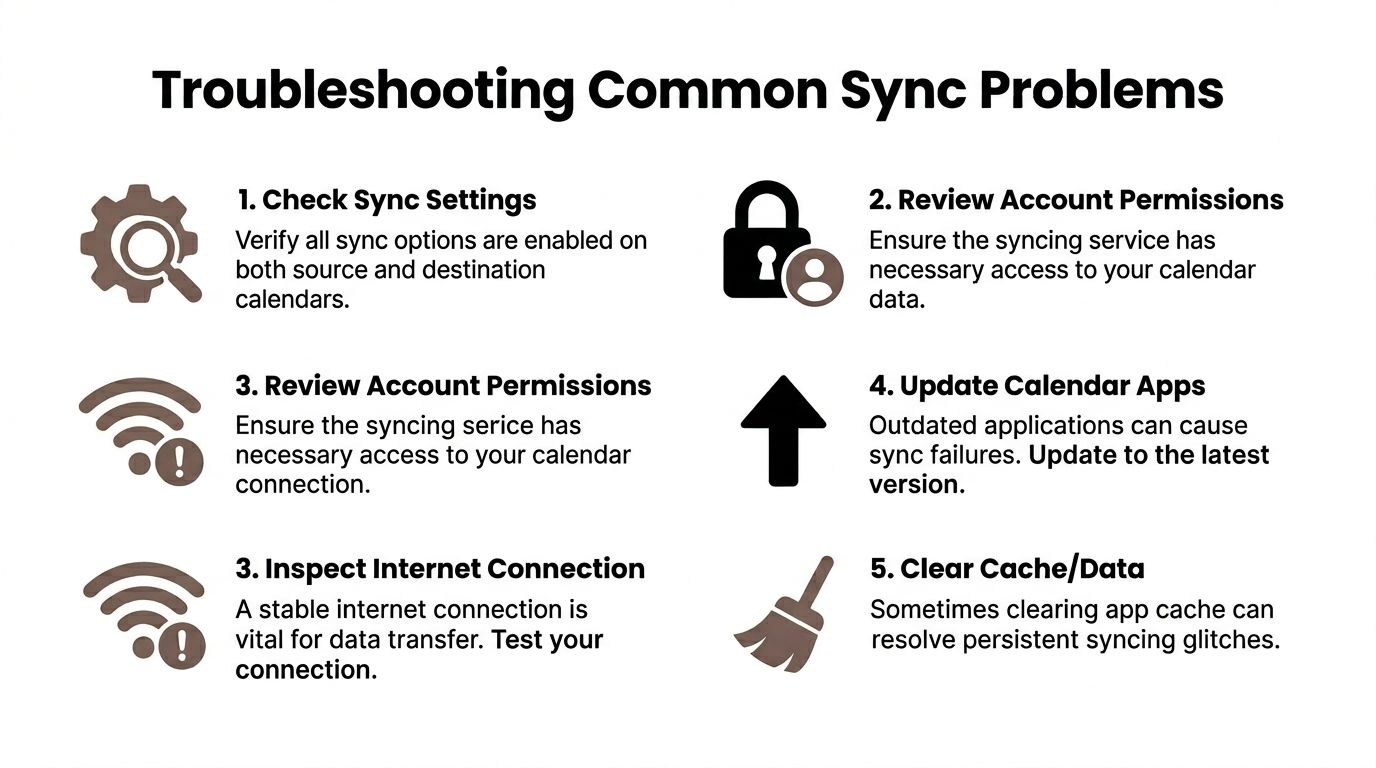
That's why troubleshooting starts with behavior, not buttons. Ask what's wrong in plain language: Is it duplicated, delayed, read-only, or in the wrong time zone?
Duplicate events and stale calendars
Duplicates usually happen because the same calendar was added more than one way. For example, you connected a Google account directly to your phone and also subscribed to the same calendar feed. Now both copies appear.
Stale calendars are a different problem. With iCal-style imports, the common failure modes include update delays and stale availability, which can create double-booking risk. The practical fix is to keep a buffer between bookings and regularly review sync errors because automated syncs aren't guaranteed to update instantly, according to Guesty's guide to calendar synchronization.
Use this cleanup sequence:
- Find duplicate paths: Check whether the same calendar is connected via account login and also via subscription.
- Remove the weaker path: Keep the direct account connection if you need editing. Keep the subscription only if you need read-only visibility.
- Test one new event: Create a clearly named test event and watch where it appears.
- Keep booking buffer time: If the schedule is sensitive, leave space between commitments so refresh lag doesn't create collisions.
A “synced” calendar that updates late is still dangerous if you schedule tightly against it.
Wrong permissions and read-only surprises
If you can see an event but can't edit it, don't start by reinstalling apps. Check permissions first.
Common causes include:
- The calendar is a subscription: Subscribed calendars are usually view-only.
- You only have viewer access: Shared calendars can expose events without granting edit rights.
- The source system owns the event: Some tools copy event visibility but keep ownership in the original platform.
The fix is straightforward. Open the calendar list, inspect how that calendar was added, and confirm whether the connection is a share, a subscription, or a direct account. Then review whether your account has edit privileges on that specific calendar.
Time zone drift and event mismatches
Time zone problems usually come from inconsistent settings between device, account, and event creation app. If your phone uses local time but your web calendar is pinned to another time zone, synced events may look moved even when the underlying appointment is correct.
Check these in order:
- Device time zone: Make sure your phone and laptop are set correctly.
- Calendar app time zone support: Some apps allow a fixed calendar time zone.
- Individual event settings: Travel events or imported bookings may carry their own time zone data.
If mismatches persist, run a weekly review. Compare a few upcoming events in the source and destination calendars side by side. That manual review sounds old-fashioned, but it catches silent failures faster than waiting for a missed meeting to expose the problem.
Advanced Syncing with Automation Tools
Native sync works until it doesn't. The moment you want your personal calendar to block time on your work calendar without exposing the appointment title, or you want selected events mirrored across platforms with custom rules, you need a dedicated sync layer.
A safer rollout for complex setups
A practical multi-calendar workflow starts by inventorying every calendar source, choosing a tool, defining conflict rules, running a trial sync, and only then expanding the setup. The most useful advice is to begin with just your primary work and personal calendars so it's easier to catch bad mappings before shared calendars get involved, as outlined in Schedly's multi-calendar sync workflow.
That process matters because advanced sync failures scale fast. One wrong rule can copy private events into a team calendar or create loops where the same event keeps replicating.
What automation tools are good at
Dedicated tools such as CalendarBridge and SyncGene are useful when you need selective behavior instead of blanket copying. Automation platforms such as Zapier or IFTTT can also help when a calendar action needs to trigger something else in your workflow.
A practical setup often looks like this:
- Use a sync service for calendar-to-calendar logic: Good for mirrored busy blocks, filtered event copies, or mixed Google and Outlook environments.
- Use automation for downstream actions: Good for follow-up tasks, reminders, or process handoffs after an event is created.
- Keep one owner per event: Even when events appear in several places, one system should remain authoritative.
Teams building broader operational workflows often run into similar design questions outside calendars too. This guide to AI business process automation strategies is a useful companion if you're trying to connect scheduling with the rest of your work systems.
One option in this category is Beyond Time by Tribble Software Private Limited, which includes calendar sync in its iOS app and notes calendar access for integrating goals and reminders with the device calendar. It fits best when calendar visibility is part of a broader planning system rather than a standalone sync problem.
Best Practices for a Unified Calendar System
A synced calendar becomes useful when it has rules. Without rules, you get a prettier version of the same confusion.
The long-term win is to treat your calendar like a governed system. That means deciding what gets copied, what stays private, what counts as the source of truth, and how you'll recognize event ownership at a glance.
Privacy rules before convenience
Effective calendar sync is also a governance problem. Guidance from CalendarBridge emphasizes setting default privacy and reviewing tags because copied events are often read-only and need clear labeling to avoid over-sharing, duplicate visibility, and confusion about which calendar owns an event, as explained in CalendarBridge's advice on syncing multiple calendars.
That should change how you configure things from the start.
Use these rules:
- Default to private for personal events: Let work calendars show you're busy without exposing details unless there's a real reason.
- Review title formatting: “Doctor appointment” and “Busy” communicate very different things.
- Separate client-facing and internal calendars: Don't rely on one shared calendar to serve both purposes.
Clear labels beat clever setups. If you can't tell where an event came from, the system will confuse you later.
Create one source of truth
Every event needs a home. If an event belongs to Google, edit it in Google. If a booking system owns the schedule, don't “fix” it from a subscribed destination copy and assume the correction will travel back.
That principle also shows up in other planning workflows. If you manage campaigns across several channels, strong systems for mastering social media content planning use the same idea: one source of truth, clear publishing rules, and visibility layers built around it.
A useful personal standard is this short hierarchy:
| Calendar role | What it should do |
|---|---|
| Source calendar | Own the original event and final edits |
| Display calendar | Show the event for awareness |
| Blocking calendar | Mark time as busy without carrying full details |
Naming, colors, and ownership rules
Color-coding seems minor until you're scanning a packed week. Use the same colors across platforms whenever possible. Keep work one color, personal another, family another, and side projects another. Consistency matters more than the specific colors.
Naming rules help just as much:
- Prefix copied calendars clearly: Use labels like “View Only” or “Subscribed” when the app allows it.
- Keep event titles intentional: Short, specific names reduce ambiguity.
- Mark admin holds distinctly: “Hold” should not look like “confirmed.”
If you want a practical framework for turning time into commitments you can execute, a time blocking template for structured scheduling helps anchor your synced calendars to a single planning rhythm.
The people who stay sane with multi-calendar setups aren't the ones with the fanciest integrations. They're the ones who decide what each calendar is for, keep ownership clear, and resist the urge to sync everything just because they can.
If you want your calendar to do more than display appointments, Tribble Software Private Limited builds Beyond Time, an AI-powered planning system that connects goals, routines, and calendar-based execution. It's a practical next step if you've already cleaned up your sync setup and want your schedule to drive real follow-through, not just visibility.
Put this into practice
Free tools that match this article.
Weekly Schedule Template
Plan your week with a free printable weekly schedule template for goals, routines, and focus blocks.
Try Schedule TemplateTime ManagementTime Blocking Template
Map your day into focused time blocks with a free printable time blocking template.
Try Time BlockingTime ManagementWeekly Schedule Optimizer
Generate an optimized weekly schedule with AI-powered time blocking for maximum productivity.
Try Schedule OptimizerFocusFocus Session Planner
Create AI-optimized focus sessions with structured work blocks and refreshing breaks.
Try Focus PlannerKeep exploring this topic
Time blocking guide
Turn priorities into protected calendar blocks.
Best goal tracking apps
Compare tools for goals, habits, and progress tracking.
15-minute time blocks
Plan and review your day with more realistic precision.
Best habit tracker apps
Compare habit apps by use case, depth, and daily workflow.
Related Articles
How to Track Multiple Goals Without Getting Overwhelmed
Learn a proven system for managing multiple goals simultaneously without losing focus or burning out. Practical frameworks for tracking 3-5 goals at once.
Accountability Partner Guide: Achieve Goals Faster
Learn how to find, structure, and get the most from an accountability partner. Research shows accountability can boost goal achievement by up to 95%.
5-Year Plan Template: Build Your Life Roadmap Step by Step
Build your life with this step-by-step 5 year plan template. Set goals across 5 key life domains and break them into year-by-year milestones you can act on.
How to Set Life Priorities: A Framework for What Matters Most
Learn how to set priorities in life with a proven values-based framework. Discover what matters most and start building goals aligned with your life today.
Life Audit: The Complete Guide to Redesign Your Life
A life audit helps you step back, evaluate every major area of your life, and redesign it with intention. Discover how to do yours in five clear steps.
How to Stay Motivated: Science-Backed Strategies That Work
Struggling with how to stay motivated on long-term goals? Discover science-backed systems and practical strategies to build lasting motivation that sticks.