10 Best Productivity Apps for Students in 2026
Discover the top 10 productivity apps for students. Our 2026 guide covers tools for time management, note-taking, and focus to ace your semester.
Week one usually looks organized. Your calendar is clean, your notes app has fresh folders, and every assignment feels manageable. By week four, the problem is not motivation. It is that your tools are working in isolation.
A planner tracks due dates. A notes app stores lecture material. A timer helps you focus for 25 minutes. Each one can be useful on its own, but semesters rarely fall apart in one place. They fall apart in the handoff between planning, learning, and execution.
The students who stay on top of heavy course loads usually build a stack. One layer handles goals and priorities across the semester. One layer holds class notes, readings, references, and ideas worth keeping. One layer turns all of that into today's work, with tasks, calendar blocks, and focus sessions.
That is the frame for this guide.
Instead of treating productivity apps for students as a list of disconnected tools, this article looks at how each app fits into a working academic system. Tribble sits in the goal-achievement layer. Tools like Notion, OneNote, Obsidian, Zotero, and Readwise Reader support the knowledge layer. Todoist, Google Calendar, Google Tasks, Forest, and Freedom belong to the daily execution layer.
Here is the practical workflow. Set outcomes first, such as grades, project milestones, or weekly targets. Capture and organize what you learn while classes are moving fast. Then convert that material into scheduled study blocks, review tasks, and distraction-free work sessions. That setup is usually more reliable than chasing one app that promises to do everything and ends up doing none of it particularly well.
The trade-off is real. A stack takes a little setup, and every added tool creates one more place things can break. But once the layers are clear, choosing apps gets easier because you are not asking every tool to solve every problem.
Table of Contents
- 1. Tribble Software Private Limited
- 2. Notion
- 3. Todoist
- 4. Google Calendar + Google Tasks
- 5. Microsoft OneNote
- 6. Obsidian
- 7. Zotero
- 8. Readwise Reader
- 9. Forest
- 10. Freedom
- Top 10 Student Productivity Apps Comparison
- Build Your System, Own Your Semester
1. Tribble Software Private Limited
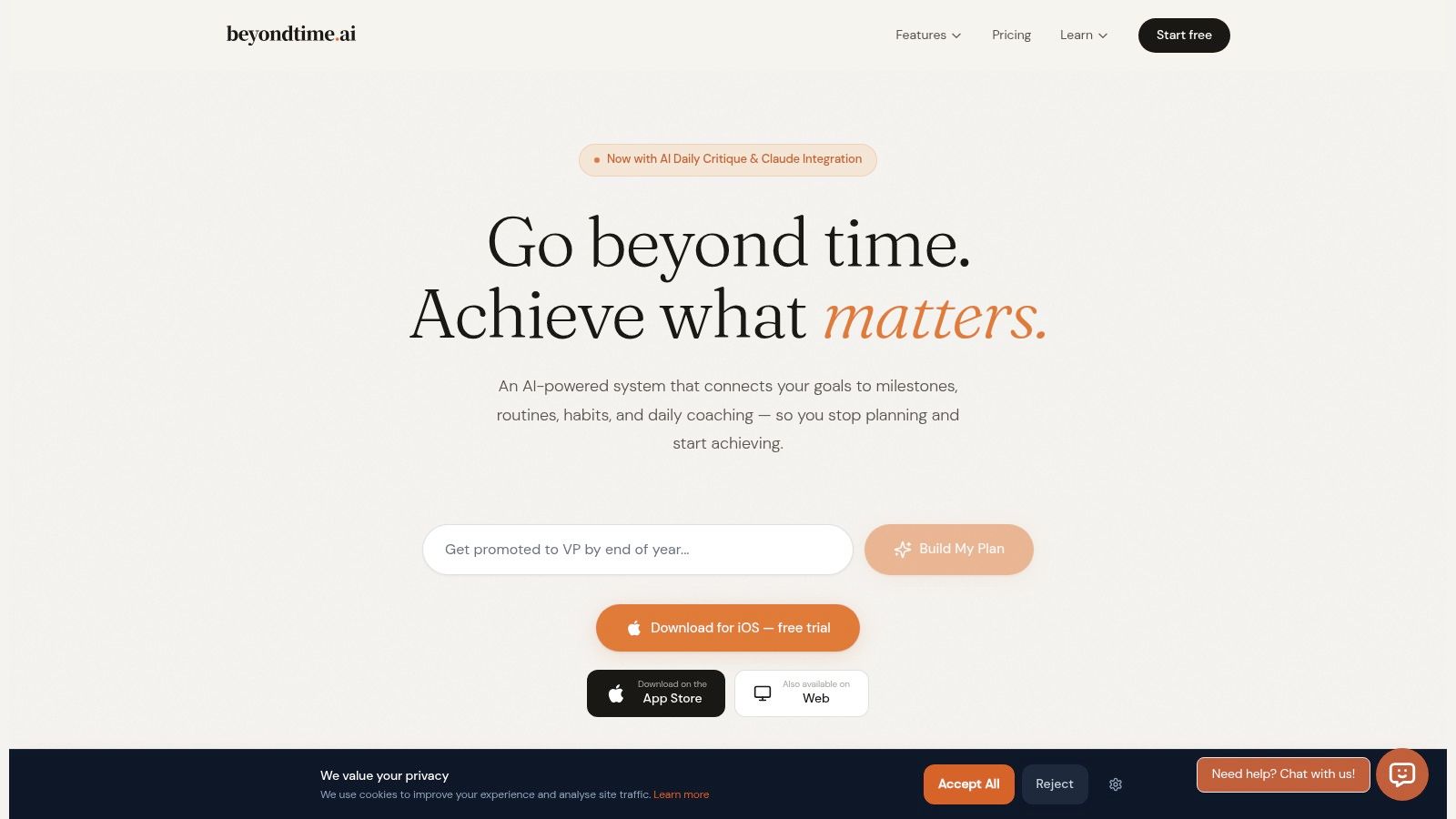
It is Monday morning. You know the semester goal. Raise your chemistry grade, finish the literature review, submit the internship application on time. What usually breaks is the handoff between that goal and the next work block on your calendar. Beyond Time by Tribble Software Private Limited is built for that gap.
That makes it different from the rest of this list. In a student productivity stack, I would place it at the goal-achievement layer, above your notes app and above your day-to-day task list. It is the place to define what matters this semester, break that into milestones, and turn those milestones into repeatable work.
Why it stands out
The app uses an OKR-style structure. You set an objective, attach measurable milestones, and connect those milestones to habits, routines, and scheduled time. For students who already know what they want but keep drifting into low-value admin, that structure is useful because it forces a clearer link between ambition and calendar reality.
The iOS app goes further with 15-minute time tracking, planned-versus-actual review, and a daily AI critique that points to the highest-impact focus for the day. Used well, that feels less like storing tasks and more like getting course-correction. If you are comparing broader AI productivity tools for structured planning and execution, that is the lens to use here.
The free web app covers goal and milestone management. The integrations with Claude, ChatGPT, Cursor, and other MCP-compatible tools are also practical if a lot of your planning already happens in chat.
Practical rule: Keep semester outcomes here. “Finish literature review draft by March 18” belongs here. “Buy printer paper” does not.
Best fit and trade-offs
This app makes the most sense as the top layer of your system. A simple setup looks like this: Beyond Time for outcomes, Obsidian or OneNote for class knowledge, and Todoist or Google Calendar for daily execution. That division keeps each tool doing one job well instead of turning one app into a cluttered substitute for three.
I would recommend it most to students with long projects, research deadlines, exam recovery plans, or any semester where progress needs to be measured over weeks, not days.
The trade-offs are real:
- Main strength: The goals-to-milestones-to-habits loop is tighter than what most student apps offer.
- Main limitation: The fuller experience is on iOS. The web app is useful, but lighter.
- Pricing: The iOS app includes a two-week free trial, then costs $4.99 per month or $29.99 per year. The web app and integrations stay free.
- Adoption reality: It does not have the same public track record as older campus-standard tools, so the trial period matters.
If your current system is good at collecting tasks but weak at choosing what moves the semester forward, this is a strong first layer.
2. Notion
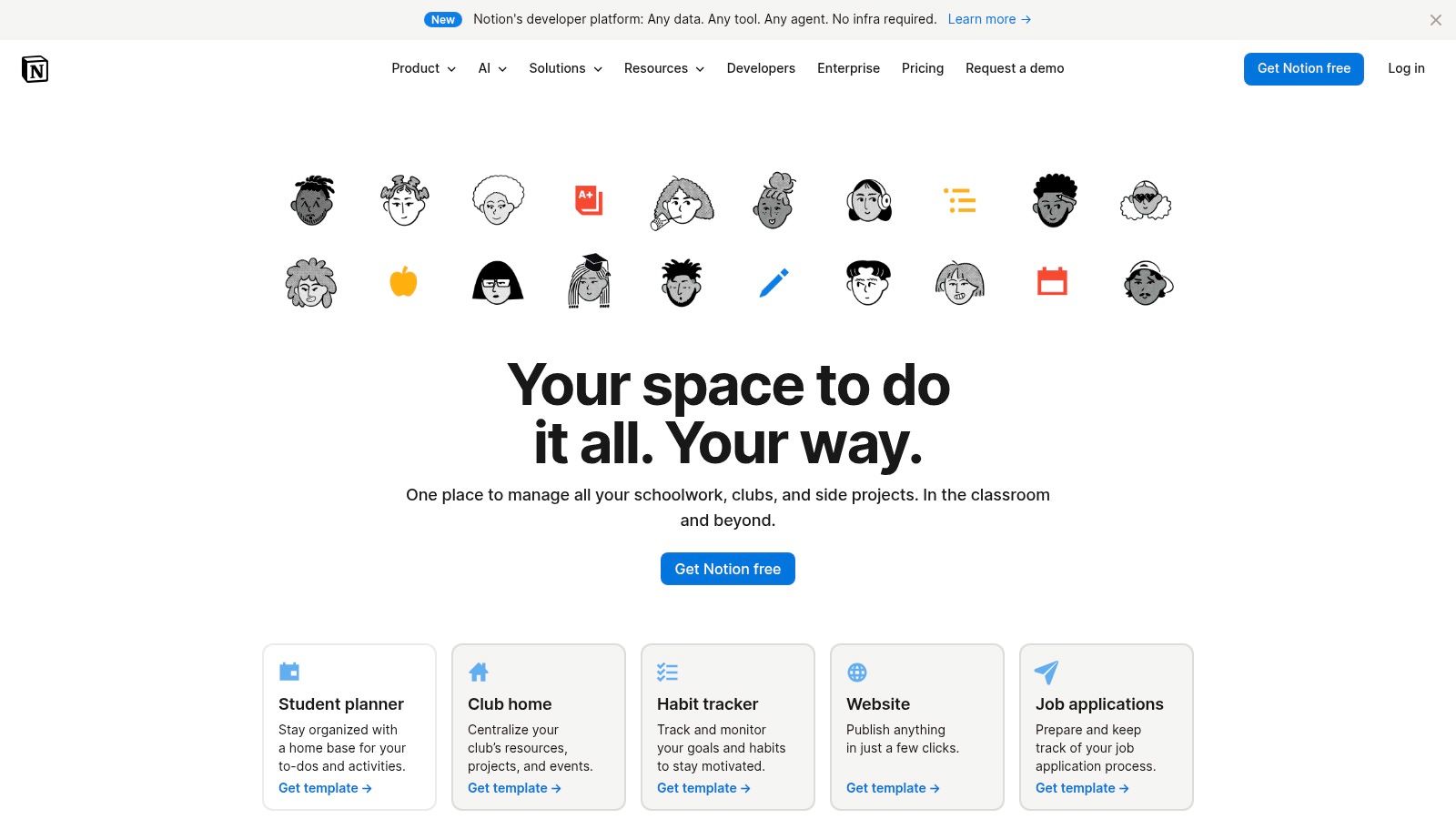
Notion is the app students reach for when they want one workspace for classes, notes, projects, and personal admin. In practice, it works best as a knowledge layer with some light planning attached, not as the only system you run your life from.
Its Education Plus plan gives individual students the Plus tier free with academic verification. That's a big reason it's so common on campuses. You can build course dashboards, reading trackers, assignment databases, and group project pages without running into quick limits.
Where Notion shines
Notion is excellent for organizing complexity. If you're balancing multiple courses, lab reports, internship applications, and club work, its databases help you sort everything by class, deadline, status, or priority. It also handles collaborative work well, so group projects don't have to live in a mess of docs and messages.
What doesn't work as well is high-friction daily execution. Students often spend more time refining dashboards than doing the actual work. That's especially true if you start adding advanced databases before you have a stable weekly routine. If you're exploring broader AI productivity tools for structured workflows, keep that distinction in mind. Workspace power isn't the same thing as action clarity.
Notion is where I'd store syllabi, class notes, and assignment metadata. It's not the first tool I'd trust to tell me what to do in the next hour.
A simple setup usually wins:
- Course homepages: One page per class with lecture notes, readings, and key dates.
- Assignment database: One database filtered by class and due date.
- Project hubs: Shared pages for presentations, capstones, and club deliverables.
Use Notion for Education if your main problem is scattered academic information. Skip it if your real issue is follow-through.
3. Todoist
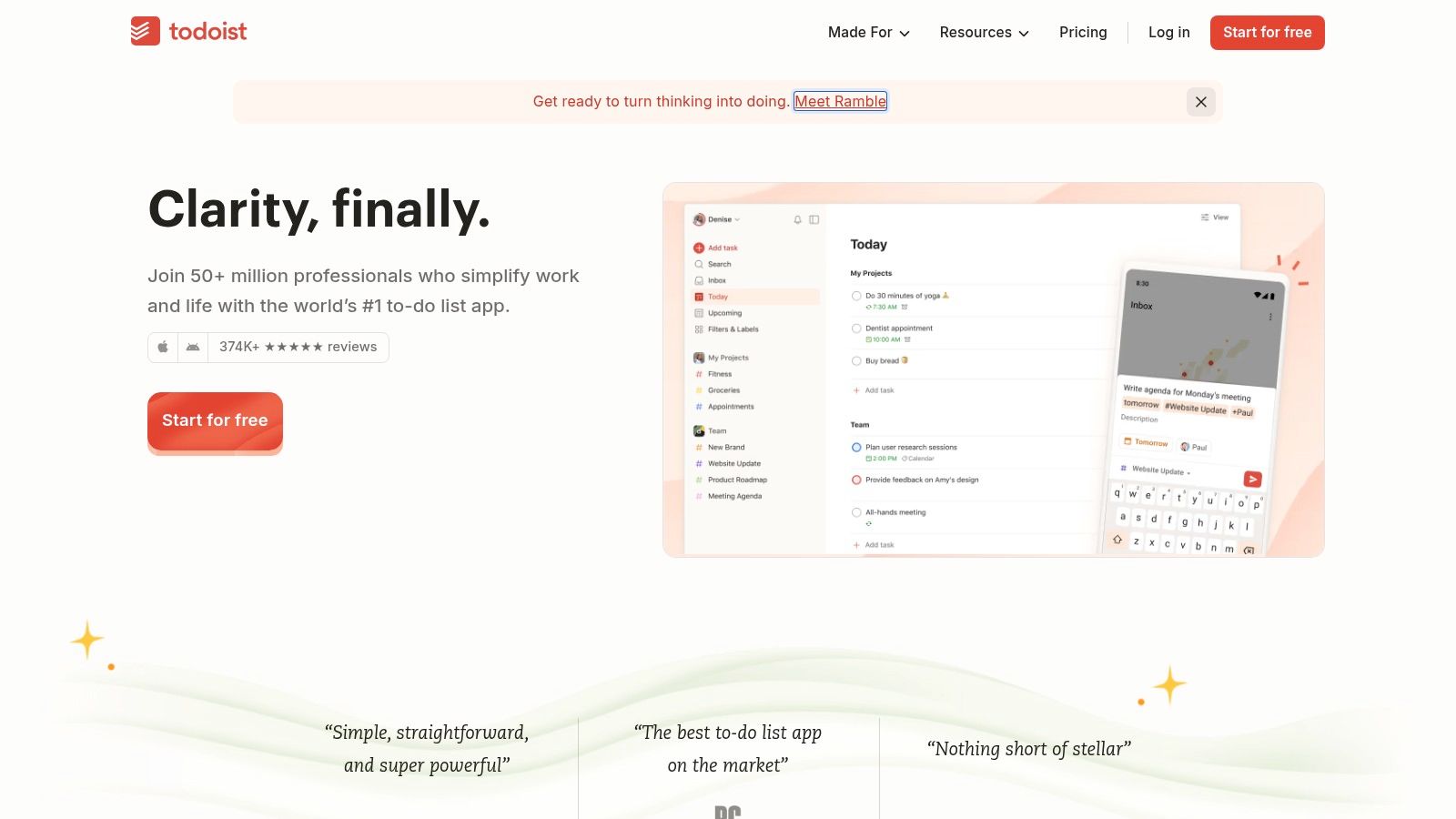
Todoist is what I recommend to students who don't need a “second brain.” They need a clean list that doesn't fight back. It captures tasks fast, supports recurring work, and scales from “submit quiz by 11:59” to a full exam-prep system with filters and labels.
Its biggest strength is speed. Natural-language task entry keeps friction low, and the interface stays readable even when your week gets ugly. That's why it works so well as the daily execution layer in a student stack.
How I would use it in a semester
I wouldn't build my course notes here. I would use it for every action that starts with a verb. Read, draft, revise, email, practice, review. That distinction keeps your list actionable.
A practical semester setup looks like this:
- Projects as classes: Create one project for each course.
- Labels by energy or context: Use labels like “deep work,” “errands,” or “5-minute admin.”
- Recurring tasks: Add weekly review sessions, office hours prep, and spaced revision prompts.
- Priority discipline: Reserve top priority for deadlines that threaten your week.
The catch is that some of Todoist's best features live on paid tiers. If you want stronger filters, labels, and history, you'll likely outgrow the free setup. It also doesn't offer a dedicated student discount on its public pricing page.
Still, Todoist is one of the easiest productivity apps for students to stick with because it respects your attention. If your goals feel too abstract, pairing it with a roadmap from personal development goal examples that are easier to execute can help you turn vague ambitions into actual tasks.
4. Google Calendar + Google Tasks
If your life already runs through Gmail, classroom announcements, and meeting invites, Google Calendar plus Google Tasks is the lowest-friction setup available. It isn't glamorous, but it solves a problem many students create by overcomplicating their tool stack.
Google Tasks now sits directly inside Calendar in a way that's useful. You can create tasks from Gmail and Calendar, then time-block them onto your day. For students who keep saying “I know what to do, I just don't make time for it,” this matters more than fancy dashboards.
Best use case
This combo is best for students who need visual time protection. When a task becomes a block on your calendar, it stops competing with your day as an abstract idea. Protected study sessions become easier to defend, especially when your schedule also includes classes, work shifts, commuting, and meetings.
There are limits. You won't get advanced filtering, deep analytics, or serious project review features. But many students don't need those at first. They need one calendar they check and one task list that doesn't disappear into another app.
Field note: If your planning habit is weak, free and visible beats powerful and ignored.
I like this setup for first-year students and for anyone rebuilding after a chaotic semester. Generate a rough weekly framework, then refine it with a study plan generator for blocking real work sessions. After that, drop the final schedule into Google Calendar and keep the system boring enough to maintain.
5. Microsoft OneNote
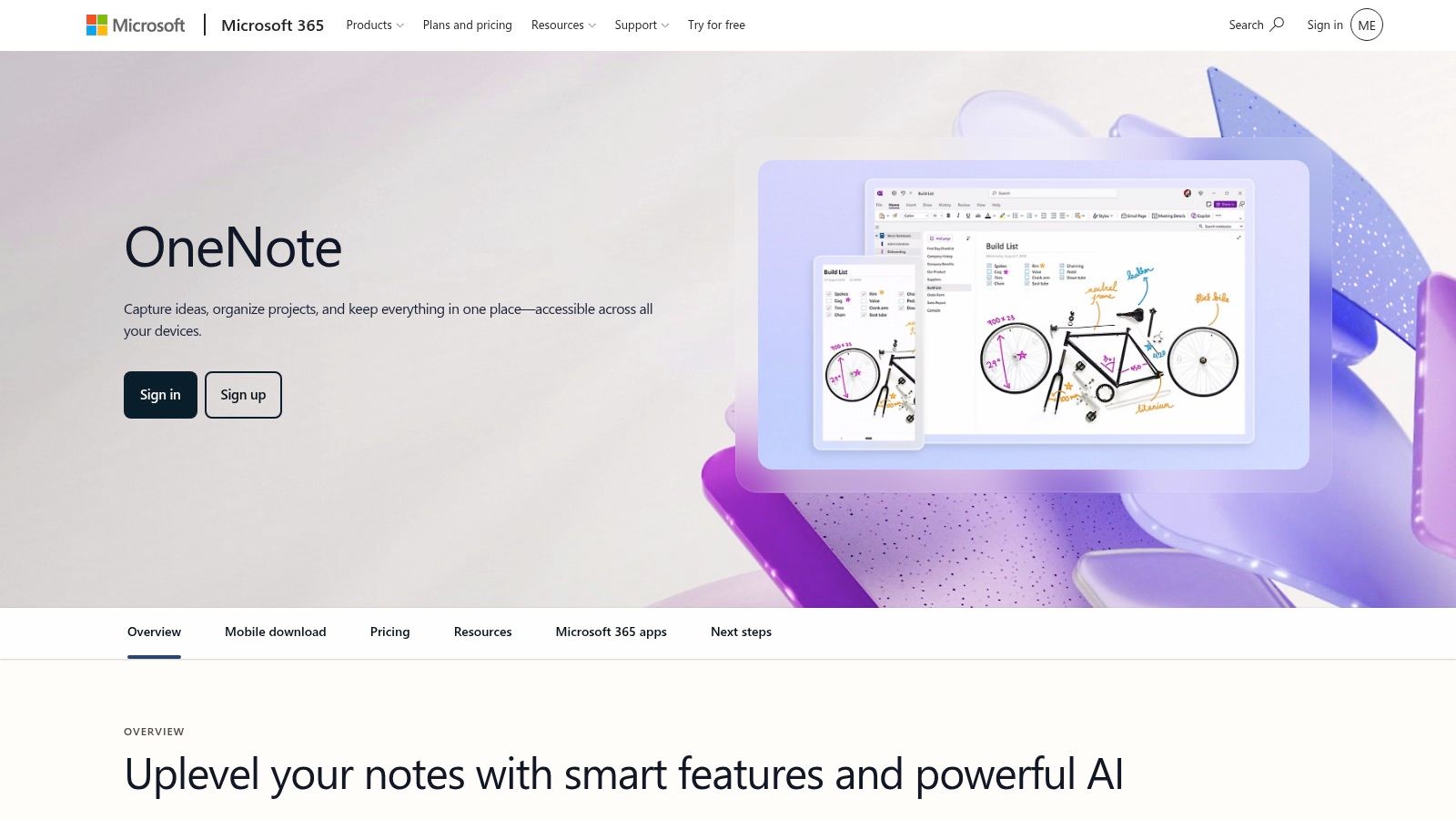
OneNote is still one of the most practical note-taking tools for students, especially if your courses involve diagrams, handwritten equations, slide annotation, or messy lecture capture. It doesn't try to be trendy. It just handles mixed-format notes well.
The notebook, section, and page structure is simple enough that you can understand it on day one. That makes it especially good for students who feel overwhelmed by systems that ask them to design their own architecture before they've taken a single note.
Why students still stick with OneNote
OneNote shines in live academic environments. During a lecture, you can type, handwrite, paste slides, drop in images, and record audio in one place. For STEM classes, that's a major advantage over tools that are cleaner for text but clumsy for formulas or diagrams.
It also plays nicely with the Microsoft ecosystem. If your school uses Word, PowerPoint, Teams, or institutional Microsoft accounts, the workflow is smoother than trying to force a third-party note app into the mix.
Its downside is rigidity. If you love relational databases, backlinks, or graph-based thinking, OneNote can feel plain. Some premium features also sit behind a Microsoft 365 subscription, depending on how you use it.
For straight academic note-taking, though, Microsoft OneNote remains one of the safest recommendations on this list.
6. Obsidian
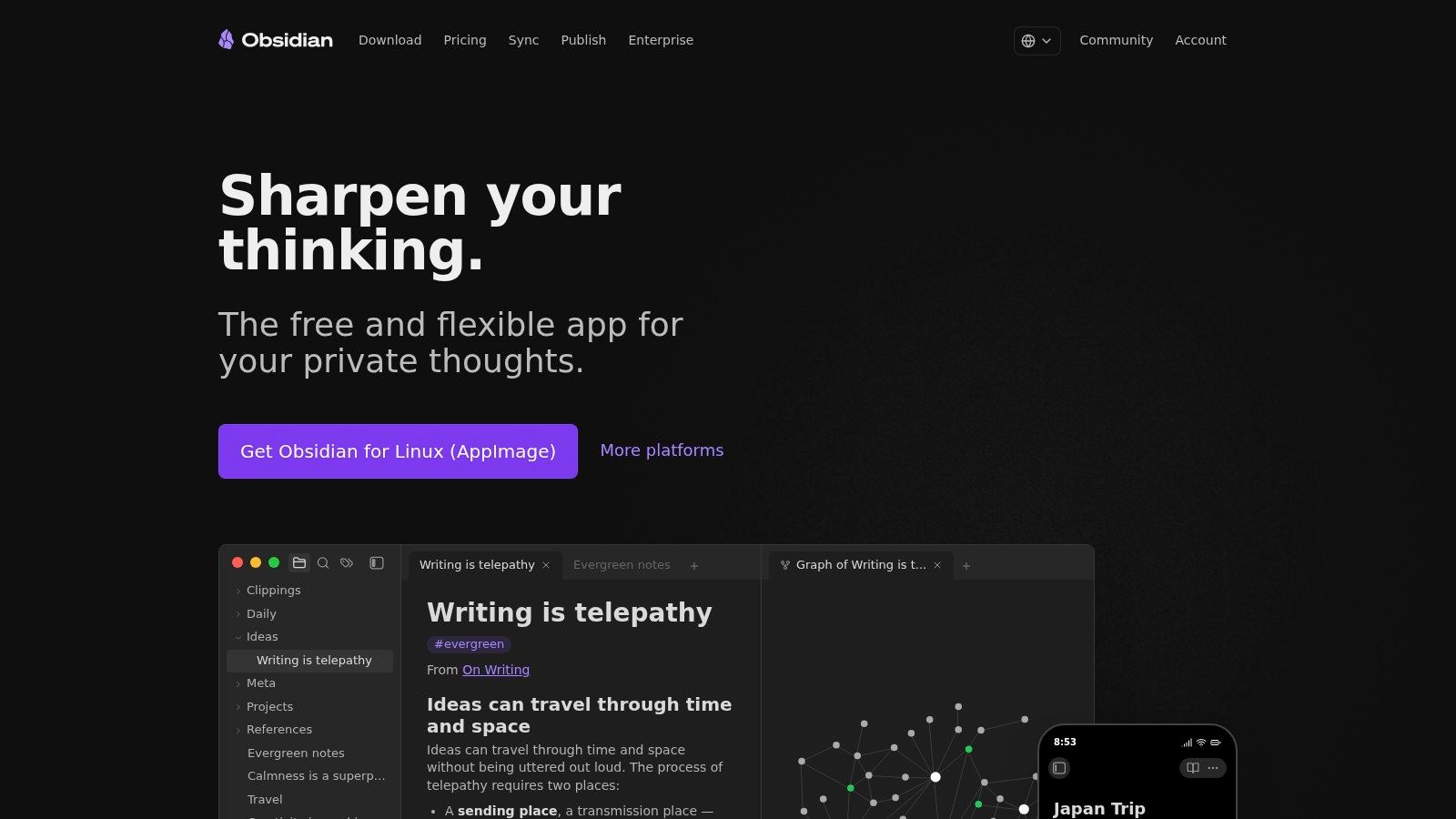
A common student problem looks like this. Lecture notes live in one app, paper ideas in another, saved quotes in a PDF folder, and nothing connects when it's time to write. Obsidian works well for the knowledge layer of a productivity stack because it turns scattered notes into a linked study system.
The main appeal is simple. Obsidian stores notes as local Markdown files, so your material stays usable even without an internet connection, and your notes are not trapped inside a rigid database. That matters for students who want more control over their files or who study in places where sync is unreliable.
Obsidian is strongest when the course rewards synthesis, not just collection. I would recommend it to students writing research papers, building reading notes across a semester, or studying subjects where ideas keep reappearing in new contexts. History, psychology, political science, biology, law, and philosophy students usually feel the payoff fastest.
Used well, it fits neatly between your other tools. A goal-setting app helps define what matters this semester. Obsidian holds the concepts, source notes, and connections behind that goal. Your calendar or task manager handles the daily work of reviewing, drafting, and submitting.
The trap is overconfiguration. Students often install a pile of plugins, redesign their vault three times, and confuse note-system maintenance with studying. A restrained setup is better:
- Daily notes: Capture class takeaways, reading reactions, and questions worth revisiting.
- Concept notes: Turn important ideas into clear, standalone explanations in your own words.
- Links and backlinks: Connect authors, theories, cases, experiments, or formulas across courses and assignments.
That workflow pays off later. When you start a paper or exam review, you are not searching through one long notebook. You already have a chain of notes that shows how topics relate.
Optional Sync and Publish add-ons exist, but the core version of Obsidian is already good enough for serious academic work. The trade-off is clear. Obsidian is powerful, but it asks you to build habits and structure. Students who want instant polish usually prefer Notion or OneNote. Students who want a long-term knowledge base often stick with Obsidian.
7. Zotero
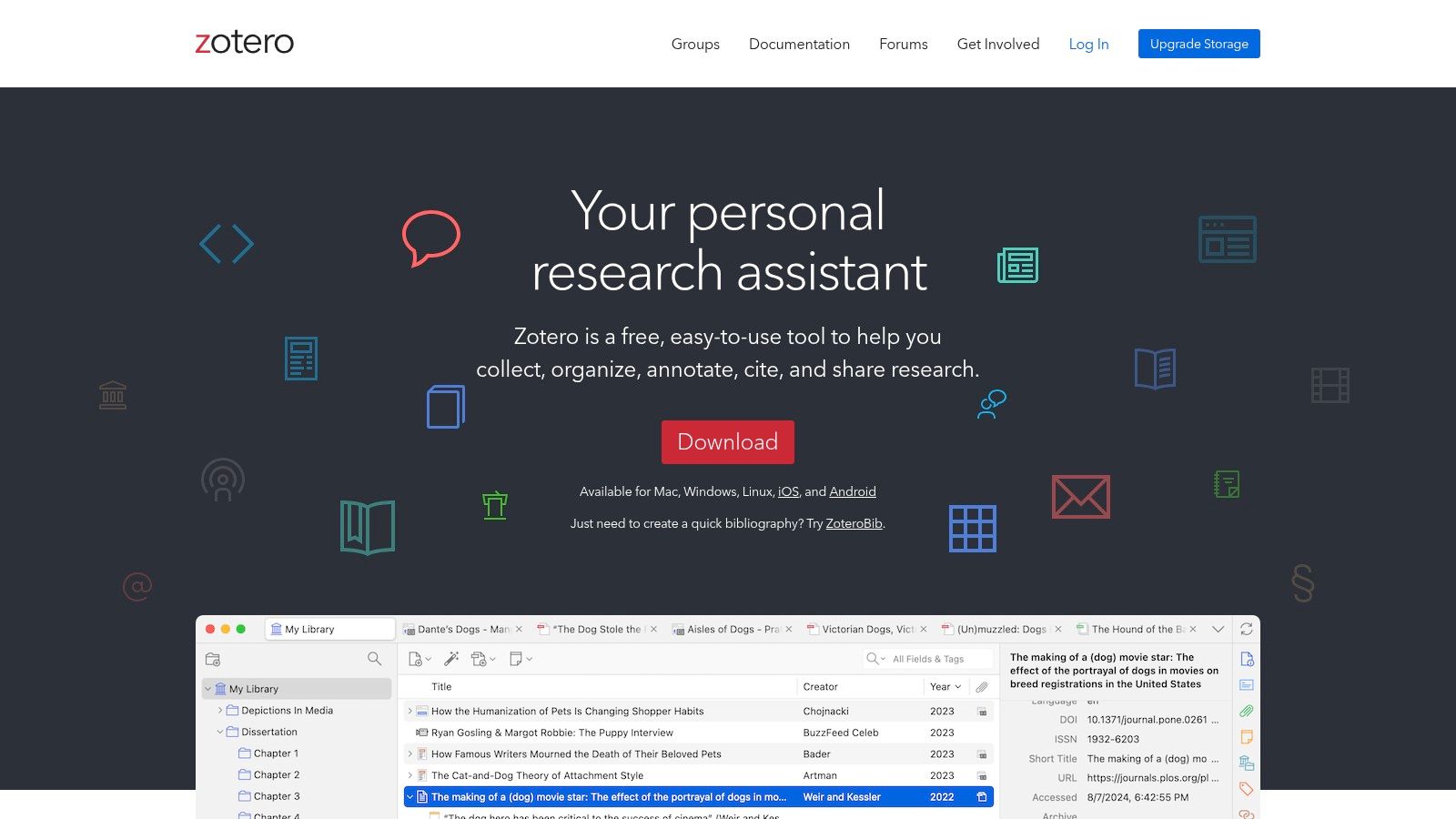
Zotero isn't the app students get excited about early. It's the app they wish they had started using before the first serious research paper. If you write essays with citations, download lots of PDFs, or build literature reviews, Zotero saves time in a way flashy productivity tools often don't.
Its browser capture is the killer feature. You save a source directly from the web, organize it into collections, annotate the PDF, and cite it later in Word, LibreOffice, or Google Docs. That's a clean academic workflow, especially when deadlines are close and citation cleanup becomes miserable.
Where it earns its place
Zotero is best treated as a dedicated research layer. Don't make it your notes app, planner, or reading queue. Let it do one job very well: manage sources and references without chaos.
A few details matter:
- Academic strength: It supports more than 10,000 citation styles and integrates directly with common writing tools.
- Cost reality: The core app is free.
- Storage trade-off: Free cloud storage is limited to 300 MB, so heavy PDF users may need a paid add-on later.
If a course ends with a bibliography, Zotero usually pays for itself in stress reduction before it costs you anything in money.
For research students, thesis writers, and anyone tired of manually fixing references at midnight, Zotero is an essential tool.
8. Readwise Reader
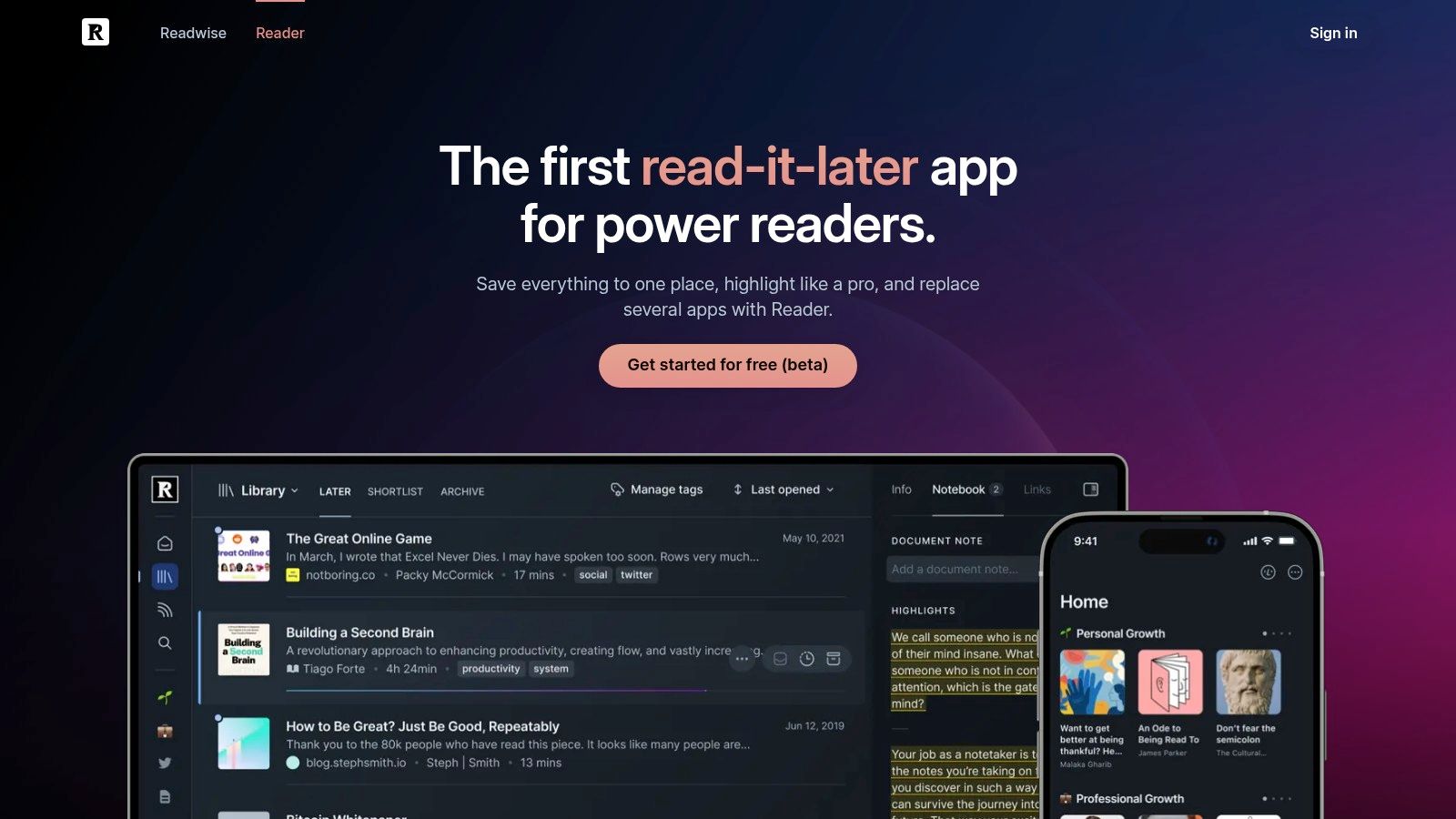
Some semesters don't fail because of task overload. They fail because the reading pipeline breaks. Articles stay open in random tabs, PDF highlights vanish into separate apps, and newsletters pile up unread. Readwise Reader fixes that better than most tools I've tested.
It acts like a unified inbox for web articles, PDFs, newsletters, and RSS. That's useful if your classes involve constant background reading, source collection, or current-events monitoring. Instead of scattering material across your browser, email, and downloads folder, you read in one place.
When it becomes worth paying for
Reader makes the most sense for students with heavy reading loads. Think humanities seminars, dissertation prep, policy courses, media studies, or any class where your work depends on digesting lots of texts over time. The highlight syncing into Readwise is what pushes it past “nice to have” into “useful,” because it helps you revisit what mattered.
The obvious downside is price. Long-term use requires a paid Readwise subscription after the trial, so casual users may not get enough value. Some students also prefer simpler read-it-later apps if they don't care about annotation and review.
Still, if your bottleneck is reading retention rather than task management, Readwise Reader earns its place in a serious student stack.
9. Forest
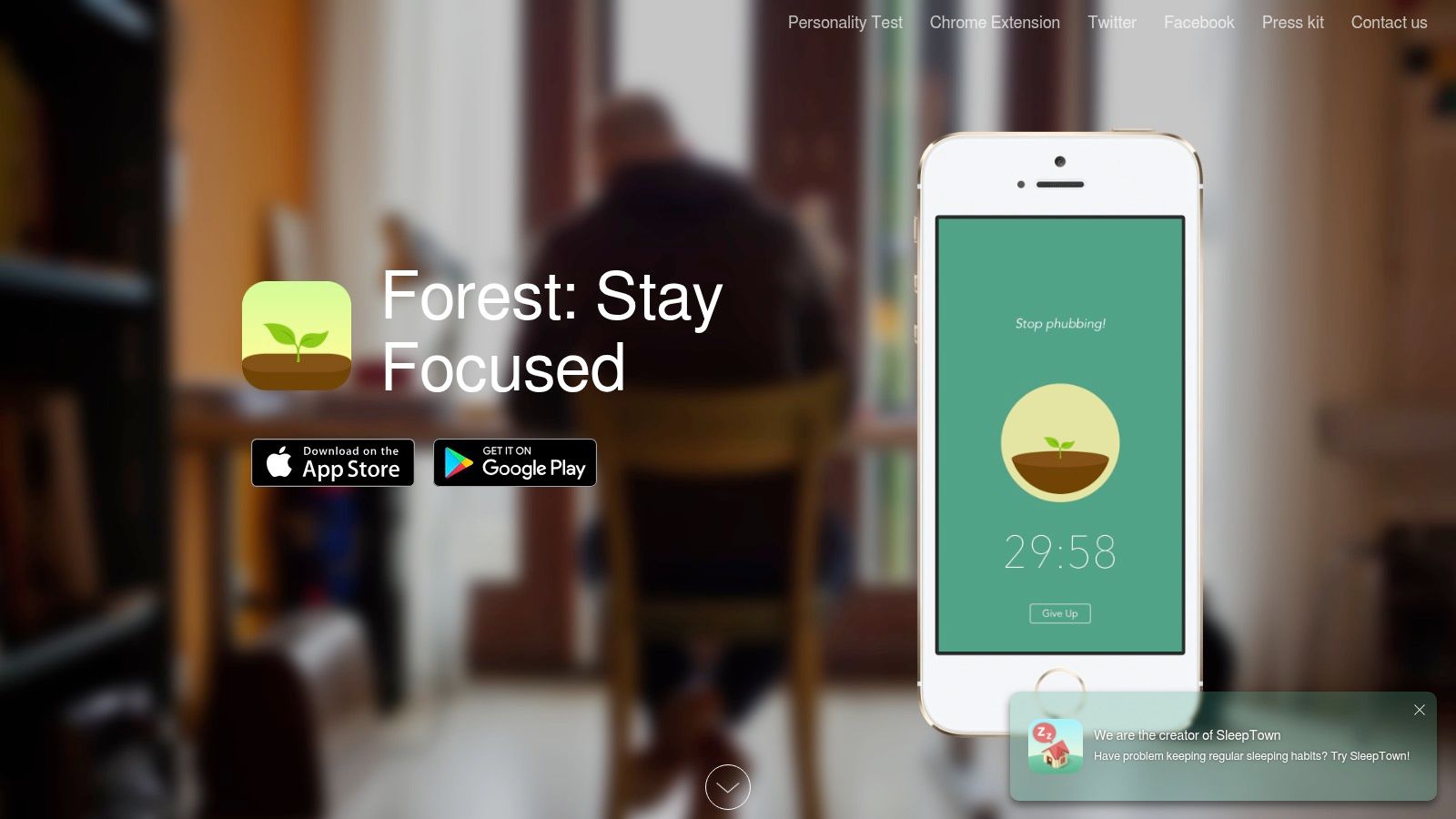
Forest is one of the few focus tools students stick with because it makes staying off your phone feel visible. You plant a tree, stay focused, and the tree grows. Leave early, and it withers. That tiny bit of friction works well for short study sprints.
I like Forest for students who understand what to work on but keep breaking concentration. It doesn't solve planning. It solves the moment where your hand reaches for your phone halfway through a reading block.
What it does well and where it stops
Forest works best with Pomodoro-style sessions, revision blocks, and library study hours. The visual feedback is simple enough that it doesn't need much setup, and co-focus sessions can add some accountability for shared studying.
Its limitations are also clear. It's lighter than a dedicated blocker, and pricing or available features can vary by platform and region. If your distraction problem is serious, especially across multiple devices, you'll likely outgrow it.
For students in structured revision periods, pairing a timer app with guides for manage UK exam revision sessions can make the tool more useful than using it casually. If what you want is a friendly focus ritual, Forest is still one of the better picks.
10. Freedom

Freedom is for students who already know they can't rely on willpower. That isn't a character flaw. It's usually just an environment problem. If Instagram, YouTube, Reddit, Discord, and news sites are always one tap away, softer focus tools may not be enough.
Freedom blocks websites and apps across devices, which matters more than it sounds. Students often “solve” distraction on the laptop and then leak attention through the phone. Freedom closes that loophole better than most alternatives.
Best for exam season
This is strongest during high-stakes periods when deep work matters. Exam revision, final paper drafting, coding projects, and application deadlines all benefit from recurring scheduled blocks. Locked Mode is especially useful if you're the kind of person who negotiates with your own rules five minutes into a session.
There are still limits. Mobile operating systems can restrict what any blocker can enforce, and iOS in particular has some exceptions. Freedom also only works if you set up thoughtful blocklists. If you block everything except your favorite backup distraction, the system won't save you.
Use Freedom when your problem isn't knowing the plan. It's protecting the plan.
Top 10 Student Productivity Apps Comparison
| Product | Key features (✨) | Quality (★) | Price / Value (💰) | Best for (👥) |
|---|---|---|---|---|
| 🏆 Tribble Software (Beyond Time) | ✨ AI‑generated OKR roadmaps; sequenced milestones; 15‑min time tracking; daily AI critique; chat integrations | ★★★★☆, AI accountability & insights | 💰 2‑week trial → $4.99/mo or $29.99/yr; web & integrations free | 👥 Founders, professionals, students, self‑improvers |
| Notion | ✨ All‑in‑one workspace: databases, templates, real‑time collaboration | ★★★★☆, very flexible, learning curve | 💰 Free Edu Plus for students; paid team tiers | 👥 Students, teams, project organizers |
| Todoist | ✨ Natural‑language tasks; priorities, filters, kanban/calendar views | ★★★★☆, fast, minimal UI | 💰 Free basic; Premium paid tiers | 👥 Individuals & small teams tracking tasks |
| Google Calendar + Tasks | ✨ Native time‑blocking on calendar; Gmail/task integration | ★★★☆☆, reliable, basic analytics | 💰 Free (Google account) | 👥 Students & users in Google ecosystem |
| Microsoft OneNote | ✨ Notebook hierarchy; inking, audio, math support | ★★★★☆, excellent for lecture notes | 💰 Free core; some features via MS 365 | 👥 Lecture‑heavy students, STEM classes |
| Obsidian | ✨ Local Markdown vaults, backlinks, plugin ecosystem | ★★★★☆, powerful, privacy‑first | 💰 Free core; paid Sync/Publish add‑ons | 👥 Researchers, privacy‑minded learners |
| Zotero | ✨ One‑click capture, PDF annotation, cite‑while‑you‑write | ★★★★☆, academic standard for citations | 💰 Free core; paid cloud storage add‑ons | 👥 Academics & research writers |
| Readwise Reader | ✨ Unified articles/PDFs/RSS; highlight sync + spaced review | ★★★★☆, great for retention | 💰 Paid subscription after trial | 👥 Heavy readers, literature reviews |
| Forest | ✨ Gamified Pomodoro timer; co‑focus; session stats | ★★★☆☆, motivating, simple habits | 💰 Low one‑time / in‑app pricing varies by platform | 👥 Students building phone‑free focus |
| Freedom | ✨ Cross‑device app & site blocking; Locked Mode; scheduling | ★★★★☆, robust cross‑device blocking | 💰 Paid subscription | 👥 Users needing strict distraction control |
Build Your System, Own Your Semester
By the middle of the week, the usual breakdown shows up. Lecture notes sit in one app, deadlines live somewhere else, readings are scattered across open tabs, and the study block you meant to start after lunch never became a real plan. That pattern usually comes from a weak system, not weak discipline.
The students who stay consistent across a full semester usually build a stack. They keep long-range goals, course knowledge, and daily execution in separate places, then connect them with a simple weekly workflow.
That stack has three layers:
- Goal-achievement layer: a tool for semester targets, milestones, recurring habits, and weekly reviews.
- Knowledge layer: a note or research tool for lecture notes, reading highlights, sources, and reference material.
- Daily execution layer: a task manager, calendar, timer, or blocker that turns priorities into scheduled work.
Each layer solves a different problem. If the goal layer is vague, daily tasks feel arbitrary. If the knowledge layer is messy, writing and revision slow down because retrieval takes too long. If the execution layer is weak, good plans stay theoretical.
I see the same mistake every term. Students ask one app to hold everything, then spend more time maintaining the system than using it. A notes app is rarely the best place to track deadlines. A task manager is rarely the best place to store class knowledge. A calendar will not remember context for you unless you feed it clear tasks and realistic blocks.
A practical stack stays small. Use one tool to map outcomes for each course, one tool to store what you learn, and one tool to decide what gets done today.
For many students, the workflow looks like this:
- Pick two to four current academic outcomes for the week.
- Break each outcome into concrete next actions.
- Put those actions into your task list or calendar.
- Store lecture notes, reading notes, and sources in one knowledge home.
- Use a timer or blocker during focus sessions so planned work happens.
Tribble Software Private Limited belongs in the goal-achievement layer. It is useful for holding bigger academic targets, milestones, habits, and planned versus actual time, so daily work stays tied to a real course outcome instead of becoming a loose list of tasks. You can review it here: https://beyondtime.ai.
The trade-off is simple. A three-tool stack takes a bit of setup, but it is easier to trust and easier to maintain than juggling six or seven overlapping apps.
For a related take on connected study workflows on HypeScribe, that resource is also worth a skim.
Keep going with Beyond Time
Beyond Time is built for students who want their goals to actually show up in their week.
- Career Roadmap Planner — Turn your post-grad ambitions into a step-by-step plan.
- 30-Day Challenge Generator — Build a study habit that survives the whole semester.
- Best Free Productivity Tools for Students — Free tools that actually fit a student budget.
- Evening Routine Ideas for Better Sleep and Productivity — End the day with a reset that protects tomorrow's focus.
Put this into practice
Free tools that match this article.
Weekly Schedule Template
Plan your week with a free printable weekly schedule template for goals, routines, and focus blocks.
Try Schedule TemplateFocusFocus Session Planner
Create AI-optimized focus sessions with structured work blocks and refreshing breaks.
Try Focus PlannerLearningAI Study Plan Generator
Generate a personalized study plan with proven learning techniques for exam success.
Try Study PlannerTime ManagementTime Blocking Template
Map your day into focused time blocks with a free printable time blocking template.
Try Time BlockingKeep exploring this topic
Beyond Time for students
See how students connect semester goals, study blocks, and routines.
Student success guide
Use Beyond Time to plan study sessions, habits, and academic goals.
Best goal tracking apps
Compare tools for goals, habits, and progress tracking.
Best habit tracker apps
Compare habit apps by use case, depth, and daily workflow.
Related Articles

How to Track Multiple Goals Without Getting Overwhelmed
Learn a proven system for managing multiple goals simultaneously without losing focus or burning out. Practical frameworks for tracking 3-5 goals at once.
Accountability Partner Guide: Achieve Goals Faster
Learn how to find, structure, and get the most from an accountability partner. Research shows accountability can boost goal achievement by up to 95%.
5-Year Plan Template: Build Your Life Roadmap Step by Step
Build your life with this step-by-step 5 year plan template. Set goals across 5 key life domains and break them into year-by-year milestones you can act on.
How to Set Life Priorities: A Framework for What Matters Most
Learn how to set priorities in life with a proven values-based framework. Discover what matters most and start building goals aligned with your life today.
Life Audit: The Complete Guide to Redesign Your Life
A life audit helps you step back, evaluate every major area of your life, and redesign it with intention. Discover how to do yours in five clear steps.
How to Stay Motivated: Science-Backed Strategies That Work
Struggling with how to stay motivated on long-term goals? Discover science-backed systems and practical strategies to build lasting motivation that sticks.