RescueTime Alternatives: Automatic vs Manual Tracking
Looking for a RescueTime alternative? Compare automatic screen time trackers with manual tools that see the off-screen half of your day, and who each suits.
The best RescueTime alternative depends on one choice: automatic or manual tracking. If you want another automatic tracker, look at ActivityWatch (free and open source), Timing (Mac) or the Screen Time report already on your iPhone. If you want to capture the parts of life that never touch a screen, you need a manual tool such as aTimeLogger or Beyond Time.
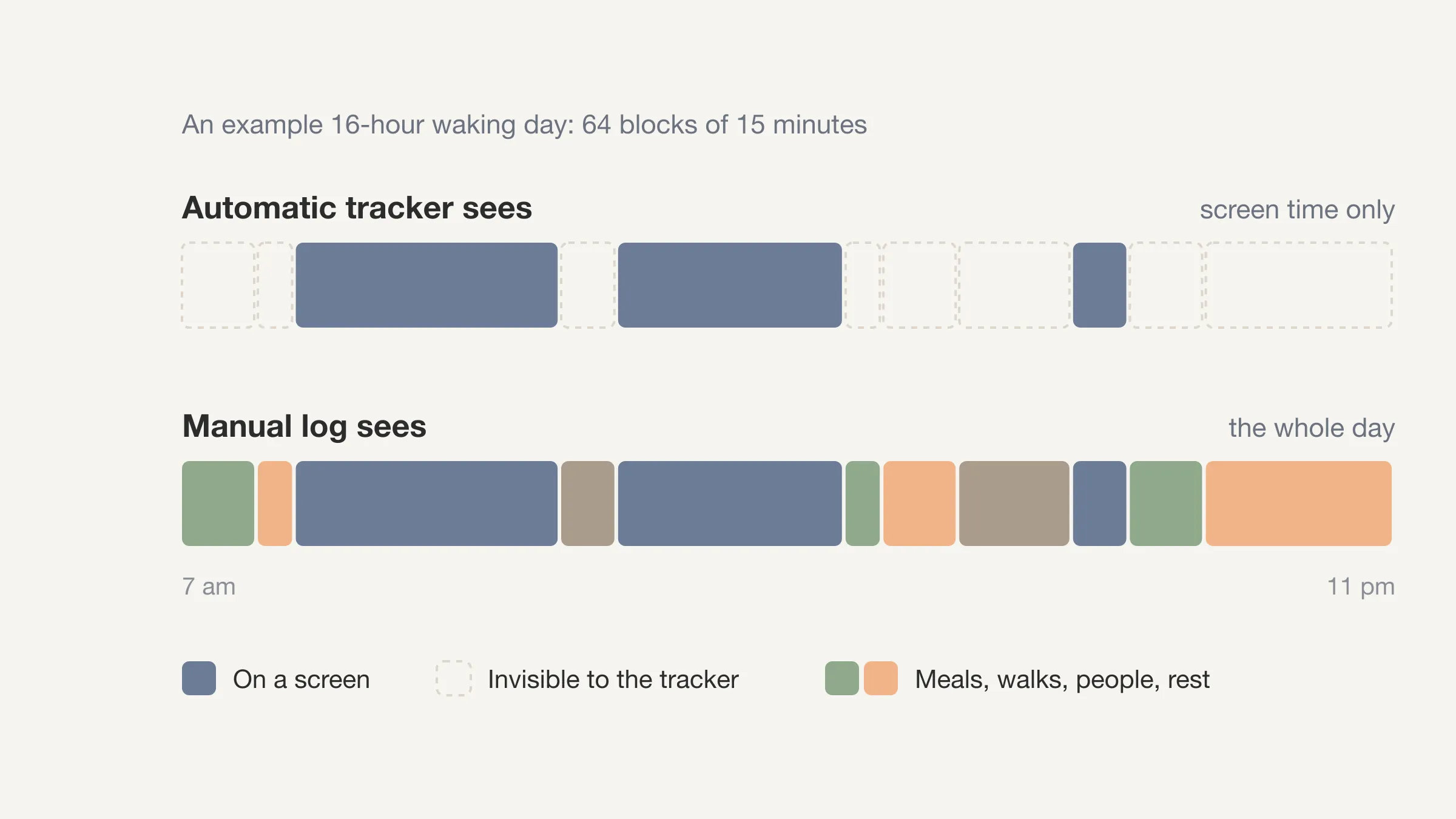
RescueTime does one job well. It watches the apps and websites you use and reports where your screen time went. It cannot know that you spent an hour cooking, a half hour walking, or ninety minutes with a friend. For many people that is the half of the day they most want to see.
This guide groups alternatives by how they capture time, says who each is best for (including when RescueTime itself is the right pick), and includes Beyond Time, which we make. Product details come from each company's own website and were checked at the time of writing. Plans change, so confirm on the product's site before you commit.
Key takeaways
- RescueTime tracks apps and websites automatically. It measures the screen, not the day.
- Automatic trackers are effortless but blind off-screen. Manual trackers see everything but need a couple of minutes from you.
- If your problem is "my computer time disappears", stay automatic. If it is "my day disappears", add a manual log.
- Many people get the best picture from both: automatic for the screen, a 15-minute log for the rest.
What does RescueTime actually do?
RescueTime describes two tools. Focus tracks time on apps and websites automatically and adds Focus Sessions that block distracting sites, apps, and email or chat, plus goals, alerts and reports. Timesheets logs time by client, project and task with a timeline and billable rates.
The desktop app has to be installed on your computer, where it runs in the background. There are also iOS and Android apps. On iPhone there is a catch: RescueTime's help center explains that Apple keeps Screen Time data on the device, so iOS activity appears only in the app's Mobile tab. It does not appear in the website reports and cannot be merged with desktop time. The same guide says there is no free plan on iOS.
RescueTime's site also says it does not collect keystrokes, form input, screenshots or webpage content. At the time of writing its pricing page lists a free plan called Lite that accounts revert to, and a 14-day free trial of paid plans. Check what Lite includes before relying on it.
When is RescueTime the right choice?
Stay with RescueTime if most of your time lives in a browser and a handful of apps, and you want a mirror that needs no effort. It is also a good choice if you want to block distractions during focus time. If you only care about your working hours at a desk, it covers the job.
For a head-to-head on philosophy, see Beyond Time vs. RescueTime.
Why look for a RescueTime alternative?
People move away from RescueTime for a few common reasons.
- They want the off-screen day. Sleep, meals, exercise, commuting and time with people never register.
- They want one number across devices. The iPhone data staying separate from desktop data is a limit of what Apple allows, but it can still frustrate.
- They want a free option. RescueTime lists a free Lite plan, but its iOS app needs a paid plan, so some people look elsewhere.
- They want open source software or data that stays on their device. ActivityWatch is built for that.
- They would rather decide what counts. A computer cannot tell reading a paper from scrolling a feed when both happen in a browser.
Underneath these is a design question. An automatic tracker records what a device could observe. It cannot record what you meant to do. If you want to compare your day against your intentions, you need to say what the day was.
What is the difference between automatic and manual time tracking?
| Automatic | Manual | |
|---|---|---|
| Effort | Almost none after setup | A couple of minutes a day, or a tap per activity |
| Sees | Apps, websites, documents on your devices | Anything you choose to record |
| Misses | Everything off-screen, and intent | Whatever you forget or fudge |
| Accuracy | High for screen activity | Depends on your honesty and timing |
| Best for | Computer-heavy work | Understanding a whole day |
Neither is more honest. A tracker can record an hour in a document while you stared out of the window. A person can log "work" for an hour that was mostly email. The point of tracking is to get a rough, repeatable view, not a perfect one.
Our post on whether time tracking is worth it covers what research says about this, and our time tracking for beginners guide covers how to start without burning out.
Which automatic RescueTime alternatives are worth trying?
ActivityWatch: free, open source, local
ActivityWatch is a free, open-source app that tracks how you spend time on your devices automatically. Its site lists Windows, macOS, Linux and Android. It records the active application and window title by default, with optional browser extensions and editor plugins that add detail. The site says data is stored locally and does not leave your device, and that there are no feature gates, usage limits or ads. It also says syncing between devices is still in progress.
Best for: technical users who want automatic tracking, full control of their data and no subscription. Expect some setup, and no Focus Sessions-style blocking is described on the site.
Timing: automatic tracking for Mac
Timing is a native Mac time tracker that logs the apps, websites and documents you use without start-and-stop timers. You sort activity into projects with drag and drop or rules. The site says it can import iPhone and iPad app usage from Apple's Screen Time, and offers a 30-day free trial.
Best for: Mac users who want automatic tracking with solid project sorting, for example freelancers who need to turn computer time into billable hours. The main app is Mac-only.
Apple Screen Time: already on your iPhone
Apple's Screen Time shows how long you spend on apps and websites, and Apple's support pages describe daily and weekly views that group activity by category and app. Summaries are available on Mac too. It is built into the system, so there is nothing to install.
Best for: a free first look at your phone habits. It describes devices, not the rest of your day, and it gives you a report rather than coaching.
Clockify: a timer with an auto tracker
Clockify is mainly a timer and timesheet tool, but its site lists an auto tracker that records the apps and websites you use, alongside a calendar and reports. It runs on Mac, Windows, Linux, the browser, iPhone and Android. At the time of writing its pricing page describes a free plan with unlimited projects and tracking, with limits on some features such as a one-month report range.
Best for: people who want manual timers and an automatic record in one free tool. It is aimed at teams and businesses, so there are more settings than a personal tracker needs.
See the half of your day RescueTime can't
Beyond Time logs the whole day in 15-minute blocks: two minutes in the morning, two at night.
Try Beyond Time freeWhich manual RescueTime alternatives see the off-screen day?
aTimeLogger: tap an activity to start
aTimeLogger is a personal time tracker for work, study, sleep and everyday activities. You tap an activity icon to start logging. It runs on iOS, Android and Mac, with Apple Watch and Wear OS apps. The site describes it as free to start, with one-time upgrades for features such as unlimited categories, goals and reports, and an optional subscription for syncing across devices and the web app.
Best for: people who want a quick tap-to-start timer for everyday life and prefer to pay once. The catch of any timer is that you have to remember to start it, so gaps appear on busy days.
Toggl Track: timers for work and billing
Toggl Track's site describes time tracking for freelancers, solo users, agencies and teams, with billable rates, reports and invoicing. At the time of writing its pricing page lists a Free plan for up to three users that includes manual and real-time timers and personal-level reports. We cover it in more depth in our Toggl alternatives guide.
Best for: anyone who bills clients or tracks work projects. It is less natural for tracking a whole life.
Beyond Time: 15-minute blocks for the whole day
Beyond Time is an iOS and web app that shows you where your time goes. You log the day as 96 fifteen-minute blocks by picking a block and picking what you were doing. Routines are grouped into Health, Life, Work and Sleep, and blocks you have not logged show as gaps. You start the day by scoring your sleep and picking one to three goals, and end it by rating how health, life and work felt from 1 to 10.
The AI reflection reads the logged day and tells you what went where you meant it to, where time leaked and how often, and one or two changes for tomorrow. The week view splits every hour of the week by category.
It is manual, so it cannot do what RescueTime does: it will not tell you which website ate the afternoon. It has no Android app, and it is not a billing tool. There is a two-week free trial with everything unlocked.
Best for: people who want to compare the day they planned with the day they lived, including sleep, exercise and people. Not for you if you want effortless, hands-off tracking.
How do the alternatives compare?
| Tool | Automatic or manual | Platforms | Free option | Best for |
|---|---|---|---|---|
| RescueTime | Automatic | Desktop, iOS, Android | Lite plan, 14-day trial | Computer time, focus blocking |
| ActivityWatch | Automatic | Windows, macOS, Linux, Android | Free, open source | Privacy and control |
| Timing | Automatic | Mac | 30-day trial | Mac projects |
| Apple Screen Time | Automatic | iPhone, Mac | Built in | A free look at device use |
| Clockify | Timer plus auto tracker | Web, desktop, mobile | Yes | Mixed manual and automatic |
| aTimeLogger | Manual timer | iOS, Android, Mac | Free to start | Everyday activities |
| Toggl Track | Manual timer | Web, desktop, mobile | Free plan (up to 3 users) | Work and billing |
| Beyond Time | Manual, 15-minute blocks | iOS, web | Two-week trial | Whole day, planned vs actual |
If what you really want to count is habits rather than hours, our habit tracker app comparison covers that side.
Should you use both automatic and manual tracking?
Often, yes. An automatic tracker gives you the exact picture of your screen. A short manual log gives you the rest, and tells you what the screen time was for. Together they answer a better question than either does alone: did my day go where I meant it to?
A simple setup looks like this:
- Let an automatic tracker run in the background during work.
- Spend two minutes each morning picking the one to three things that matter today.
- Spend two minutes each night filling the blocks you can remember and rating the day.
- Once a week, compare the two and pick one thing to change.
A 16-hour waking day has 64 fifteen-minute blocks. You do not need to account for each one on the first day. Start with what you remember and let the gaps tell you something.
If you prefer paper to start, our daily time log template gives you a grid to fill in. Our post on how many hours are in a week explains the arithmetic behind a waking week.
Frequently Asked Questions
What is the best alternative to RescueTime?
It depends on what you want to measure. ActivityWatch is the best free automatic alternative, Timing suits Mac users, and aTimeLogger or Beyond Time suit people who want to track the off-screen day too. If your time mostly disappears into a computer, RescueTime itself may still be the best fit.
Is there a free alternative to RescueTime?
Yes. ActivityWatch is free and open source, Apple Screen Time is built into iPhone, and Clockify has a free plan with an auto tracker. RescueTime itself lists a free Lite plan at the time of writing, so check what it includes first.
Can RescueTime track what I do away from my computer?
No. RescueTime tracks time on apps and websites on your devices. It cannot know what you do away from a screen, such as exercise, meals or time with people, unless you record it elsewhere.
Is automatic time tracking more accurate than manual?
For screen activity, yes, because it records what happened without relying on memory. For a whole day, no, because it cannot see anything off-screen or why you were doing it. Manual logs are rougher but cover everything you choose to write down.
Does RescueTime work on iPhone?
RescueTime has an iOS app, but its help center says iOS activity appears only in the app's Mobile tab, because Apple keeps Screen Time data on the device. It does not appear in website reports or merge with desktop time, and there is no free plan on iOS.
What is the best screen time tracker?
For a free first look, Apple's Screen Time on iPhone is already built in. For ongoing desktop tracking, RescueTime, ActivityWatch and Timing each fit different platforms and budgets. A screen time tracker only covers the screen, so pair it with a log if you want the whole day.
The bottom line on RescueTime alternatives
The right RescueTime alternative depends on whether you want automatic or manual tracking. Choose ActivityWatch, Timing or Screen Time for another automatic view of your screen. Choose aTimeLogger or Beyond Time to capture the day away from it. Keep RescueTime if your time mostly disappears into a computer.
Your time is limited. Seeing where it goes starts with a log you will actually keep. If you want the whole day in 15-minute blocks, you can try Beyond Time free for two weeks, or read how the two approaches differ in Beyond Time vs. RescueTime.
Log today in two minutes
Start your day, log the blocks, end your day. See the week split by Health, Life, Work and Sleep.
Try Beyond Time freePut this into practice
Free tools that match this article.
Weekly Schedule Template
Plan your week with a free printable weekly schedule template for goals, routines, and focus blocks.
Try Schedule TemplateTime ManagementTime Blocking Template
Map your day into focused time blocks with a free printable time blocking template.
Try Time BlockingTime ManagementWeekly Schedule Optimizer
Generate an optimized weekly schedule with AI-powered time blocking for maximum productivity.
Try Schedule OptimizerFocusFocus Session Planner
Create AI-optimized focus sessions with structured work blocks and refreshing breaks.
Try Focus PlannerKeep exploring this topic
Best goal tracking apps
Compare tools for goals, habits, and progress tracking.
Best habit tracker apps
Compare habit apps by use case, depth, and daily workflow.
Time blocking guide
Turn priorities into protected calendar blocks.
15-minute time blocks
Plan and review your day with more realistic precision.
Related Articles
Toggl Alternatives for Personal Time Tracking (2026)
Looking for a Toggl alternative to track your own life, not billable hours? Compare 7 personal time tracking apps and who each one genuinely suits best.
Beyond Time vs. RescueTime: Why Time Mastery Beats Time Tracking
RescueTime shows where your time went. Beyond Time masters where it goes. Discover why passive tracking falls short and how goal-connected time management wins.
Is Rob Dyrdek's Existence App Worth Waiting For? Honest 2026 Take
Is Existence app worth the wait? Honest 2026 take on Rob Dyrdek's app, the real cost of waiting six months, and what to do today instead. Decide right now.
7 Existence App Alternatives You Can Use Today
Looking for Existence app alternatives you can actually use today? Compare 7 tools that honor Rob Dyrdek's four-pillar philosophy and ship now.
Rob Dyrdek's Existence App Review (2026): Everything We Know So Far
Rob Dyrdek Existence app review for 2026: features, four-pillar method, launch timing, and the alternative you can use today. Read the full breakdown.
12 Best Goal Setting Apps in 2026: Find Your Perfect Match
Compare the 12 best goal setting apps for 2026. See features, pricing, and real pros and cons to find the right app for your goals. Templates and examples.