How to Create a Zoom Link Fast: A 5-Minute Guide
Need to create a Zoom link now? Our 5-minute guide shows you how to make instant or scheduled meeting links, manage settings, and share them securely.
You're usually not trying to “make a Zoom link” in the abstract. You're trying to solve a specific problem fast. A client needs to talk this afternoon. A teammate asks for a quick unblock. A recurring staff sync needs one stable invite everyone can find without digging through old emails.
That's why the clicks matter less than the choice behind them. The wrong Zoom link creates friction. The right one makes the meeting feel effortless, secure, and easy to manage.
Table of Contents
- Your Meeting Starts with a Link
- The Three Core Ways to Generate a Zoom Link
- Customizing Key Settings for Your Meeting
- Sharing Your Link Securely and Integrating Calendars
- Common Link Problems and Quick Fixes
Your Meeting Starts with a Link
A common workday moment goes like this. You finish a Slack thread, realize the issue won't get solved in text, and someone writes, “Can you send a Zoom?” That tiny request is now part of everyday work, school, consulting, onboarding, hiring, and client delivery.
Zoom grew so quickly that creating a meeting link became a standard operating skill, not a niche app feature. According to Business of Apps' Zoom statistics, Zoom's daily meeting participants grew by 2,900%, from 10 million in December 2019 to 300 million four months later. That growth changed expectations. People assume you can spin up a clean, working meeting link in seconds.
The practical problem is that most guides stop at “click Schedule.” That's not enough when you're choosing between a fast ad hoc call, a client-facing meeting you need to secure, or a recurring team session that should stay easy to reuse.
Practical rule: Don't start by asking how to create a Zoom link. Start by asking who will receive it, how often they'll use it, and what happens if the wrong person gets it.
That's the decision that prevents avoidable confusion later. If you're also tightening up your actual meeting flow, strong check-in questions for meetings help once people arrive. But the first job is still the same. Open the right digital door, for the right people, with the least friction possible.
The Three Core Ways to Generate a Zoom Link
Only three workflows are typically needed. One for now. One for later. One that acts like a standing room.
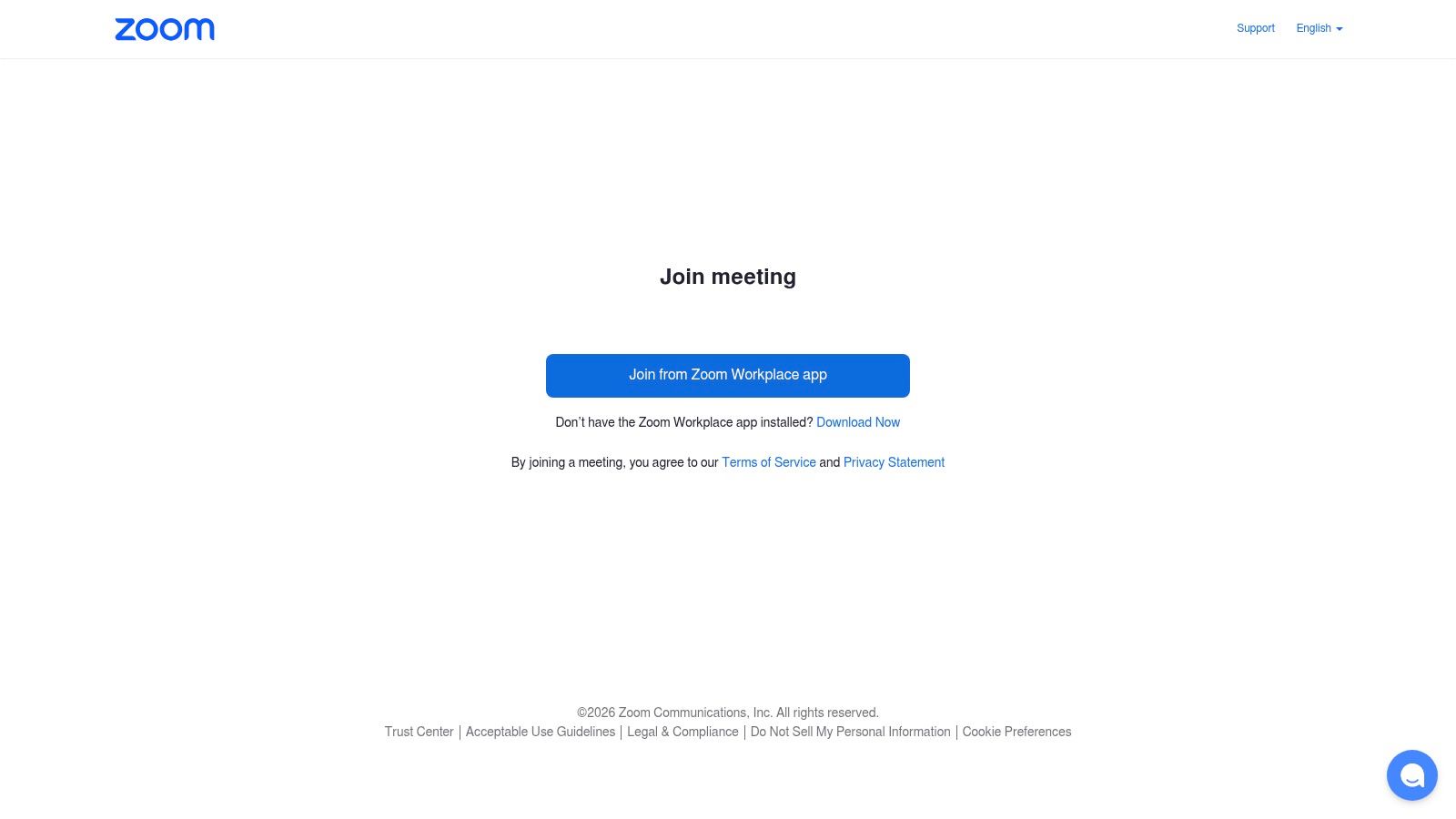
For a meeting right now
This is the fastest path when the conversation needs to happen immediately.
- Open the Zoom desktop app.
- Start a new meeting.
- In the live meeting window, open Participants.
- Click Invite.
- Choose Copy invite link if you only need the URL, or copy the full invite if your guest also needs the passcode and dial-in details.
The fastest live-meeting workflow is documented in Zapier's Zoom meeting link walkthrough. For an active meeting, opening Participants and choosing Invite or Copy invite link is the shortest route to something you can paste into Slack, email, or a calendar hold.
Use this when:
- Speed matters most: An internal unblock, manager check-in, or quick troubleshooting call.
- The audience is small: One or two people who are already in contact with you.
- You don't need prep: No agenda doc, no formal invite sequence, no advanced logistics.
Don't use it for a meeting that needs careful distribution, external attendees, or stronger pre-meeting controls.
For a meeting later
Scheduled meetings are the default for anything with expectations attached. Client calls, candidate interviews, onboarding sessions, and team rituals all fit here.
Open Zoom, go to Meetings, and schedule the meeting before sending anything out. Save the details, then copy the invite from the meeting details view or the meeting list. This gives you a stable meeting object you can edit, reuse if needed, and manage more cleanly than an instant call.
A scheduled link is usually the safest operational choice because it gives you time to set the meeting up properly. If you're comparing broader hosting options for larger external experiences, this roundup of top virtual event platforms for 2025 is useful when Zoom starts feeling too meeting-centric for the format you're running.
Here's the practical split:
| Scenario | Best link type | Reason |
|---|---|---|
| Client presentation | Scheduled meeting | Better control and cleaner invite details |
| Job interview | Scheduled meeting | Easier to manage passcode, timing, and reminders |
| Team training | Scheduled meeting | Better for recurring setup and calendar workflow |
A scheduled meeting takes a little longer upfront, but it removes a lot of avoidable admin later.
Here's a quick visual walkthrough if you prefer seeing the interface before you click through it.
For your private office
Your Personal Meeting ID, often called PMI, is the closest thing Zoom has to a permanent room. It's convenient because the link stays familiar. People who meet with you often can keep using the same destination.
That convenience is also the risk.
A personal room works well for:
- Office hours: Students, coaching clients, or direct reports know where to meet you.
- Internal drop-ins: Small teams that already trust the audience.
- Low-friction access: You don't want to issue a fresh invite every time.
It works poorly when:
- The audience changes often
- The link gets forwarded broadly
- The meeting is sensitive or high stakes
If a link will travel beyond a tight, trusted group, treat a static room as a liability, not a convenience.
That's why many experienced hosts reserve PMI for controlled access and use scheduled meetings with fresh IDs for everything else.
Customizing Key Settings for Your Meeting
Creating the link is the easy part. The settings behind it decide whether the meeting runs smoothly or becomes a cleanup job.
Boston College's Zoom guidance documents the standard secure workflow: create the meeting from the Meetings tab, turn on Recurring meeting if needed, keep a passcode active, and use an automatically generated new meeting ID in the scheduling flow described in their Zoom creating and sharing guide. That setup is simple, but it gives you much tighter control than treating every meeting like a disposable chat room.
Passcodes and Waiting Room
A passcode is basic protection. It's not glamorous, but it stops casual entry by anyone who gets only partial access to your details.
The Waiting Room adds host control. Instead of every attendee entering immediately, people land in a holding area until you admit them. That matters most when attendees don't all know each other, or when the order of entry matters.
Use both when:
- You're meeting external guests: Clients, candidates, vendors, or community members.
- You've shared the link in multiple places: Email plus calendar plus chat increases forwarding risk.
- You need a buffer: The host wants to verify who's entering before the conversation begins.
A lot of teams also pair this setup with transcription and recap workflows. If that's part of your process, this guide to Whisper AI for accurate meeting notes is useful after you've locked down meeting access.
Recurring meetings without chaos
Recurring meetings save time when the same group meets on a predictable rhythm. Weekly staff syncs, class sessions, and coaching series all fit.
The mistake is assuming “recurring” means “share it everywhere forever.” It doesn't. A recurring link is best when the attendee list is relatively stable and the admin convenience outweighs the exposure risk.
Use recurring meetings when:
- The roster stays mostly the same
- People benefit from one reusable calendar item
- You don't want to reissue new invites every week
Avoid recurring links when the meeting is public-facing, open registration is involved, or attendees rotate heavily. In those cases, fresh scheduled meetings are cleaner.
A recurring link reduces coordination work. It also increases the cost of one accidental forward.
The strongest default is straightforward. Start with an auto-generated meeting ID, add a passcode, enable Waiting Room, and only switch to a reusable recurring link when the workflow really benefits from it.
Sharing Your Link Securely and Integrating Calendars
Once you create a Zoom link, the next risk isn't usually creation. It's distribution.
TeamCamp's guidance recommends the strongest default for security: use an auto-generated meeting ID plus a meeting password and Waiting Room, because that combination creates a unique meeting space that is harder for unauthorized users to access, as described in their Zoom meeting link setup steps. That advice matters most at the moment you share the meeting, because a broadly distributed reusable link is usually where problems begin.
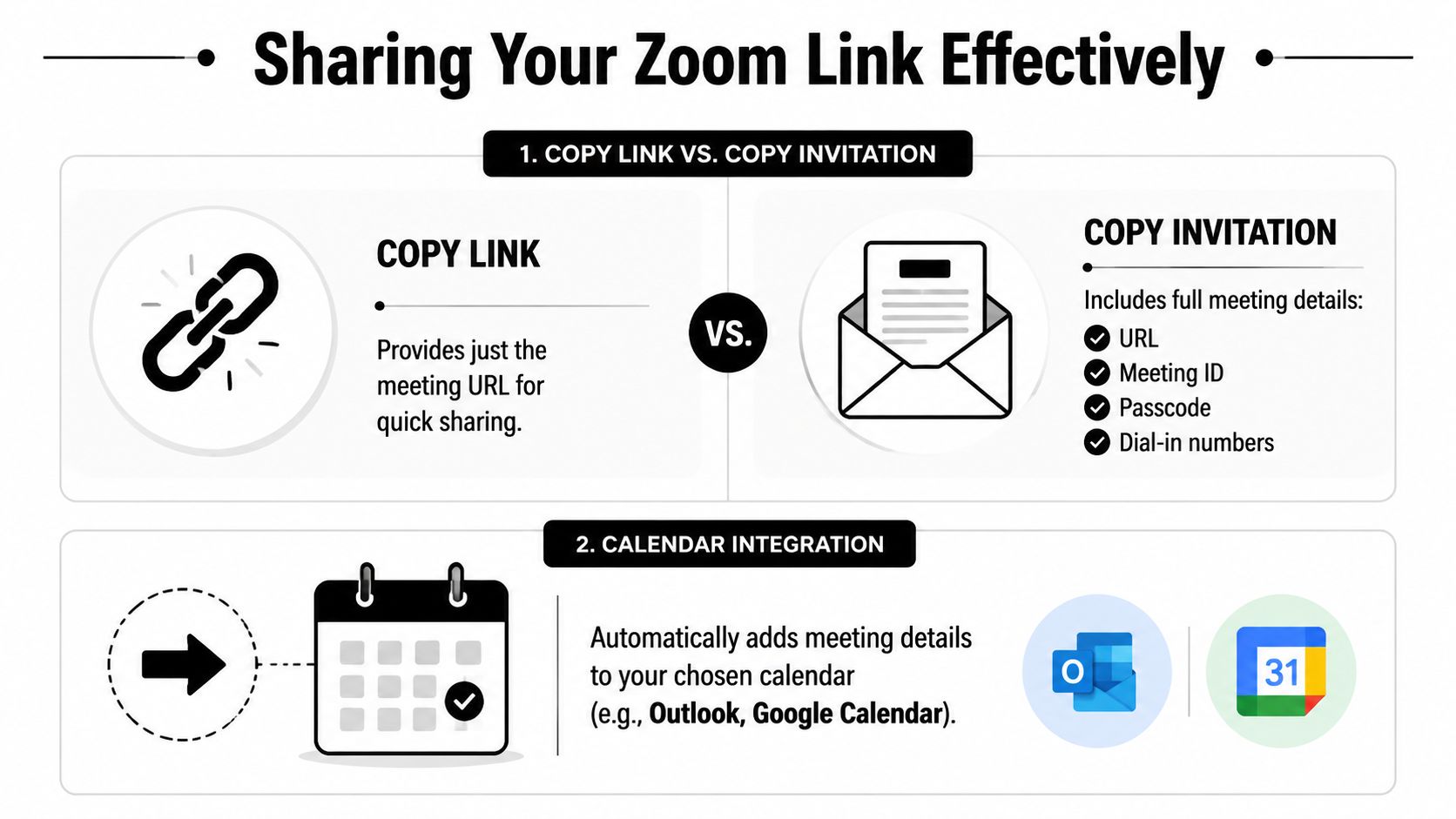
Copy Link versus Copy Invitation
These two options look similar, but they serve different jobs.
- Copy Link gives you only the URL. Use it in Slack, text, or anywhere the audience already knows the context.
- Copy Invitation includes the meeting URL, meeting ID, passcode, and often dial-in details. Use it for email, external guests, and any meeting where attendees need the full package.
A quick comparison helps:
| Option | Best for | Weakness |
|---|---|---|
| Copy Link | Fast internal sharing | Easy to lose context |
| Copy Invitation | External or formal invites | Longer and heavier to paste |
If you record meetings and want to turn them into follow-up assets, Zoom integration for content repurposing can help after the call. But before that, distribution discipline matters more than tooling.
Use calendars to reduce mistakes
Calendar integration solves problems that chat messages don't. When you send through Google Calendar or Outlook, attendees get the time, timezone, and meeting details in one place. That reduces last-minute “Can you resend the link?” messages and cuts down on outdated invite versions floating around.
It also helps you stay organized. A scheduled meeting attached to a calendar event is easier to find than a raw link buried in chat history. If your team struggles with fragmented scheduling, getting your tools aligned with a proper calendar sync workflow makes meeting distribution much more reliable.
Share the narrowest version of the invite that still gives the attendee what they need.
For internal team use, that may be the raw link. For clients, candidates, or external partners, it's usually the full invitation inside a calendar event. And for sensitive conversations, a fresh auto-generated ID beats a personal room almost every time.
Common Link Problems and Quick Fixes
Most Zoom link problems come from one mismatch. The link type, sharing method, and security settings weren't aligned with the meeting's actual audience.

Reclaim's framing gets this right in their Zoom link decision guide. The key decision isn't only how to create a link. It's which link type minimizes disruption and administrative overhead across recurring links, personal meeting rooms, and newly generated IDs.
My guest is stuck in the Waiting Room
This usually means your security settings are doing their job, but nobody is actively admitting attendees.
Quick fix: Open the participant controls and admit the person manually. If this keeps happening with trusted internal groups, decide whether Waiting Room is necessary for that specific meeting type.
The link asks for a passcode nobody has
This happens when someone copied only part of the invite, or pasted the raw link without the accompanying meeting details.
Quick fix: Resend the full invitation, not just the URL. For external meetings, default to calendar invites so the passcode stays attached to the event.
Strangers joined my call
This almost always points to an overexposed link. A reused personal room, a recurring link shared too widely, or a forwarded invite.
Quick fix: End that meeting if needed, create a new scheduled meeting with an auto-generated ID, and turn on passcode plus Waiting Room. For future meetings, don't publish stable links unless the audience is controlled.
When Zoom gets messy, the answer usually isn't a clever workaround. It's picking the right meeting object in the first place. If your team wants a cleaner operating rhythm around meeting logistics and recurring work, the Beyond Time FAQ is a useful reference point for building more consistent planning habits around coordination.
Tribble Software Private Limited built Beyond Time for people who don't just want better meetings, but better follow-through after them. If your days are full of calls, shifting priorities, and loose next steps, Beyond Time helps turn goals into clear milestones, routines, and daily execution so important work doesn't disappear after the Zoom window closes.
Put this into practice
Free tools that match this article.
Goal Setting Worksheet
Turn a vague goal into milestones, habits, blockers, and a weekly review plan.
Try Goal WorksheetTime ManagementWeekly Schedule Template
Plan your week with a free printable weekly schedule template for goals, routines, and focus blocks.
Try Schedule TemplateHabit BuildingHabit Tracker Template
Create a free printable habit tracker template — weekly or monthly. Customize your habits and download a clean PDF in seconds.
Try Habit TrackerTime ManagementTime Blocking Template
Map your day into focused time blocks with a free printable time blocking template.
Try Time BlockingRelated Articles

How to Track Multiple Goals Without Getting Overwhelmed
Learn a proven system for managing multiple goals simultaneously without losing focus or burning out. Practical frameworks for tracking 3-5 goals at once.
Accountability Partner Guide: Achieve Goals Faster
Learn how to find, structure, and get the most from an accountability partner. Research shows accountability can boost goal achievement by up to 95%.
5-Year Plan Template: Build Your Life Roadmap Step by Step
Build your life with this step-by-step 5 year plan template. Set goals across 5 key life domains and break them into year-by-year milestones you can act on.
How to Set Life Priorities: A Framework for What Matters Most
Learn how to set priorities in life with a proven values-based framework. Discover what matters most and start building goals aligned with your life today.
Life Audit: The Complete Guide to Redesign Your Life
A life audit helps you step back, evaluate every major area of your life, and redesign it with intention. Discover how to do yours in five clear steps.
How to Stay Motivated: Science-Backed Strategies That Work
Struggling with how to stay motivated on long-term goals? Discover science-backed systems and practical strategies to build lasting motivation that sticks.