Best Email Client 2026 for Peak Productivity
Tired of inbox chaos? Find the best email client for your workflow. We compare top apps on AI, privacy, and productivity to help you achieve your goals.
Your inbox probably isn't your biggest workload. It just interrupts all of it.
Email users often don't need more features. They need an email client that stops turning every incoming message into a decision, a distraction, or a half-finished task. That's why the best email client in 2026 isn't just the one with the nicest interface or the longest feature list. It's the one that helps you protect focus, move messages into action, and stay aligned with the work that truly matters.
I've found that email clients fall into two camps. Some are built to store and display messages. Others are built to help you process work. That difference matters more than almost anything in a comparison chart. If you're a founder, manager, student, or creator, your email client sits in the middle of commitments, deadlines, approvals, follow-ups, and planning. Choose badly, and you'll spend your day reacting. Choose well, and email becomes a routing layer for your goals instead of a source of drag.
Table of Contents
- Beyond Inbox Zero Finding an Email Client That Works for You
- How to Choose an Email Client That Fits Your Goals
- The Top Email Clients on the Market in 2026
- Comparing Workflows and Productivity Features
- Comparing Privacy Policies and Platform Support
- Tailored Recommendations for Your Goals
- Migrating and Optimizing Your New Client
- Frequently Asked Questions About Email Clients
Beyond Inbox Zero Finding an Email Client That Works for You
Inbox Zero is a nice feeling. It's not a system.
A lot of email advice still treats the inbox like a cleaning problem. Archive more. Unsubscribe faster. Set better rules. Those tactics help, but they miss the deeper issue. Email isn't separate from your work. It creates work. Every client request, class update, investor reply, calendar change, hiring thread, and billing notice arrives through the same pipe, then competes for the same attention.
That's why the best email client should be judged by one question first. Does it help you turn communication into intentional action, or does it keep you trapped in perpetual triage?
The client is part of your operating system
If you use email to manage deadlines, approvals, and follow-ups, your client becomes part of your personal productivity stack. The wrong one creates friction in small ways that add up. Search feels slow, so you keep messages visible “just in case.” Notifications are noisy, so deep work gets broken into fragments. Mobile handling is clumsy, so you defer decisions until later and carry mental residue all day.
The right client reduces that drag. It gives you a reliable way to sort signal from noise, capture commitments, and move messages out of the inbox without losing track of them.
Practical rule: If your email client makes you reread the same message three times before acting on it, it's costing more than it's saving.
Feature lists don't tell you how you'll work
Most reviews compare storage, templates, folders, and AI add-ons. Useful, but shallow. What matters more is workflow philosophy.
Some clients reward keyboard-driven processing. Some push a task-oriented mindset. Some are excellent for teams sharing ownership of incoming mail. Others are opinionated enough to improve focus for the right person and infuriating for the wrong one.
A good choice feels boring in the best way. Messages come in, decisions get made, and your actual priorities stay visible.
How to Choose an Email Client That Fits Your Goals
Choosing an email client gets easier when you stop asking which app is best overall and start asking which one best supports your working style.
Existing advice often skips the biggest issue. A 2026 Gartner report found that 78% of working professionals experience fragmented workflows between their email tasks and their broader goal achievement systems. That's the gap that matters most if you're trying to keep communication tied to real progress, not just empty the inbox.
Start with the job email does in your life
Before comparing apps, define the job.
If email is mostly personal, your priorities may be simplicity, privacy, and a clean mobile experience. If you run projects through email, you need fast triage, dependable search, and better links to task or planning tools. If you work in a team setting, shared visibility and handoff features matter more than aesthetic polish.
This visual framework is a good place to start:
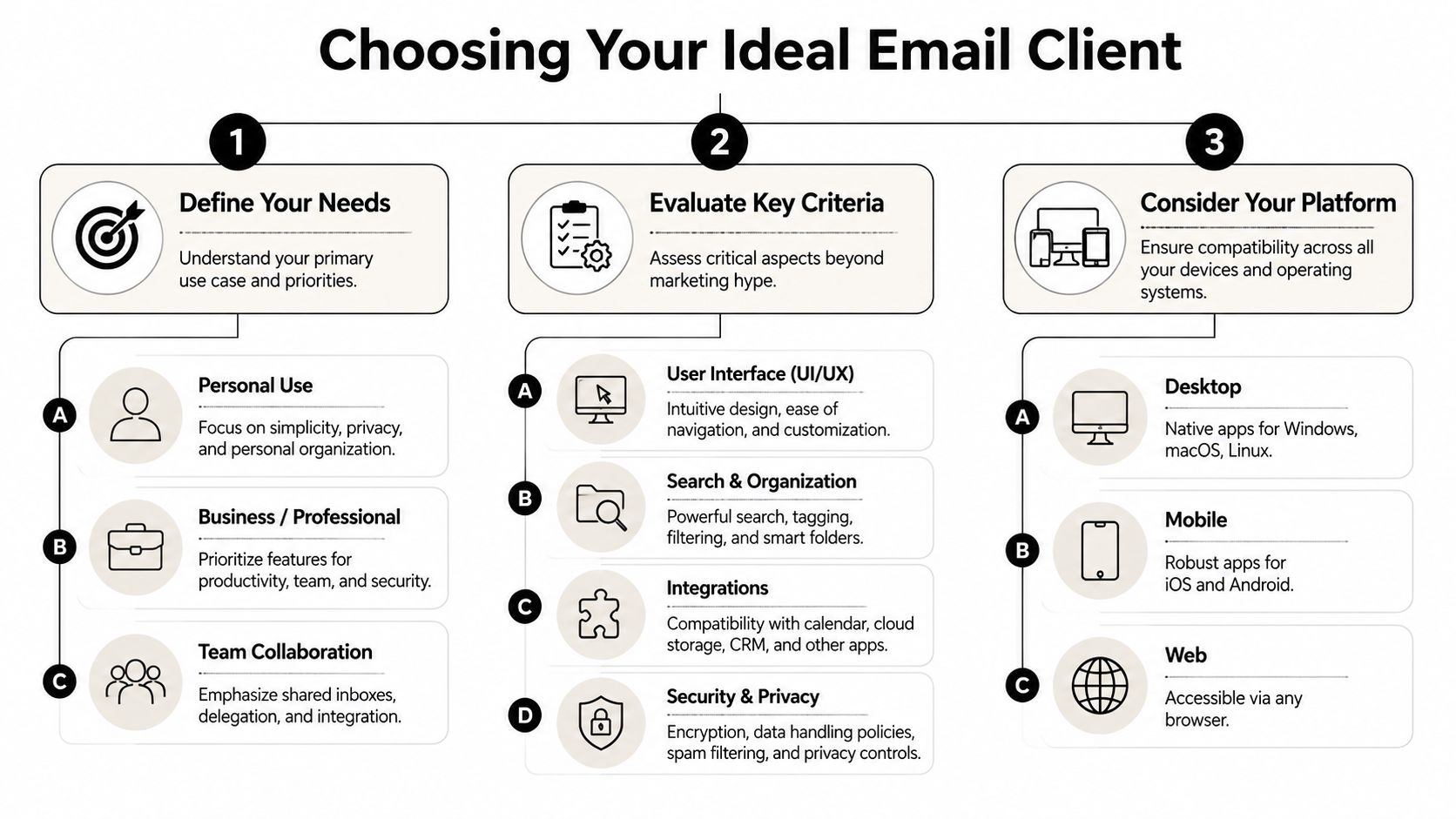
A practical way to frame it is this:
- Personal use: Favor low-friction setup, strong privacy defaults, and easy organization.
- Business use: Prioritize speed, integrations, calendar handling, and security controls.
- Team collaboration: Look for delegation, shared drafts, and better context around ownership.
For a broader look at how work systems break down and what improves them, this guide on how to improve work productivity complements the email decision well.
Later in the decision process, it helps to watch how others think through the category:
Use seven filters before you commit
I'd evaluate every contender through seven lenses.
Platform coverage
If you live across laptop and phone, weak mobile support is a dealbreaker. If you use public or shared machines, robust web access matters too.Workflow philosophy
Some clients are traditional. Others are built for rapid triage, task conversion, or message screening. Don't fight the app's worldview. Match it.Integration depth
A client that connects cleanly with calendar, notes, chat, and project tools usually creates less manual copying and fewer forgotten commitments.Privacy posture
This includes how the company handles data, where processing happens, and whether the business model aligns with your comfort level.AI usefulness
Ignore generic “AI included” claims. What matters is whether summarization, drafting, or categorization removes friction without creating cleanup work.Focus features
Snooze, send later, reminders, split inboxes, keyboard shortcuts, and selective notifications matter because they shape attention, not because they look impressive in screenshots.Performance feel
Lag changes behavior. A client that feels slow trains you to procrastinate decisions. A fast one encourages closure.
When an email client fits, you stop managing the tool and start moving work.
The Top Email Clients on the Market in 2026
The market is far less open than it looks. Apple Mail leads the email client market with a 58.67% share, and Gmail follows with a 28.72% share, which puts nearly 90% of usage inside the Apple and Google ecosystems according to Mailmodo's email client statistics. That dominance matters because any contender has to win not just on features, but against default habits that are already baked into devices and workflows.
Email Client At-a-Glance Comparison
| Client | Best For | Pricing Model | Key Feature |
|---|---|---|---|
| Apple Mail | Apple device users who want a native default | Included with Apple devices | Tight OS integration |
| Gmail | Users who prefer web-first email and Google workspace habits | Free and paid Google plans | Strong search and label model |
| Microsoft Outlook | Enterprise environments and Microsoft-heavy teams | Included in many Microsoft plans | Calendar and enterprise workflow alignment |
| Superhuman | Executives, founders, and speed-focused operators | Paid subscription | Fast keyboard-first triage |
| Spark | Power users who want a balance of polish and features | Free tier and paid plans | Smart Inbox and collaboration tools |
| HEY | Users who want a strict, opinionated approach to email | Paid subscription | Screening and structured inbox model |
What each major client is really selling
Apple Mail wins by being there already. On Apple devices, it feels native, stable, and familiar. For many people, that's enough. Its strength is low friction. Its weakness is that it doesn't aggressively rethink workflow.
Gmail remains the default for people who trust search more than folders. It works especially well for users who are already centered on Google Calendar, Drive, and browser-based work. The downside is that many users never move beyond basic inbox habits, even though Gmail can support a much better system than is typically built.
Outlook is the enterprise standard because it fits corporate reality. Meetings, shared environments, Microsoft integrations, and organizational norms all point toward it. Outlook can be powerful, but it can also feel heavy if you don't live inside the Microsoft stack.
Superhuman sells speed and deliberate processing. It's not trying to be the email client for everyone. It's trying to be the tool for people who want email to behave like a command line for decisions.
Spark appeals to users who want more guidance without giving up flexibility. It's one of the better middle-ground options if you want modern productivity features but don't want a fully rigid philosophy.
HEY is the contrarian pick. It asks you to accept its model of how email should work. For some users, that structure is liberating. For others, it feels like renting someone else's habits.
Comparing Workflows and Productivity Features
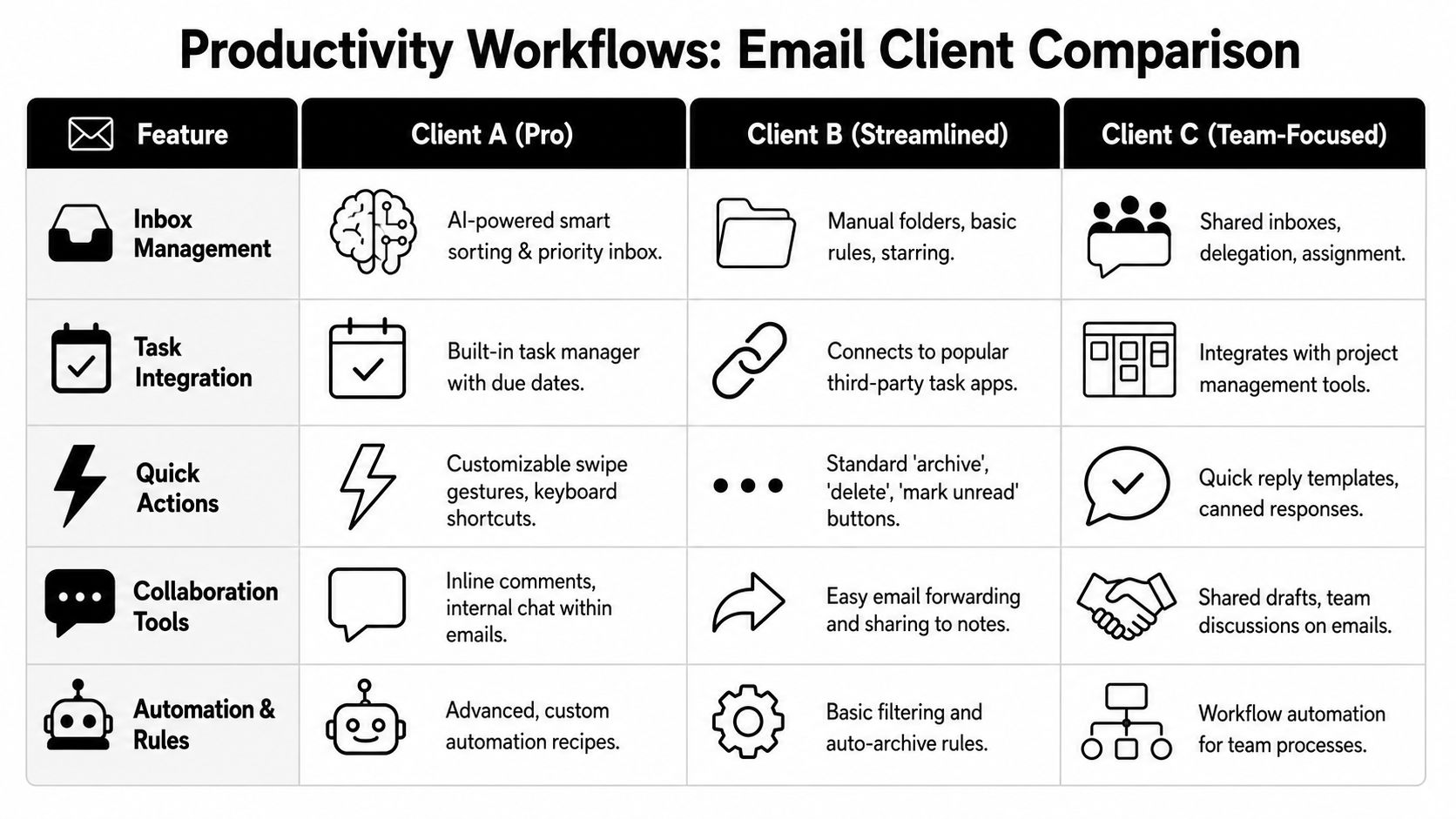
The biggest difference between email clients isn't layout. It's what kind of behavior they encourage.
Some clients let everything accumulate, then trust search. Some push you toward rapid archive-and-reply. Others try to turn email into a lightweight task system. If you pick the wrong workflow model, even a polished app becomes friction.
The real workflow split
Gmail is strongest when you treat inbox management as search plus labels plus selective automation. That works well for people who don't mind building their own system. It works poorly for people who want the client to impose structure.
Superhuman sits at the opposite end. It assumes speed matters. The interface pushes fast keyboard navigation, quick triage, and low-friction processing. If your day includes lots of short, high-stakes decisions, that style can feel much better than a traditional mailbox.
Spark lands in between. Its Smart Inbox and broader productivity feature set make it attractive for users who want help organizing mail without fully surrendering control. It's a better fit for mixed workloads than for purists who want either total flexibility or strict screening.
HEY is the most opinionated of the group. Screening, the Imbox concept, and its separation of different message types create a more controlled environment. The trade-off is obvious. You gain boundaries, but you have to accept its worldview.
- Flexible systems win on adaptability: Gmail and Outlook are easier to bend around existing habits.
- Opinionated systems win on behavior change: HEY and Superhuman work best when you want the tool to shape how you process email.
- Hybrid systems win on accessibility: Spark often feels easier to adopt because it improves the experience without forcing a complete reset.
Where speed changes behavior
For high-performance users, performance isn't cosmetic. The best clients maintain sub-50ms latency for message indexing, use native Rust-based engines for 300% faster search, and clients with local AI summarization reduce average time-to-action by 42%. Those details matter because they change whether email feels like a backlog or a live workspace.
If you handle a large archive, slow search is brutal. You keep messages visible because retrieval feels uncertain. Fast indexing removes that fear. The same is true for summarization. When a client can compress a long thread into something actionable, you spend less time reconstructing context.
A slow client doesn't just waste seconds. It trains avoidance.
For teams dealing with sales or outbound motion, strong inbox discipline matters beyond personal productivity. This breakdown of ReachInbox on B2B email workflows is useful because it focuses on process, ownership, and keeping inbox activity tied to business outcomes.
The most useful AI and automation features are narrow, not flashy:
| Workflow need | What actually helps |
|---|---|
| Re-entering long threads | Local summarization and thread context |
| Keeping focus | Selective notifications and snooze |
| Moving from email to execution | Task links, reminders, and calendar hooks |
| Protecting processing speed | Keyboard shortcuts and instant search |
If you're building a broader stack around attention and execution, this roundup of AI productivity tools is worth pairing with your client choice.
Comparing Privacy Policies and Platform Support
Privacy talk around email gets fuzzy fast. The useful question is simpler. What trade-off are you making for convenience, and are you comfortable making it?
Some users care most about frictionless sync and ecosystem fit. Others care most about minimizing exposure, keeping processing local where possible, and avoiding business models that feel too dependent on data extraction. The best email client for you depends on which risk you're trying to reduce.
Privacy models shape trade-offs
Apple Mail gets attention because of its privacy stance and on-device feel inside the Apple ecosystem. That appeals to users who want email to behave more like a local utility than a cloud-first productivity layer.
Gmail is convenient, and that's why many people stay. But convenience and comfort aren't the same thing. Some users are fine with the trade. Others would rather pay for a client or service that feels more aligned with a privacy-first posture.
Subscription products like Superhuman and HEY usually frame privacy differently because their revenue model doesn't depend on broad-scale advertising. That doesn't automatically make them perfect. It does change the incentives, and that matters.
Pick the privacy model you can live with when you're handling your most sensitive messages, not the one that sounds nicest on a homepage.
Platform support matters more than people admit
A client can have brilliant desktop ergonomics and still fail if its phone app is weak. That's not a minor issue anymore. Mobile clients account for 41.6% of all email opens, webmail accounts for 40.6%, and desktop accounts for 16.2% according to Porch Group Media's email statistics roundup. A serious email setup now has to work across mobile, browser, and desktop without breaking your flow.
Use this practical lens when comparing platform support:
- Desktop-first workers: Prioritize keyboard shortcuts, offline reliability, and fast search.
- Mobile-heavy users: Look for swipe customization, readable thread views, and fast account switching.
- Mixed-device operators: Favor clients that keep rules, snooze states, and triage decisions consistent everywhere.
Apple Mail is strongest if you're all-in on Apple hardware. Gmail is strongest if you live comfortably in the browser. Outlook works best when your organization already runs on Microsoft tools. Spark tends to be attractive when you want one modern layer across devices. Superhuman's value is highest when speed on your main machine matters more than broad platform parity.
Tailored Recommendations for Your Goals
There isn't one best email client. There's the best one for the kind of work you need to do repeatedly.
That's the standard I use when recommending a client. Not which app has the most features. Which one makes the right actions easier, faster, and more consistent for a specific kind of user.
For founders and startup builders
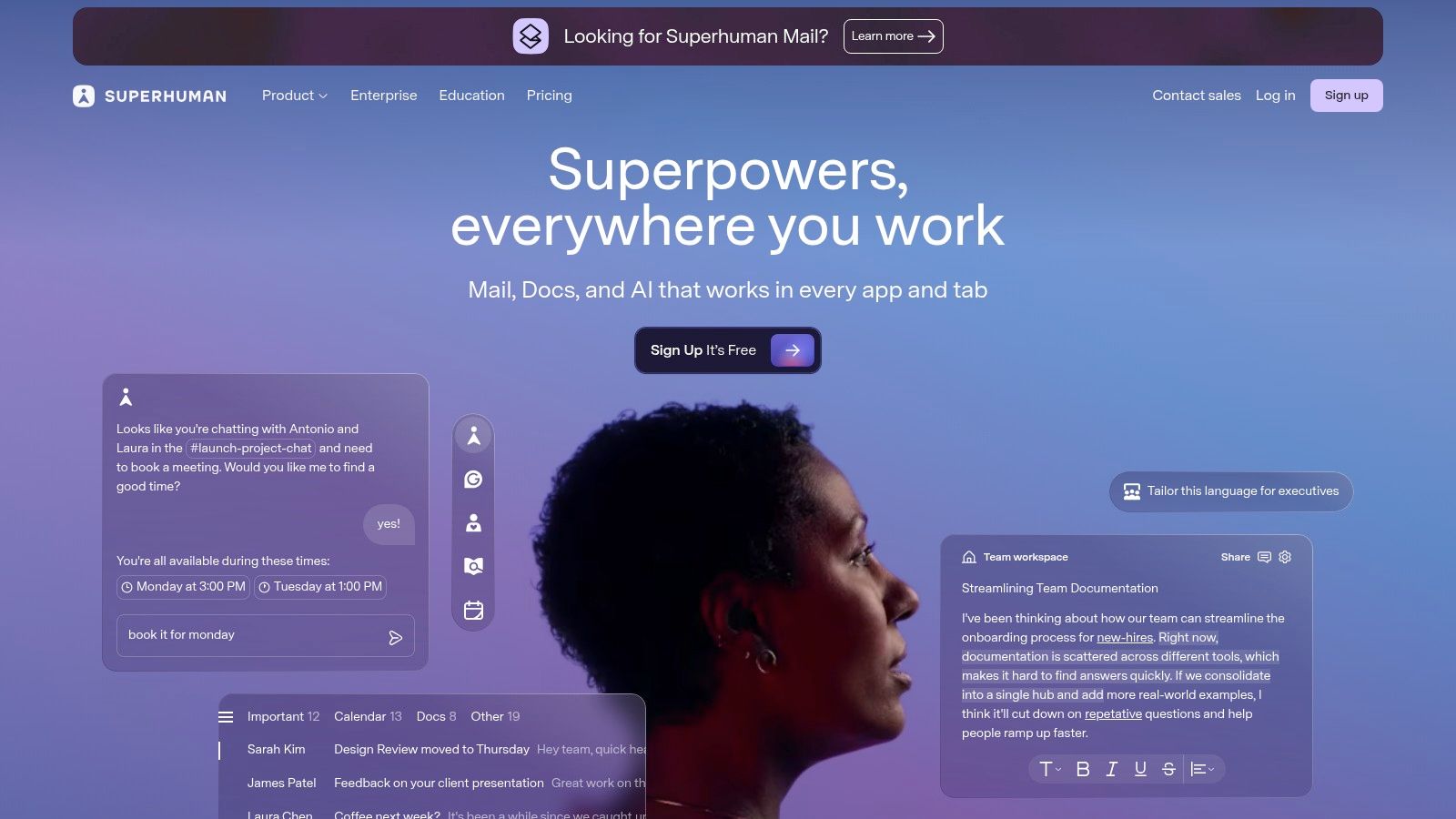
Choose Superhuman if speed, keyboard control, and rapid decision-making are central to your day. For startup builders, contextual awareness is the differentiator that matters most. Clients with deep API integrations through tools like Slack or Cursor can reduce context-switching time by 35%, which is exactly why fast, connected clients outperform generic inbox tools for operators managing multiple moving threads.
Founders don't need prettier inboxes. They need fewer loose ends. A client is strongest here when it helps connect emails to roadmaps, priorities, and follow-ups instead of leaving everything stranded inside threads.
For managers and knowledge workers
Choose Outlook if your environment is already standardized around Microsoft. Choose Spark if you want a more modern and flexible productivity experience without fighting your team's habits.
Managers need collaboration, calendar awareness, filtering, and consistent behavior across devices. Outlook is often the practical answer in structured organizations. Spark is often the better answer for individuals who want more control and less enterprise heaviness.
A good manager setup usually includes:
- Clear rules: Route low-value updates away from the primary inbox.
- Fast deferral: Snooze anything that isn't actionable today.
- Meeting awareness: Keep calendar context close to the message layer.
For students and solo operators
Choose Gmail if you want a free, capable, familiar system with strong search and simple cross-device access. Choose Apple Mail if you're already inside the Apple ecosystem and want a stable, native experience that stays out of your way. Choose HEY if you struggle with noisy inbox habits and want the app to enforce boundaries.
Students don't usually need the most advanced client. They need one they'll use consistently. That means easy search, reliable mobile handling, decent offline behavior, and a structure that doesn't collapse during busy weeks.
The best choice is the one that reduces rework. If a client helps you decide once and trust the system later, it's doing its job.
Migrating and Optimizing Your New Client
Switching clients feels harder than it usually is. The risk isn't the migration itself. It's carrying your old bad habits into a new interface and expecting a different result.
Clean up before you switch
Do a quick reset before you connect anything.
- Archive old clutter: Don't drag a messy visible backlog into the new app if you can avoid it.
- Unsubscribe first: Remove recurring noise before testing whether the new client improves focus.
- List your active workflows: Note which messages become tasks, meetings, approvals, or reference material.
Then connect accounts properly through the client's supported sign-in flow, usually with IMAP or OAuth depending on the provider. Test search, sent mail, draft sync, and calendar visibility before you fully commit.
Set the three things that matter first
The first hour matters more than the first week.
Configure shortcuts you'll frequently use
Archive, snooze, search, and compose should be effortless.Rebuild notifications from zero
Don't allow every message to interrupt you. Keep alerts only for the senders or account types that warrant immediate attention.Tie email to your calendar
A time-based system beats a memory-based system. If you schedule focused reply blocks, your client becomes much easier to manage. This guide to a time-blocked calendar pairs well with a new email setup because it turns inbox handling into a planned activity instead of background leakage.
My rule is simple. If a client doesn't feel calmer within a few days, don't rationalize it. Switch again.
Frequently Asked Questions About Email Clients
Is it worth paying for an email client?
Yes, if the paid client changes how you work. If it saves attention, speeds up triage, and helps you close loops faster, the value isn't in email itself. It's in regained focus.
What's the difference between an email client and an email service?
The service is the provider, like Gmail. The client is the app you use to access that mailbox. If you want a clean glossary before deciding, this guide to essential email client terms is a useful refresher.
Can one client handle multiple accounts from different providers?
Usually, yes. That's one of the main reasons to use a dedicated client. It's often the easiest way to unify work, personal, school, or project email in one place without constant tab switching.
If you want your email workflow connected to actual execution, not just better organization, Tribble Software Private Limited builds Beyond Time, an AI-powered goal achievement system that turns objectives into actionable roadmaps, daily momentum, and measurable progress across the tools where you already work.
Put this into practice
Free tools that match this article.
Goal Setting Worksheet
Turn a vague goal into milestones, habits, blockers, and a weekly review plan.
Try Goal WorksheetAssessmentProductivity Score Calculator
Discover your productivity score and get personalized recommendations to improve.
Try Productivity ScoreGoal SettingSMART Goal Validator
Instantly validate your goals against the SMART framework and get actionable improvement suggestions.
Try SMART ValidatorTime ManagementWeekly Schedule Optimizer
Generate an optimized weekly schedule with AI-powered time blocking for maximum productivity.
Try Schedule OptimizerKeep exploring this topic
Best goal tracking apps
Compare tools for goals, habits, and progress tracking.
Best habit tracker apps
Compare habit apps by use case, depth, and daily workflow.
Goal setting guide
Start with the fundamentals of setting goals that turn into action.
Goal frameworks compared
Choose between SMART goals, OKRs, BHAGs, and 12-week goals.
Related Articles
AI Accountability Partner: Smarter Goal Setting
Tired of missed goals? An AI accountability partner provides the structure & feedback you need. Explore benefits, workflows, and tools.
Goal Planning Tools: Achieve Your 2026 Targets
Discover the best goal planning tools for founders, teams, & individuals. Our 2026 review covers OKR, habit trackers, & AI systems to hit targets.
10 Best Productivity Apps for Mac in 2026
Discover the 10 best productivity apps for Mac in 2026. Our curated list covers task managers, focus tools, and automation to boost your workflow.
Productivity Tracking Software: Your Complete 2026 Guide
Discover what productivity tracking software is, how to choose the right tool, and how to use it to achieve real goals. A complete guide for 2026.
Progress Tracking Software: A Guide to Achieving Your Goals
Discover how progress tracking software can turn your goals into achievements. This guide covers features, use cases, and how to choose the right tool for you.
OKR Tracking Software: From Planning to Achievement in 2026
Confused by OKR tracking software? This guide explains key features, how to choose the right tool, and how to turn your goals into daily achievements.