10 Best Productivity Apps for Mac in 2026
Discover the 10 best productivity apps for Mac in 2026. Our curated list covers task managers, focus tools, and automation to boost your workflow.
Your Mac already has the raw ingredients for a productive setup. A common problem is ending up with a pile of disconnected apps instead of a system. Tasks live in one place, notes in another, calendar events somewhere else, and by Friday it's hard to determine what moved forward.
That's why the best productivity apps for Mac aren't just the ones with the longest feature list. They're the ones that reduce switching, make decisions easier, and fit together without constant maintenance. In practice, that usually means choosing one app for goals or tasks, one for notes, one for scheduling, and a few lightweight utilities that remove friction from the workday.
There's also a clear shift in how Mac productivity tools are being evaluated. A March 2026 roundup that tested 37 Mac productivity tools found that the strongest options now combine tracking, AI insight, and focus features more cohesively than older fragmented setups. If you're also reviewing your wider setup, this list pairs well with these essential Mac tools for 2026.
Table of Contents
- 1. Tribble Software Private Limited
- 2. Raycast
- 3. Things 3 (Cultured Code)
- 4. OmniFocus 4 (The Omni Group)
- 5. Notion
- 6. Obsidian
- 7. Fantastical (Flexibits Premium)
- 8. Keyboard Maestro
- 9. Hazel (Noodlesoft)
- 10. Magnet
- Top 10 Mac Productivity Apps, Comparison
- Final Thoughts
1. Tribble Software Private Limited
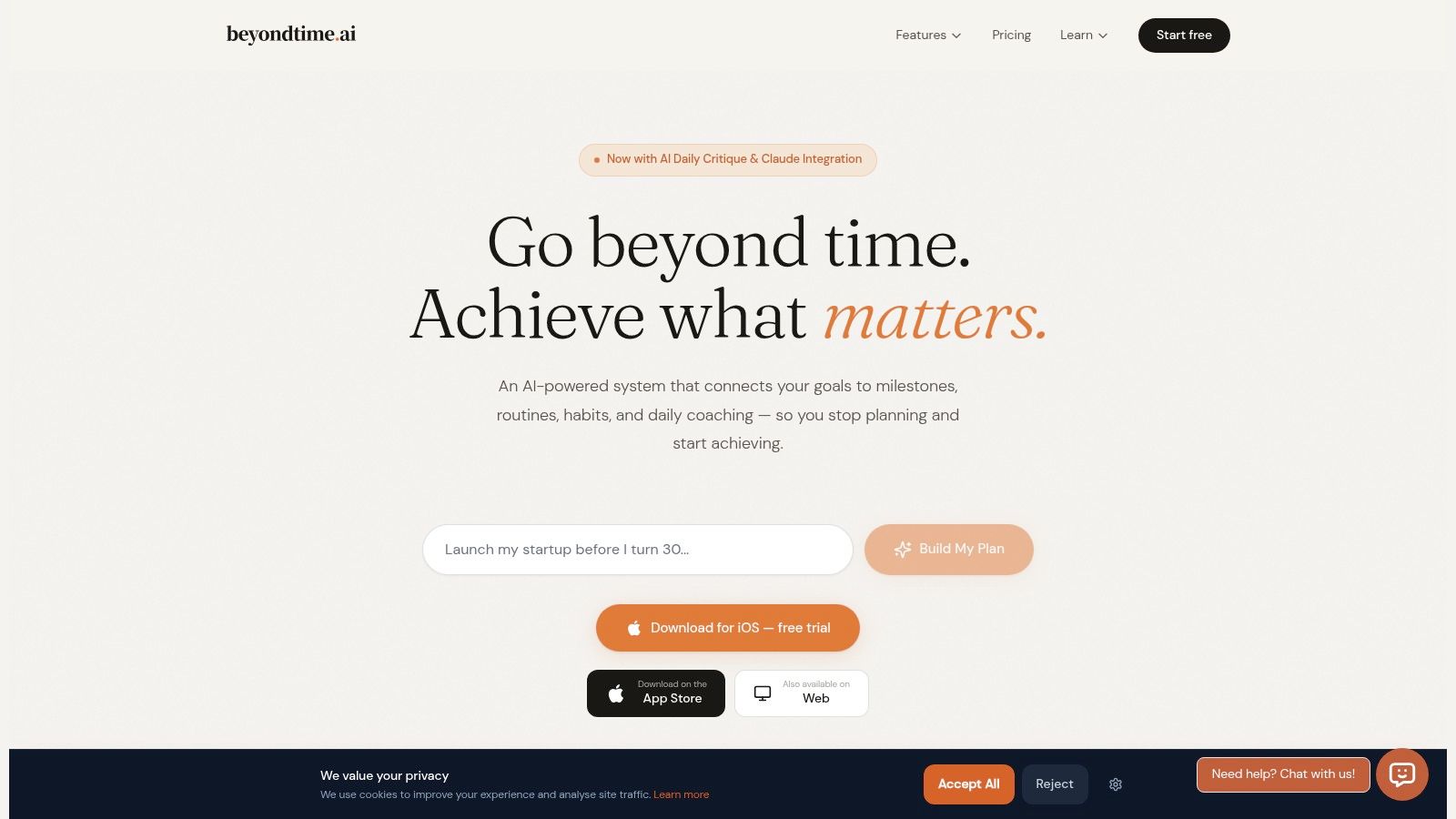
Monday starts with a familiar problem. The calendar is full, the task list is longer than it should be, and the big goals still feel abstract. Beyond Time from Tribble Software Private Limited is built for that gap between planning and execution. Instead of giving you one more place to collect tasks, it connects goals, milestones, routines, and time spent so your daily work reflects what you say matters.
That makes it the most system-oriented app in this guide.
The framework is OKR-based, but the experience is grounded in personal execution rather than team reporting. You set an objective, break it into milestones, and turn those milestones into recurring routines or focused work sessions. On iOS, the app adds planned versus actual time tracking in 15-minute blocks and a daily AI review that calls out the highest-impact action for the day. If your weak point is deciding what deserves attention first, these task prioritization techniques for daily planning fit naturally with how the app works.
Why it works as the hub
Many Mac productivity apps do one job well. They capture tasks, store notes, manage your calendar, or automate clicks. Beyond Time earns the top spot because it can sit above those tools and give them direction.
In practice, the loop looks like this:
- Goals turn into milestones: Long-term plans become specific checkpoints.
- Milestones turn into routines: Repeated work gets scheduled instead of left to willpower.
- Time is tracked against the plan: You can compare intention with actual effort.
- Daily coaching stays narrow: The AI review points to one priority instead of producing more clutter.
That structure matters if your current system breaks down at the handoff between strategy and today's work.
Practical rule: If you rewrite your priorities every morning, the problem is usually not effort. The problem is that your goals have not been translated into actions you can actually execute.
There is a real trade-off. Setup takes longer than it does in a lightweight to-do app because the app needs context before it becomes useful. Users who want instant capture with almost no configuration may prefer a simpler tool. Users who are trying to finish a thesis, build a business, manage a demanding role, or recover focus after scattered weeks usually benefit from the extra structure.
Who should use it
Beyond Time fits people who care less about checking boxes and more about whether their week adds up to real progress. I would put it in front of founders, students, operators, and independent professionals who already know their problem is not idea capture. Their problem is consistency, prioritization, and honest feedback on where time went.
The free web app covers goal and milestone planning. The iOS app adds the fuller execution layer, including time tracking and daily review. It also works with Claude, ChatGPT, Cursor, Windsurf, and other MCP-compatible tools, which is useful if you want planning context available inside the tools where you already write, build, or research.
Pricing is simple: a two-week free trial on iOS, then Beyond Time Pro at $4.99 per month or $29.99 per year. The web app and Claude access stay free, with limited personal context and core planning features in the free tier.
2. Raycast
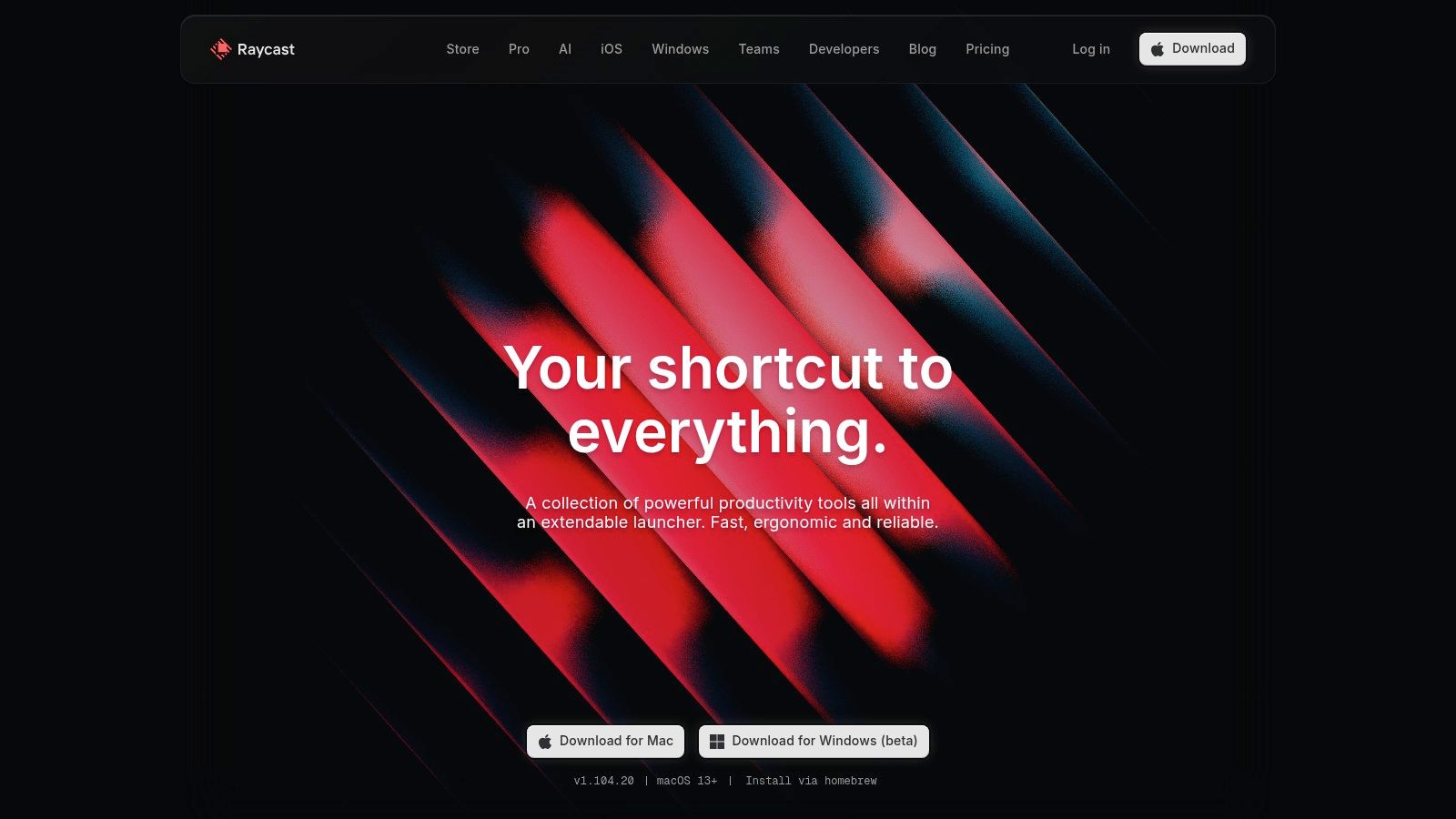
You are in the middle of work, need one file, one calendar link, and one command, and suddenly you have opened five windows to do thirty seconds of admin. Raycast fixes that kind of drag better than almost any Mac utility I have used.
Raycast is the app I put at the front of a Mac productivity system because it reduces the cost of switching. Instead of hunting through folders, menus, and browser tabs, you trigger actions from one keyboard-first command bar. That matters more than the feature list. Its benefit is fewer interruptions between deciding what to do and doing it.
Best for reducing friction across your whole stack
Raycast works best as the control layer that sits above the rest of your apps. I use it to launch project tools, search knowledge bases, paste repeat text, manage clipboard history, open saved links, and run small automations without breaking focus. In a setup built around goals, tasks, notes, and calendar, Raycast is often the fastest way to move between those layers.
That makes it especially useful alongside a more deliberate planning system. If Beyond Time holds your priorities and weekly direction, Raycast helps you execute faster at the moment of action. The combination is practical. One tool decides what deserves attention, the other removes the mechanical delay of getting there. If prioritization is still the weak point in your workflow, these task prioritization methods for daily planning help before you optimize speed.
A few strengths stand out in day-to-day use:
- Fast command access: Open apps, folders, documents, and URLs in seconds.
- Useful built-in tools: Clipboard history, snippets, calculator, quick links, and notes cover a lot of common micro-tasks.
- Extension ecosystem: Helpful for developers, operators, and knowledge workers who live across many services.
- Good-enough window controls: Enough for many users who want fewer standalone utilities.
The trade-off is clear. Raycast saves the most time for people who are willing to memorize a few commands and stay on the keyboard. Users who mostly point and click will still get value, but not the full return. It is also easy to over-configure. Installing dozens of extensions can turn a clean launcher into another layer of clutter, which defeats the point.
Pricing matters here too. The free version is useful, but some of the more attractive extras, especially sync and parts of the AI feature set, are part of Pro. For Mac-only users, that can still be a sensible spend because Raycast often replaces several smaller apps. For people splitting their workflow evenly across Windows and Mac, the fit is less convincing.
3. Things 3 (Cultured Code)
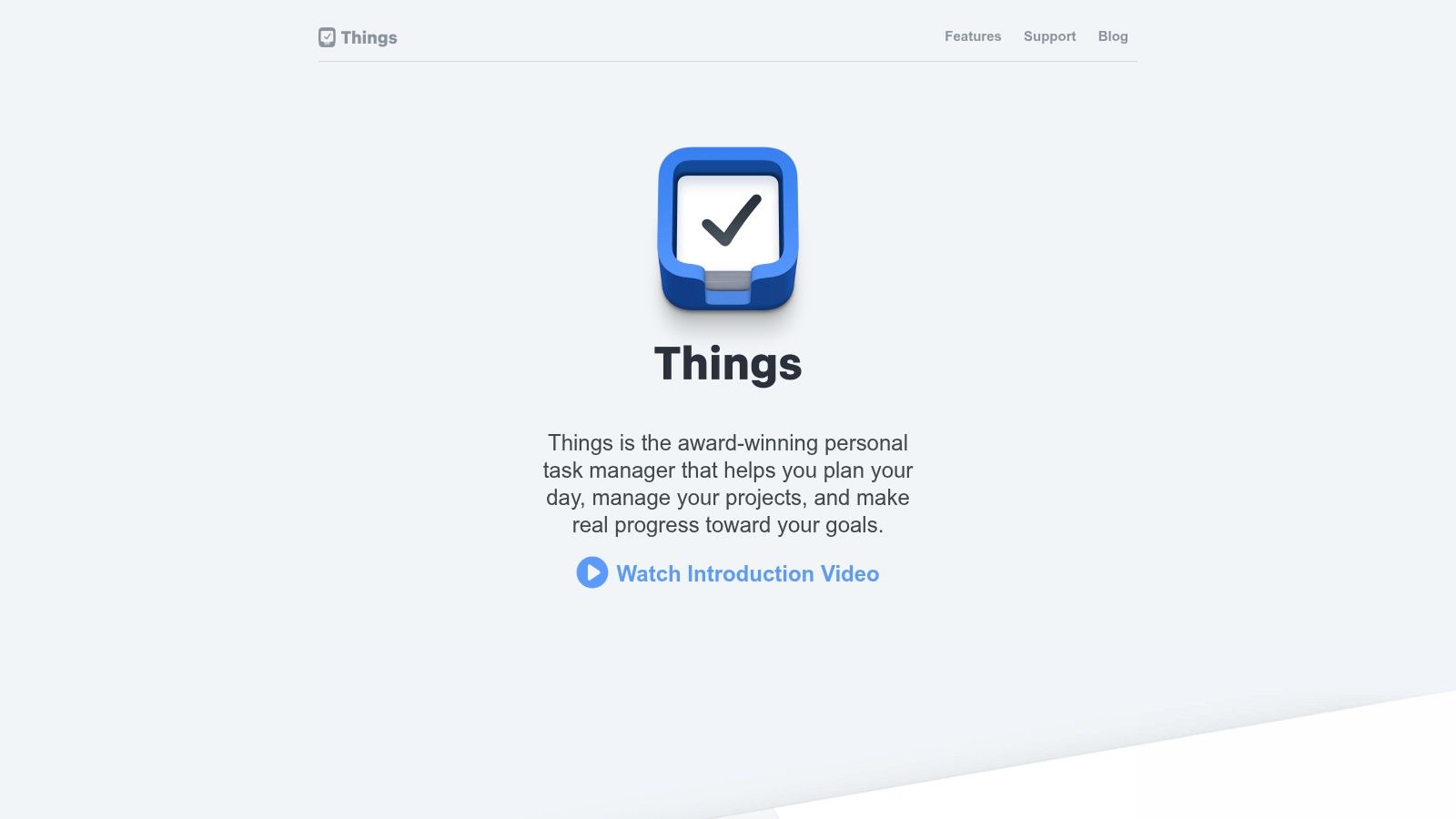
Things 3 is the task manager I suggest to people who want structure without friction. It's polished, calm, and fast in the way good Mac software should be. You open it and immediately understand where today's work lives.
That simplicity is the point. Things isn't trying to be your team wiki, CRM, calendar, and whiteboard all at once. It handles projects, areas, dates, tags, and quick capture with very little visual noise.
Best for clean personal task management
Things 3 is strongest for individual work. If your ideal system is “capture it quickly, organize it lightly, and trust the list,” this app does that well. The Today and Upcoming views help keep planning grounded, and natural-language date entry keeps capture fast.
I especially like it for people learning prioritization. The interface nudges you toward deciding what matters now instead of hoarding tasks forever. If that's a skill you're actively building, these task prioritization techniques pair well with a Things-based workflow.
What works:
- Low-friction capture: Easy to get tasks out of your head fast.
- Native feel: It behaves like a Mac app, not a web app wrapped in a shell.
- One-time purchase model: Attractive if you're tired of stacking subscriptions.
- Reliable personal system: Great for solo professionals and students.
What doesn't work as well is collaboration. If your work requires comments, shared ownership, or multi-person project tracking, Things starts to feel intentionally narrow. That's not a flaw. It's a design choice. But it means you should pick it for clarity, not for teamwork.
4. OmniFocus 4 (The Omni Group)
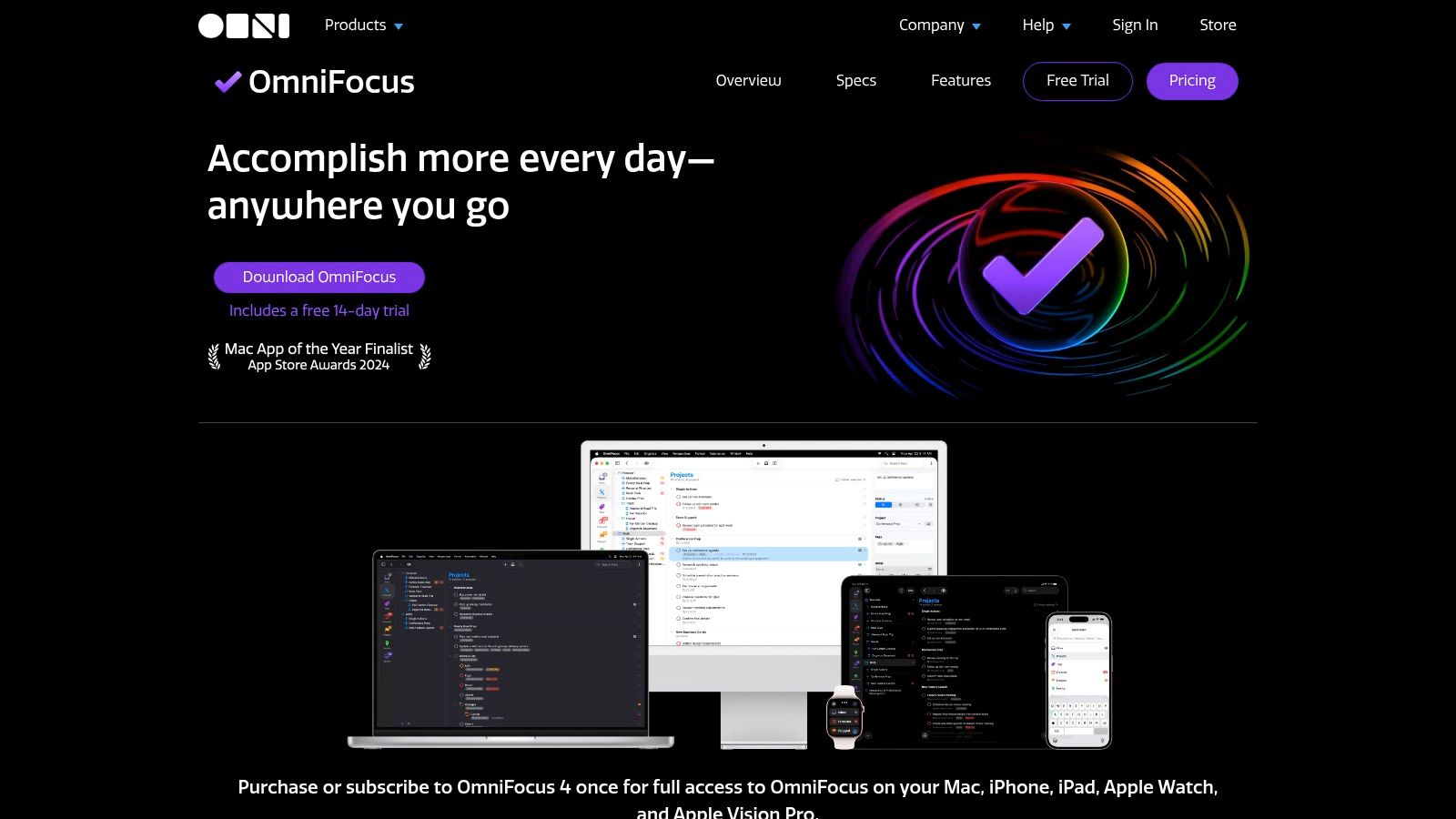
OmniFocus 4 is what happens when a task manager is built for people who don't have simple workloads. If your responsibilities involve nested projects, recurring review cycles, defer dates, custom filters, and a lot of moving parts, OmniFocus can handle that complexity better than lighter apps.
It's not elegant in the same effortless way as Things 3. It's more procedural. That's exactly why some users love it.
Best when your workload has layers
OmniFocus earns its keep through perspectives, forecasting, review workflows, and advanced scheduling rules. Founders, operators, and senior professionals often have work that can't be represented by a flat task list. They need a system that distinguishes urgent from available, active from deferred, and strategic from routine.
Use OmniFocus if you regularly think, “I know everything is in my system, but I need a different lens on it today.”
That said, there's no pretending the learning curve is small. You can absolutely overbuild your setup here. New users often spend too much time tweaking tags and perspectives before they've built a stable review habit. If you choose OmniFocus, the win comes from discipline, not from feature count.
Its purchase options are flexible, and the cross-device Apple support is strong. The downside is that it asks more from you upfront than almost any other app in this list. For some people, that's power. For others, it's drag.
5. Notion
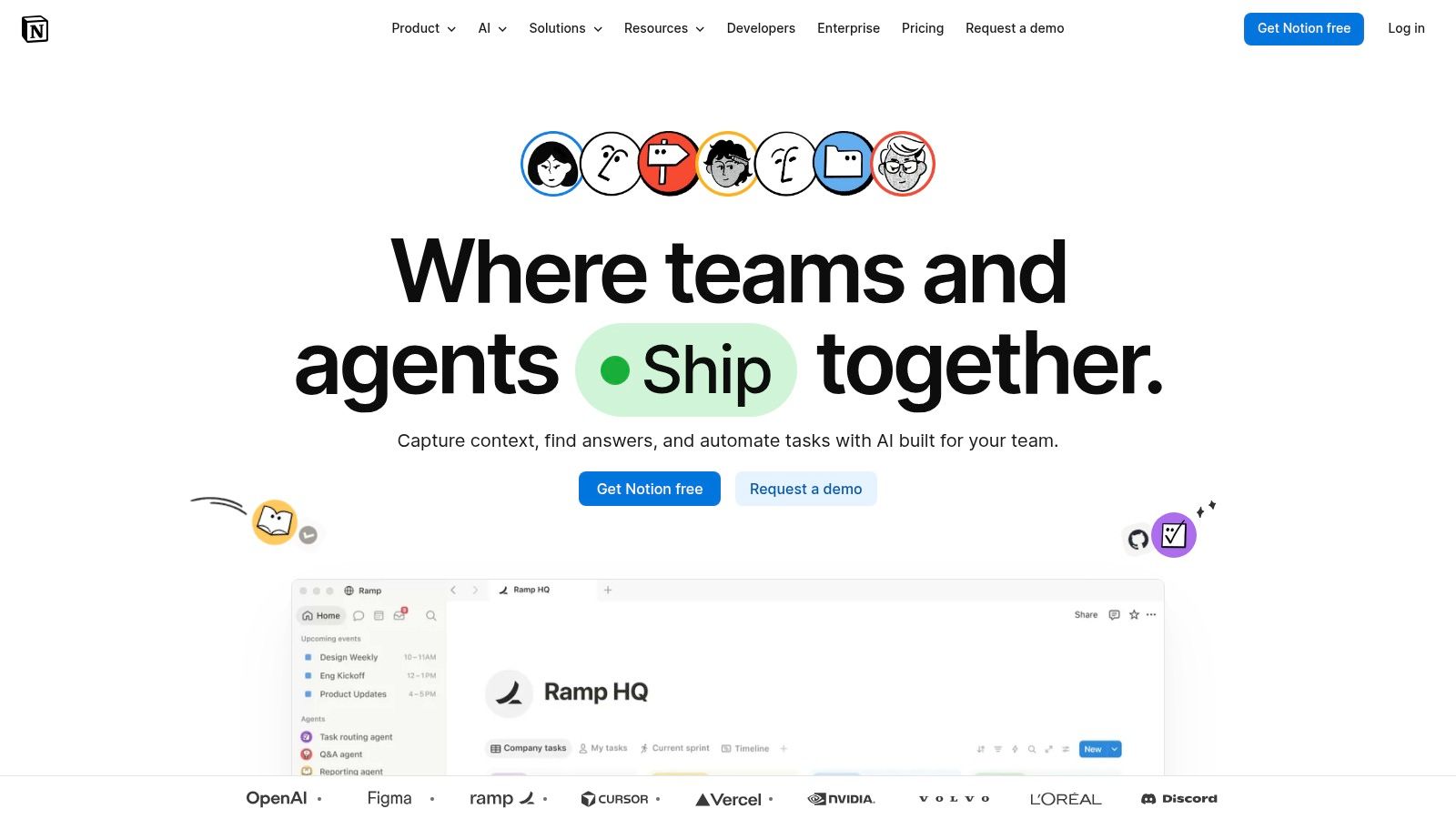
Notion is the most flexible app here, which is both its advantage and its risk. You can build a personal dashboard, team wiki, project hub, content calendar, meeting archive, and lightweight CRM in one place. That flexibility is why teams keep choosing it. It's also why messy workspaces become a problem fast.
For Mac users, Notion works best when you decide what it should be before you start building. If you don't, every new page becomes another place to hide work.
Best for customizable workspaces
Notion shines when documents and structured information need to live together. Databases, docs, views, and templates make it possible to create a customized operating system for work. It's useful for teams, but also for individuals who want one place for projects, notes, and planning.
If you're designing that kind of setup, this guide to personal productivity systems is a helpful companion. For teams comparing broader knowledge management options, this breakdown on choosing between Notion and Confluence is worth reading.
A few real trade-offs:
- Best for adaptable structure: Great if your workflow changes often.
- Excellent for shared context: Teams can keep docs and project metadata close together.
- Easy to overcomplicate: Too many databases and relations can slow decision-making.
- AI is optional, not central: Useful in places, but not the reason to choose the app.
Notion is at its best when someone owns the structure. Without that, it becomes a beautiful warehouse.
6. Obsidian
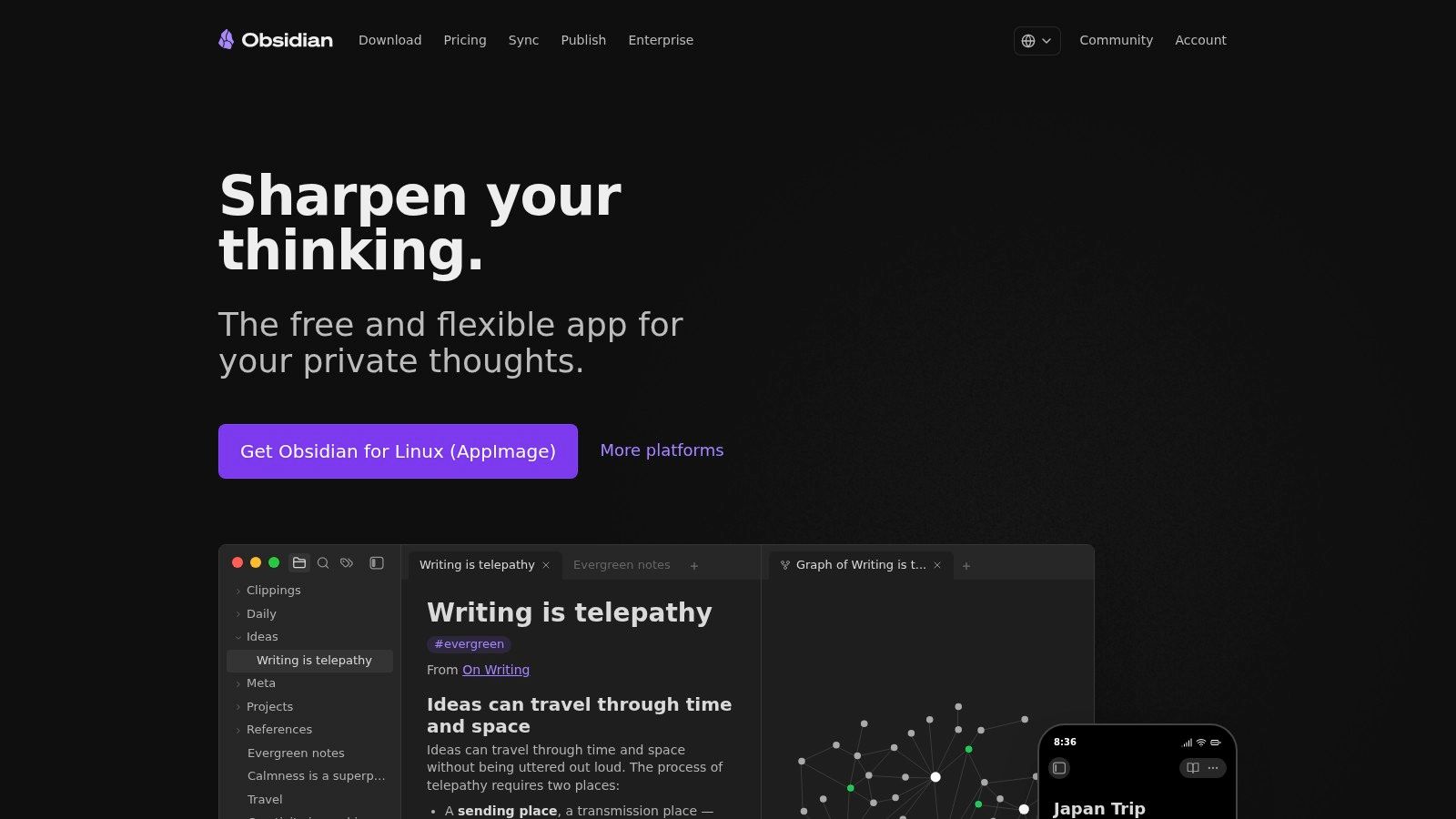
A good notes app should still make sense six months later, when the project is messy, the context is fuzzy, and you need to recover a half-formed idea fast. Obsidian handles that job well because it stores notes as local Markdown files and makes linking between ideas frictionless.
That matters in a Mac productivity system. Not every app should try to do everything. Obsidian works best as the knowledge layer: research notes, meeting takeaways, writing drafts, decision logs, and reference material that need to stay searchable and connected over time.
Best for thinking in connected notes
Obsidian is strongest for people whose work improves through accumulation. Writers, researchers, consultants, founders, and students usually get more value from it as their vault grows. Backlinks, graph view, and quick linking help surface relationships that would stay buried in a folder-based notes app.
It also fits well beside a planning stack instead of replacing one. I would use Obsidian to develop ideas, store source material, and keep durable notes, then let a calendar and task system handle execution. If your schedule is part of that setup, this guide on syncing calendars across your tools helps keep the rest of the system aligned while Obsidian stays focused on knowledge.
The trade-offs are real:
- Excellent for note ownership: Your files stay in plain text, which makes export and backup much less stressful.
- Easy to customize too early: Themes, plugins, and templates can turn setup into procrastination.
- Strong for personal knowledge management: Much better for individual thinking than live team collaboration.
- Fast even with large archives: A big vault usually stays usable if your structure is sensible.
Obsidian earns its place when you treat it as a long-term repository for thinking, not as your task manager, CRM, and project board all at once.
If you want durable notes, privacy, and a tool that improves as your ideas connect, Obsidian is one of the best productivity apps for Mac. If you need shared editing, tight team workflows, or a zero-config workspace, another app will fit better.
7. Fantastical (Flexibits Premium)
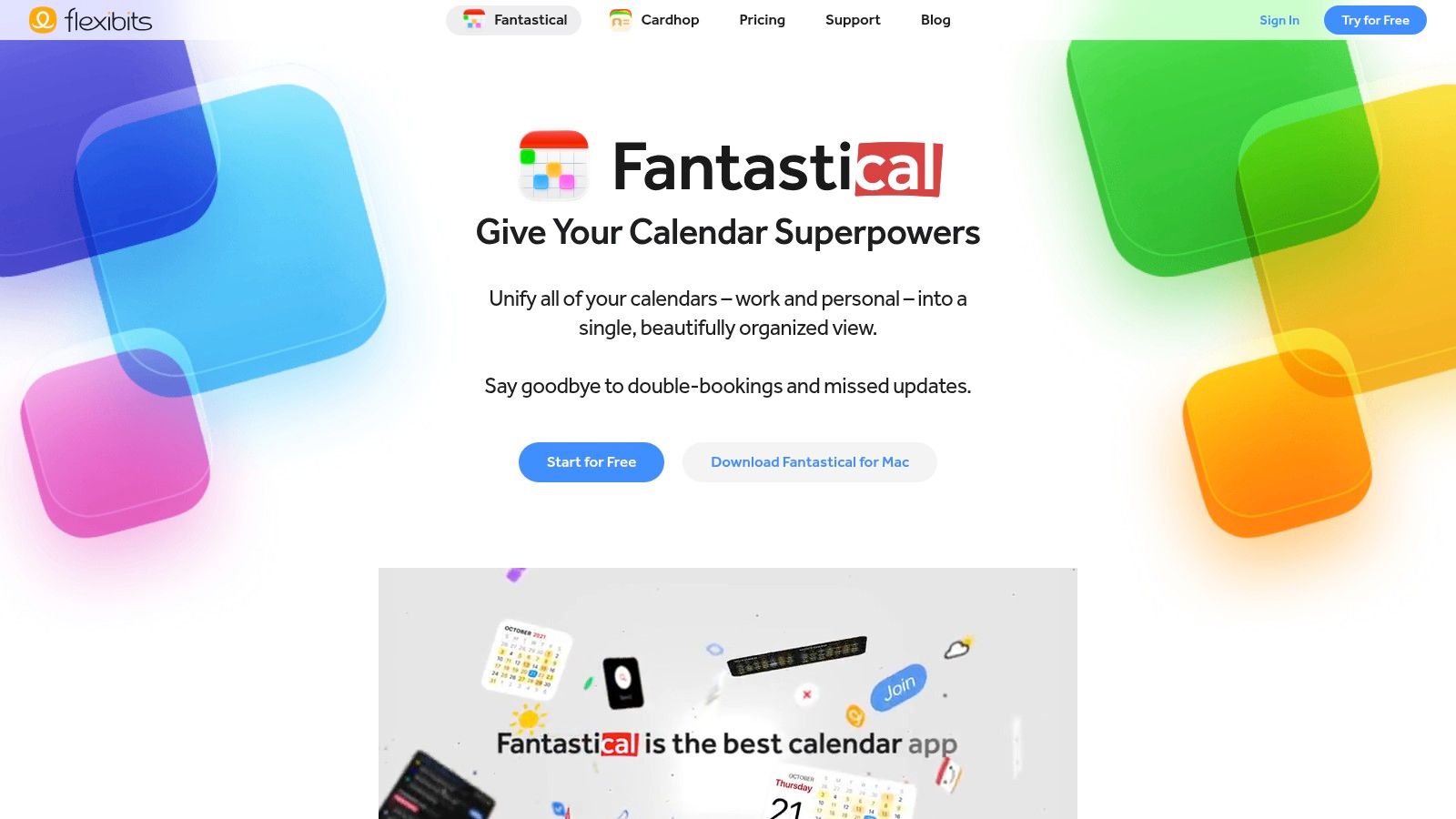
Fantastical is the calendar app people choose after they get tired of fighting their calendar. Its interface is polished, event creation is fast, and juggling multiple accounts feels more manageable than in most default setups.
If meetings, travel, time zones, and scheduling links are part of your work every week, Fantastical can remove a lot of friction.
Best for calendar-heavy professionals
The main advantage here is clarity. Calendar sets, overlays, natural-language input, and integrated tasks make busy schedules easier to reason about. It's especially useful for consultants, managers, and operators who live across multiple calendars and need to switch views quickly.
If your scheduling setup is already messy, it helps to clean the underlying system too. This guide on how to sync calendars is a solid place to start before you pile more subscriptions on top of a broken calendar workflow.
Clockify's 2026 Mac roundup named Fantastical among the notable apps for organizing calendar events on Mac. That fits its real-world role. It doesn't reinvent calendar logic. It just makes heavy calendar use much less annoying.
The biggest drawback is pricing. Fantastical is hard to justify if your calendar needs are basic. Apple's built-in calendar is enough for plenty of people. But if your day is driven by scheduling complexity, Fantastical often feels worth it within a week of serious use.
8. Keyboard Maestro
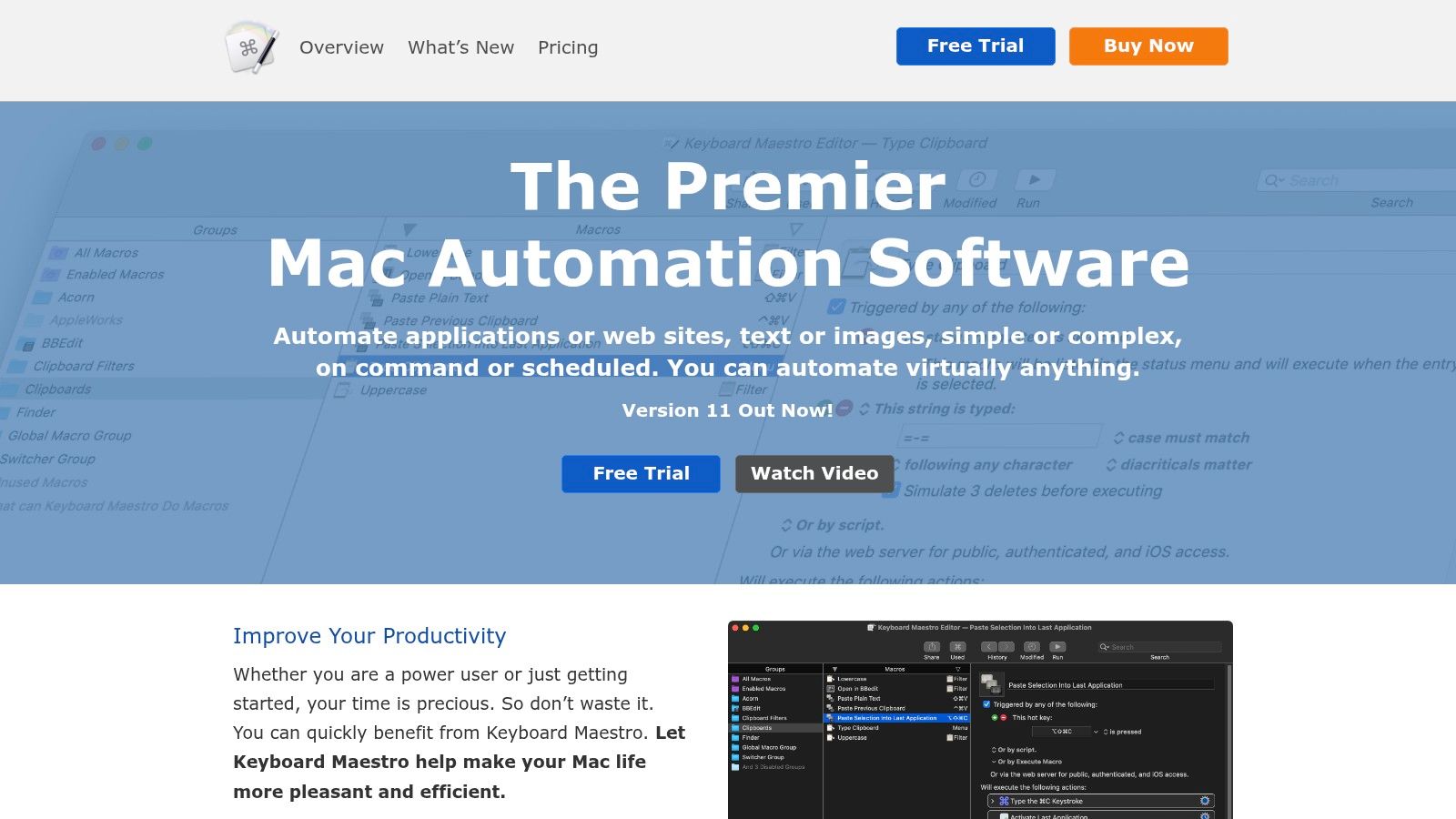
Keyboard Maestro is one of the few apps that can save you time every day without ever becoming the center of your system. It sits underneath your workflow and removes repetitive actions. Rename this, move that, paste this template, launch that app, resize those windows, click through a sequence, trigger a script.
If you've ever caught yourself doing the same five-step routine for the tenth time in a week, Keyboard Maestro is worth looking at.
Best for automating repeated Mac actions
Its power comes from breadth. Hotkeys, typed triggers, app events, time-based triggers, variables, conditions, loops, clipboard actions, and scripting hooks make it useful for both simple macros and fairly deep automations.
Good fits include:
- Administrative repetition: Filing docs, naming assets, opening workspaces.
- Writing workflows: Snippets, cleanup macros, publishing sequences.
- Context switching: One shortcut can open the right apps and arrange the workspace.
- Operational work: Triggering scripts and chained actions across apps.
The trade-off is obvious. It can be intimidating. Keyboard Maestro doesn't hide its depth, so beginners may feel they need to automate everything immediately. They don't. Start with one repeated annoyance and build from there.
It's also Mac-only, which is fine if your work lives on a Mac and limiting if your habits need to travel across platforms.
9. Hazel (Noodlesoft)
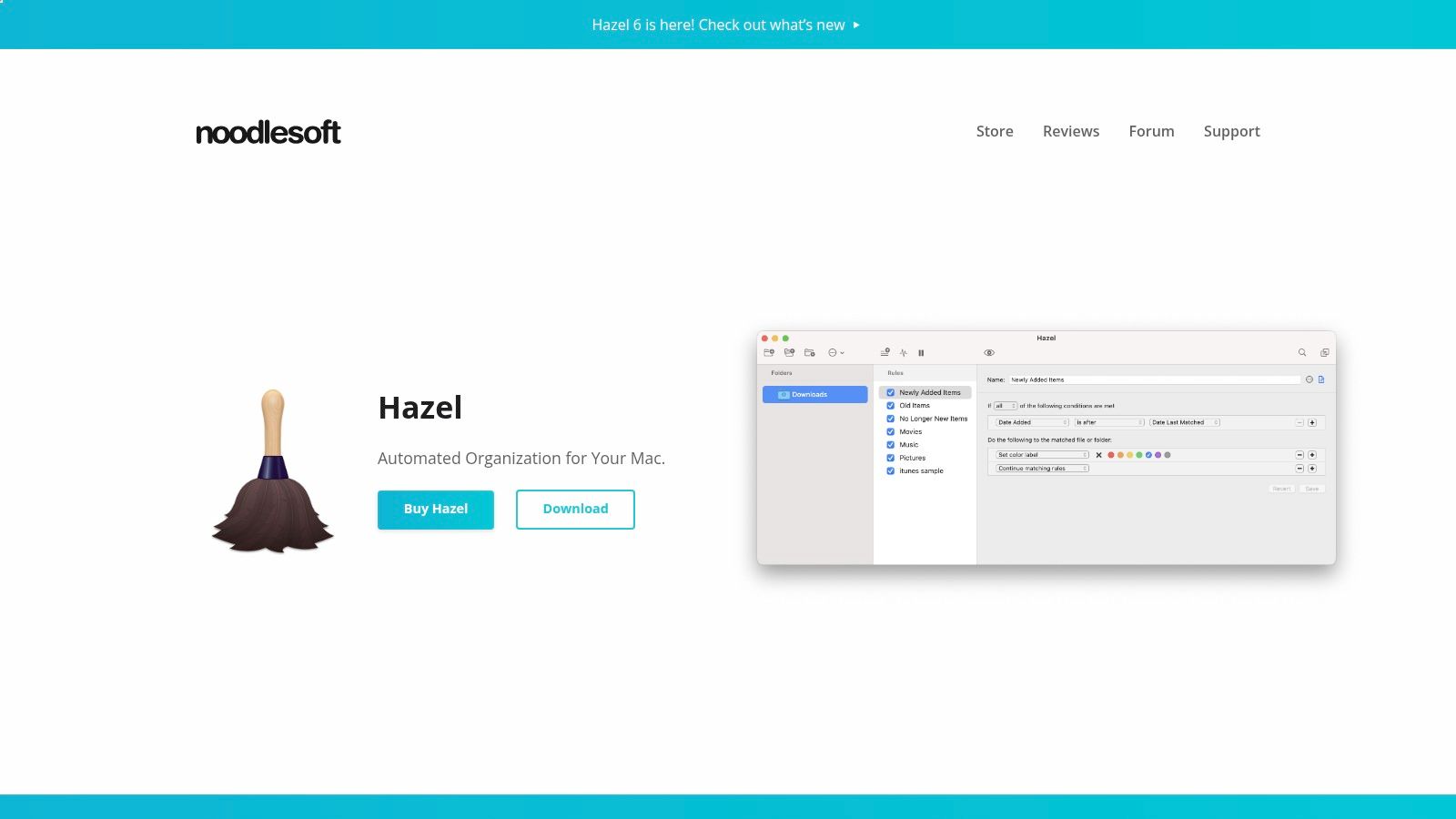
Hazel is one of those apps that looks boring until you use it properly. Then you realize how much low-grade friction comes from messy folders, random filenames, duplicate scans, and a Downloads folder that never resets.
It watches folders and applies rules. That's the whole idea. But the practical effect is that your Mac starts cleaning up after you.
Best for file organization that runs quietly
Hazel is best for operational tidiness. It won't help you prioritize a product roadmap or write a better memo. It will make sure receipts get sorted, PDFs get renamed, screenshots get moved, and stale files don't sit in the wrong place forever.
A few workflows where it shines:
- Downloads cleanup: Move installers, images, and documents automatically.
- Document routing: Send scans and receipts to the right folders with consistent names.
- Tagging rules: Mark files based on source, date, or content.
- App cleanup: App Sweep helps remove leftovers when you uninstall software.
The best Hazel rules are boring. If you notice them every day, they probably need refinement.
The catch is that good rules require forethought. If your filing logic is messy, Hazel will automate the mess. It's a force multiplier, not a decision-maker. But once the rules are sound, it becomes one of the most consistently valuable Mac utilities you can install.
10. Magnet
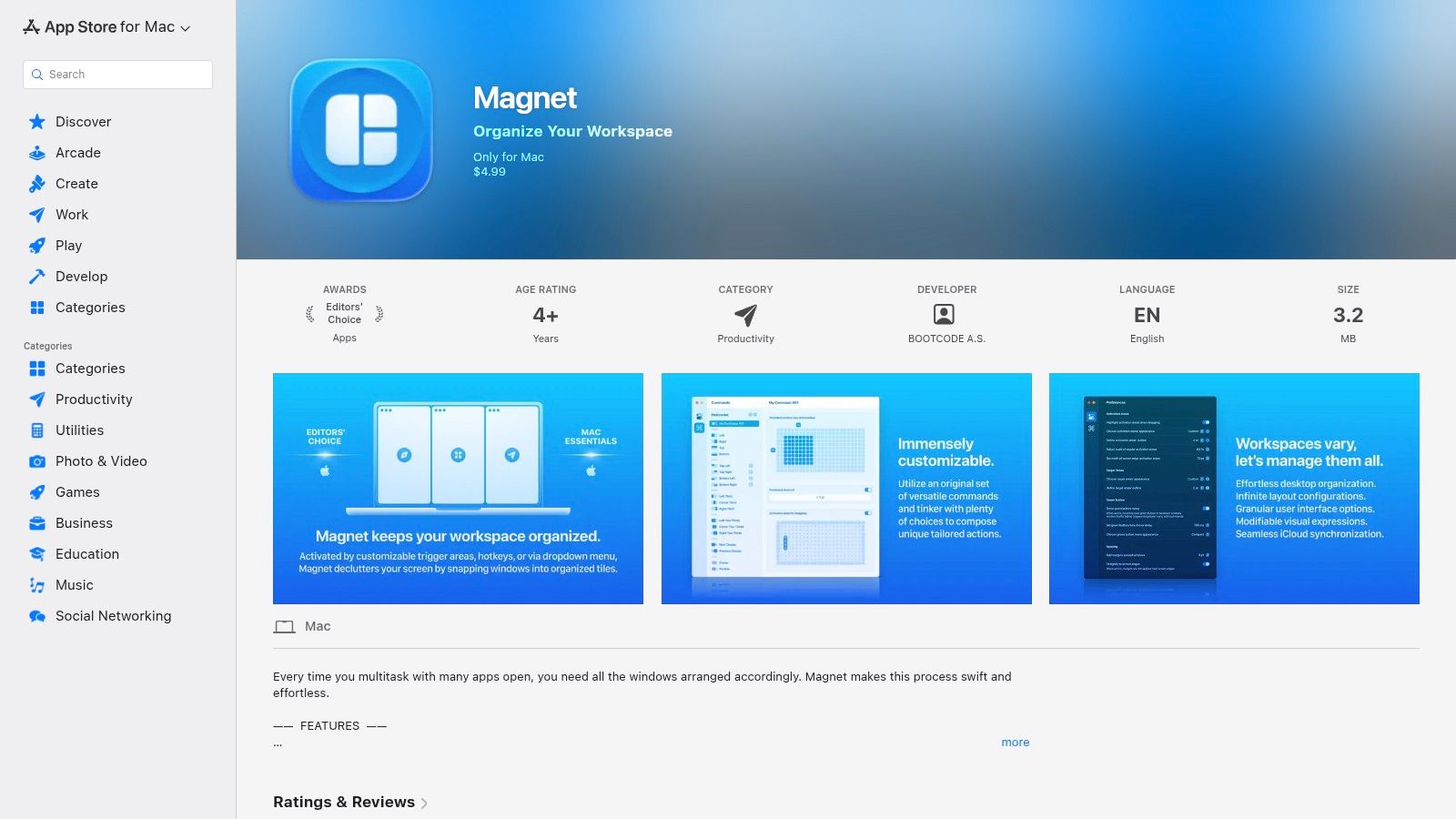
Magnet solves one problem and stays out of the way. That's why people like it. You drag windows into position or use shortcuts to snap them into halves, thirds, quarters, and other common layouts.
For many users, that's enough. They don't need a complex window manager. They need order.
Best for simple window control
Magnet is ideal if you regularly work with two or more windows side by side and want a lightweight way to keep the desktop organized. Writers, analysts, students, and developers all benefit from this kind of basic structure.
Its strengths are easy to summarize:
- Minimal learning curve: You understand it almost immediately.
- Reliable layouts: Useful for focused comparison work.
- Low overhead: It doesn't try to become a bigger platform.
- One-time purchase feel: Attractive for users who prefer simple tools over subscriptions.
The limitation is also the appeal. Magnet is narrow. If you want automation, advanced rules, or broader system-level behavior, you'll outgrow it and move toward something more capable. But for straightforward window tiling, it does the job cleanly.
Top 10 Mac Productivity Apps, Comparison
| Product | Core features (✨) | UX / Quality (★) | Price / Value (💰) | Target audience (👥) |
|---|---|---|---|---|
| Tribble Software Private Limited (Beyond Time) 🏆 | OKR-driven AI goals → auto milestones, routines/habits, 15‑min time tracking, daily AI critique, integrations ✨ | ★★★★★ Accountability‑first, high signal/low friction | 💰 Free web; iOS Pro 2‑week trial → $4.99/mo or $29.99/yr; high ROI for goal completion | 👥 Founders, professionals, students, self‑improvers |
| Raycast | Keyboard launcher, extensions store, clipboard, quick commands, lightweight AI ✨ | ★★★★ Fast, keyboard‑centric for flow | 💰 Generous free tier; Pro for sync/AI | 👥 Power users, Mac developers, keyboard fans |
| Things 3 (Cultured Code) | GTD-style projects/areas, Today/Upcoming, natural‑language dates, deep macOS integration ✨ | ★★★★ Polished, low friction, beautiful UI | 💰 One‑time purchase (Apple‑only); strong long‑term value | 👥 Apple users wanting simple, elegant task management |
| OmniFocus 4 (The Omni Group) | Custom perspectives, Forecast/Review, advanced repeat rules, automation ✨ | ★★★★ Powerful and highly configurable (steeper curve) | 💰 Perpetual license or subscription; premium for power users | 👥 Founders/pros with complex workflows & planning needs |
| Notion | Docs, databases, templates, dashboards, collaboration, optional AI agents ✨ | ★★★★ Extremely flexible; can become complex | 💰 Free tier; clear paid tiers; AI agents cost credits | 👥 Teams and builders needing all‑in‑one workspace |
| Obsidian | Local Markdown vaults, backlinks, graph view, plugin ecosystem, optional E2E sync ✨ | ★★★★ Private, fast; powerful with plugins | 💰 Core app free; optional paid sync/publish add‑ons | 👥 Knowledge workers valuing privacy & ownership |
| Fantastical (Flexibits) | Natural‑language event creation, calendar sets, tasks, scheduling links ✨ | ★★★★ Best‑in‑class calendar UX on Apple | 💰 Subscription for premium features; family plan option | 👥 Busy professionals managing multiple calendars |
| Keyboard Maestro | Macro automation, hotkeys, triggers, variables, loops, clipboard tools ✨ | ★★★★ Extremely versatile; learning curve | 💰 One‑time license; excellent ROI for automation | 👥 Power users automating repetitive macOS tasks |
| Hazel (Noodlesoft) | Rule‑based file sorting, rename/move/tag, app sweep, script hooks ✨ | ★★★★ Reliable set‑and‑forget organization | 💰 One‑time license; saves daily cleanup time | 👥 Users organizing downloads, scans, receipts |
| Magnet | Window snapping/tiling, hotkeys, presets, multi‑monitor support ✨ | ★★★★ Lightweight, stable, very reliable | 💰 One‑time low‑cost purchase | 👥 Users needing simple window management and tiling |
Final Thoughts
The best productivity apps for Mac don't all belong in one setup. That's the mistake a lot of people make. They keep adding tools, hoping the next app will fix a workflow problem that's really about overlap, unclear roles, or too many places to look.
A better approach is to build around a few distinct jobs. You need one place to define what matters, one place to capture or manage knowledge, one place to schedule real time, and a few utilities that reduce friction during execution. Once each app has a clear role, your system gets lighter and easier to trust.
For many people, the right blueprint looks something like this:
- Central planning hub: Beyond Time for goals, milestones, habits, and accountability
- Task layer: Things 3 for simple personal execution, or OmniFocus if your workload is more complex
- Knowledge layer: Obsidian for local-first notes, or Notion if you need shared structure
- Calendar layer: Fantastical if scheduling is a daily pain point
- Speed layer: Raycast for launching, searching, and quick actions
- Utility layer: Keyboard Maestro, Hazel, and Magnet to remove recurring friction
That system-oriented view also matches where Mac productivity software is heading. The strongest tools now tend to reduce fragmentation instead of adding more isolated surfaces. In practice, that means your apps should reinforce each other. Your goals should shape your tasks. Your tasks should show up in real time. Your notes should support execution instead of becoming archives you never revisit.
It's also worth resisting the urge to optimize everything at once. Start with the bottleneck you feel every day. If your issue is drift and inconsistency, begin with a goal-centered system. If it's task overload, fix task management first. If your desktop and file system feel noisy, clean up the operating layer with utilities. Progress comes faster when you remove the sharpest point of friction instead of redesigning your whole stack in one weekend.
The biggest practical takeaway is simple. Pick fewer apps, give each one a clear job, and make sure your core tools connect planning to action. That's what separates a Mac that looks productive from one that helps you get meaningful work done.
If you want a productivity system instead of another disconnected app, Beyond Time by Tribble Software Private Limited is the strongest place to start. It connects goals, AI-generated milestones, routines, habits, time tracking, and daily coaching in one loop, so your plans don't just sit in a dashboard. They turn into visible progress.
Put this into practice
Free tools that match this article.
Time Blocking Template
Map your day into focused time blocks with a free printable time blocking template.
Try Time BlockingTime ManagementWeekly Schedule Optimizer
Generate an optimized weekly schedule with AI-powered time blocking for maximum productivity.
Try Schedule OptimizerTime ManagementWeekly Schedule Template
Plan your week with a free printable weekly schedule template for goals, routines, and focus blocks.
Try Schedule TemplateAssessmentProductivity Score Calculator
Discover your productivity score and get personalized recommendations to improve.
Try Productivity ScoreKeep exploring this topic
Best goal tracking apps
Compare tools for goals, habits, and progress tracking.
Best habit tracker apps
Compare habit apps by use case, depth, and daily workflow.
Time blocking guide
Turn priorities into protected calendar blocks.
15-minute time blocks
Plan and review your day with more realistic precision.
Related Articles
AI Accountability Partner: Smarter Goal Setting
Tired of missed goals? An AI accountability partner provides the structure & feedback you need. Explore benefits, workflows, and tools.

Weekly Goal Tracker: How to Plan and Achieve Your Goals
Design a weekly goal tracker that works. This guide shows you how to connect big objectives to daily tasks, build a tracker, and use AI to stay on course.
Goal Planning Tools: Achieve Your 2026 Targets
Discover the best goal planning tools for founders, teams, & individuals. Our 2026 review covers OKR, habit trackers, & AI systems to hit targets.
10 Best Apps for Daily Routine in 2026
Find the best apps for daily routine to organize your life. We review Todoist, Structured, Beyond Time, and more to boost your productivity in 2026.
Best Email Client 2026 for Peak Productivity
Tired of inbox chaos? Find the best email client for your workflow. We compare top apps on AI, privacy, and productivity to help you achieve your goals.

What Is a Work Plan? Your 2026 Guide to Success
Discover what is a work plan and how to craft one effectively in 2026. Learn components, examples, and mistakes to turn your goals into reality.