How to Use Quick Assign for Faster Time Tracking
Learn how Quick Assign reads your calendar and suggests time block assignments, letting you fill your day in seconds instead of minutes.
Open Quick Assign
From the Today view, tap the "Quick Assign" button. This opens the assignment panel with smart suggestions from your calendar.
Review Calendar Suggestions
Quick Assign reads your calendar and surfaces upcoming events. Each suggestion shows the event name, time, duration, and a suggested category (e.g., "Work - General Work").
Pro Tip
Calendar events are auto-matched to categories based on their content.
Assign or Dismiss
For each suggestion, tap "assign" to accept it or "dismiss" to skip. Assigned events automatically fill the corresponding time blocks in your routine log.
Set Time and Duration
Adjust the start time and pick a duration (15m, 30m, 45m, 1h, 1.5h, 2h, or 3h). The end time and number of 15-minute slots update automatically.
Choose a Category and Routine
Select from Health, Life, Work, or Sleep categories, then drill into specific routines within that category. Tap "assign" to fill the time blocks.
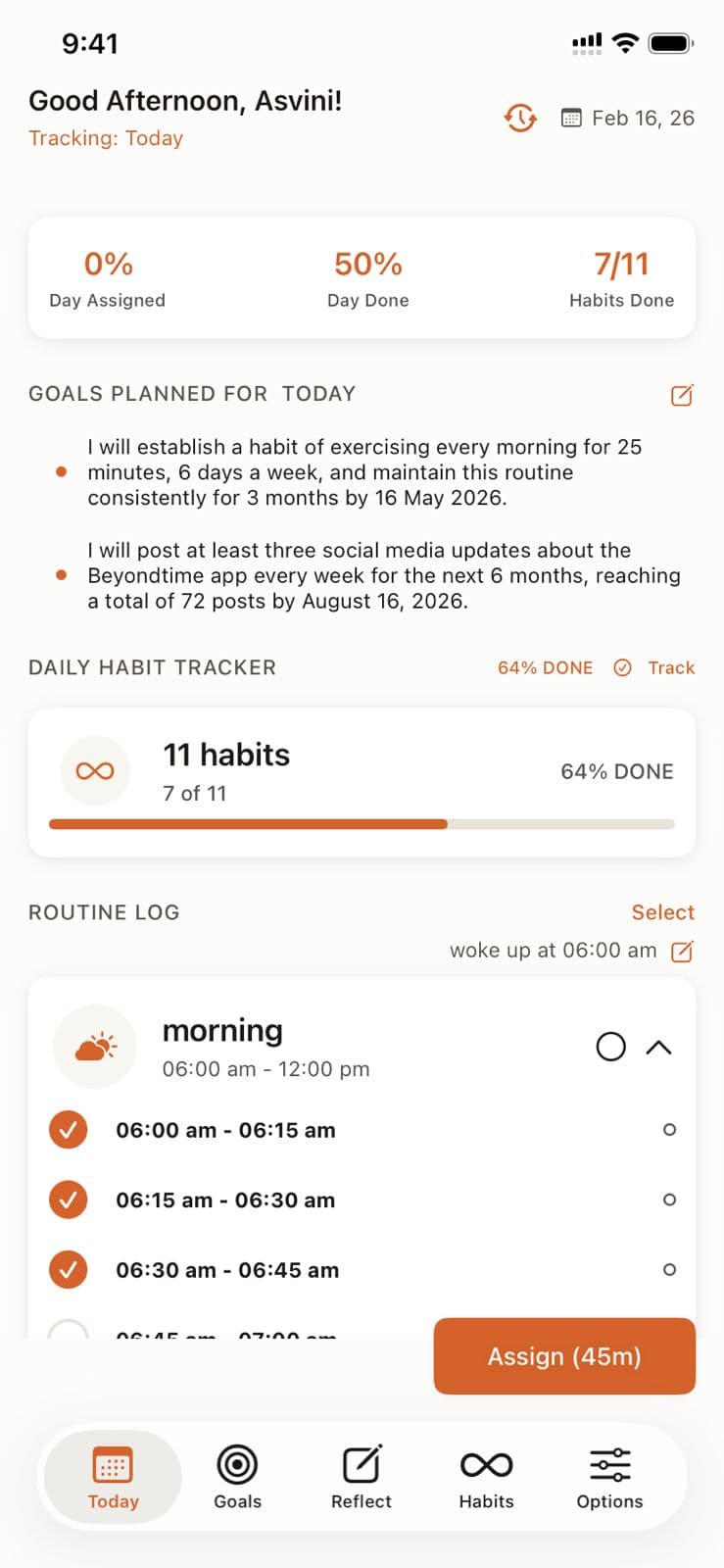
Quick Assign in Beyond Time
Key Features
Related Guides
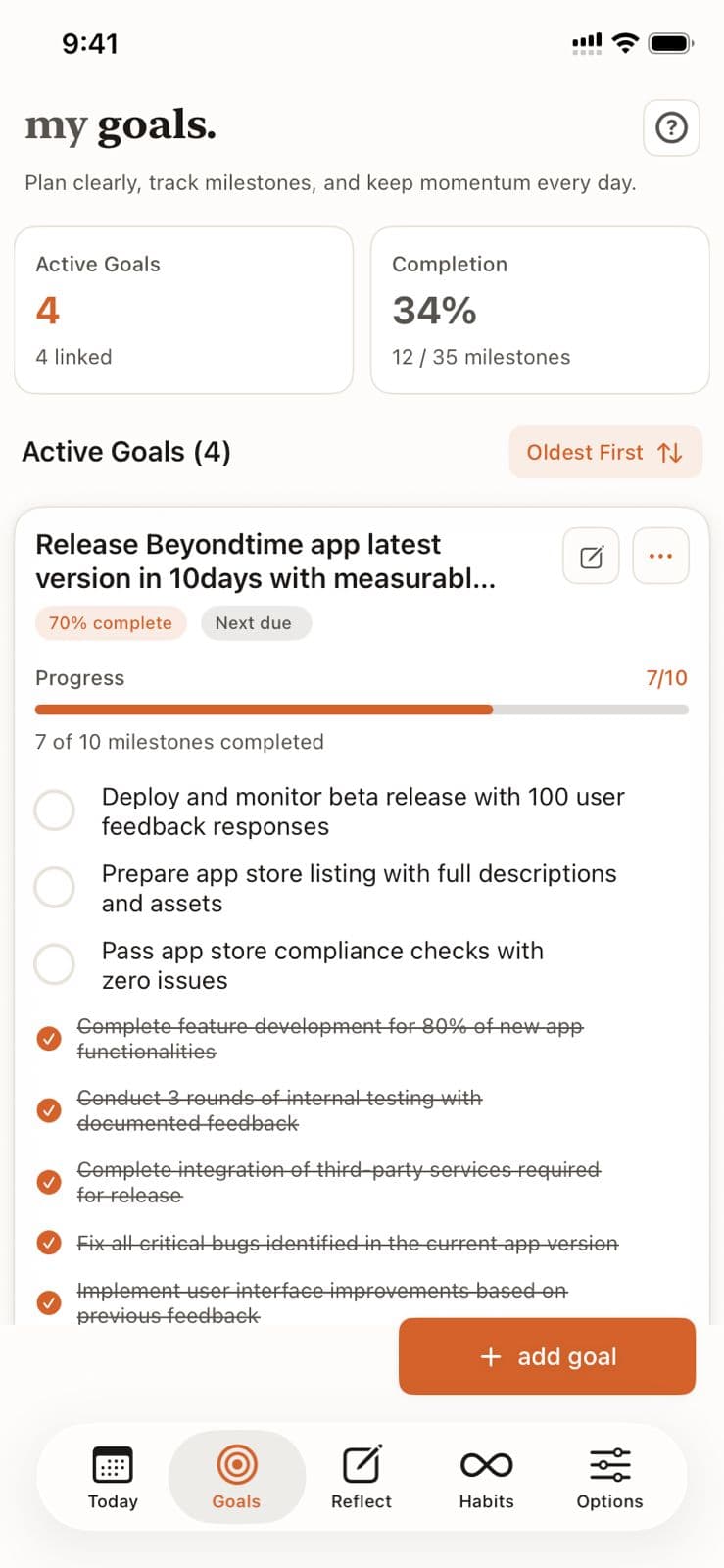
AI Milestone Generator
Discover how to use AI to break down your goals into specific, measurable milestones that create a clear path to achievement.
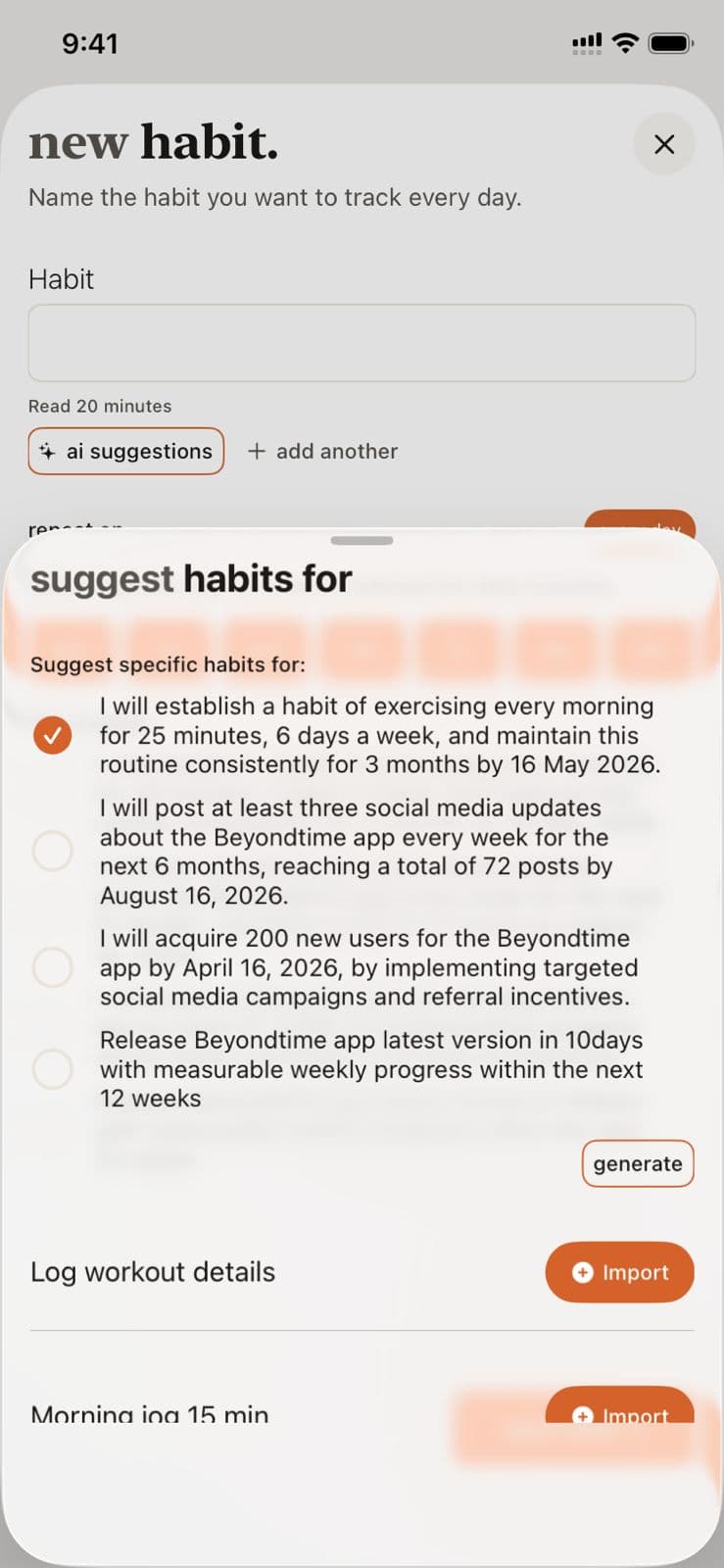
AI Habit Suggestions
Discover how the AI analyzes your goals and personal context to suggest habits that will accelerate your progress and create lasting change.
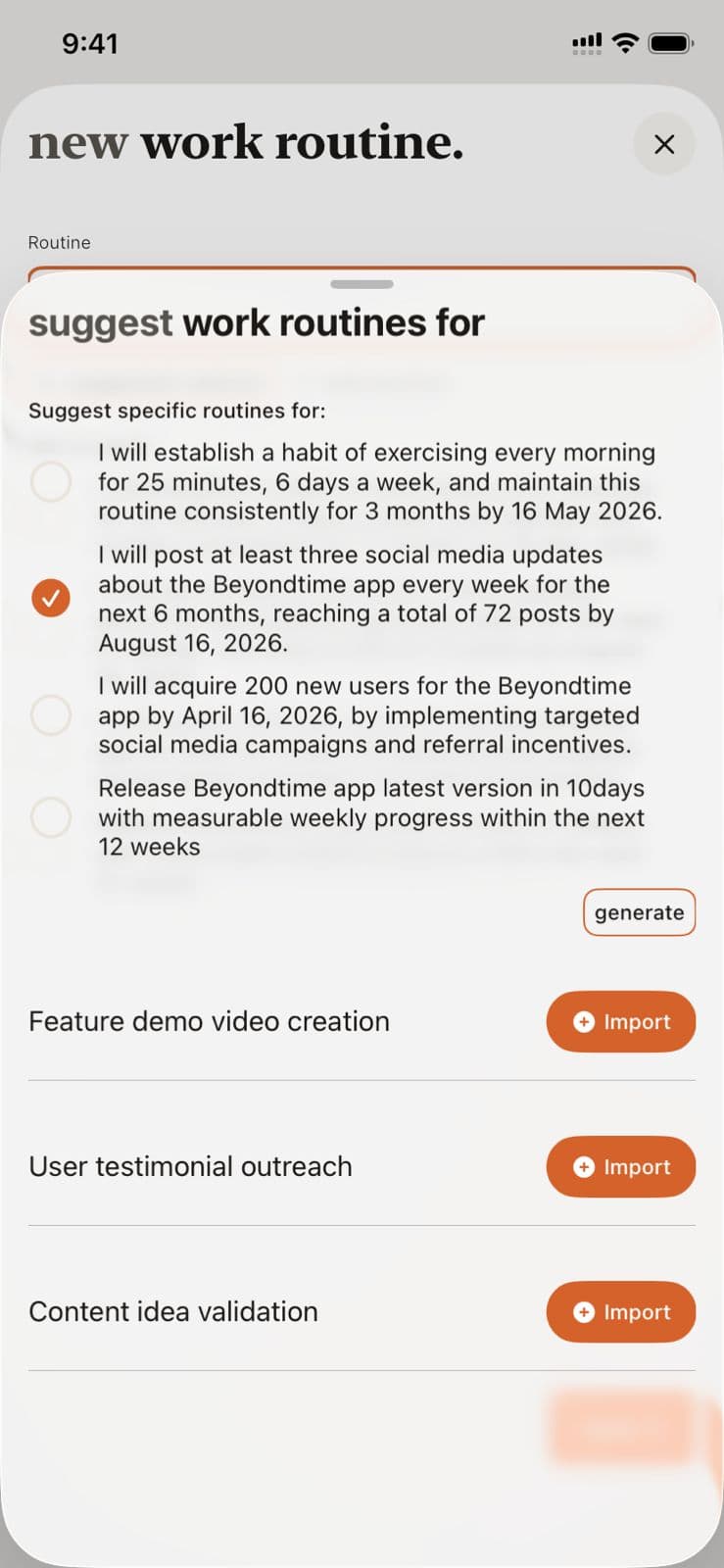
AI Routine Suggestions
Learn how to use AI-powered routine suggestions to build a balanced daily schedule across Health, Work, Sleep, and Life categories.
Ready to Try It Yourself?
Start using Beyond Time today and experience the power of AI-driven time mastery. The web platform is free forever.